Each web browser (Firefox, IE, Chrome, etc.) seems to have free plug-ins which can monitor a web page for changes, which might be able to periodically reload the audit log and detect changes by other users.
If you're running Apptio version 11.8 or higher, the audit log has an API URL available, which provides a direct data feed of the table itself. Right-click the table and select Show API URL for download options (TSV, Excel, Tableau):
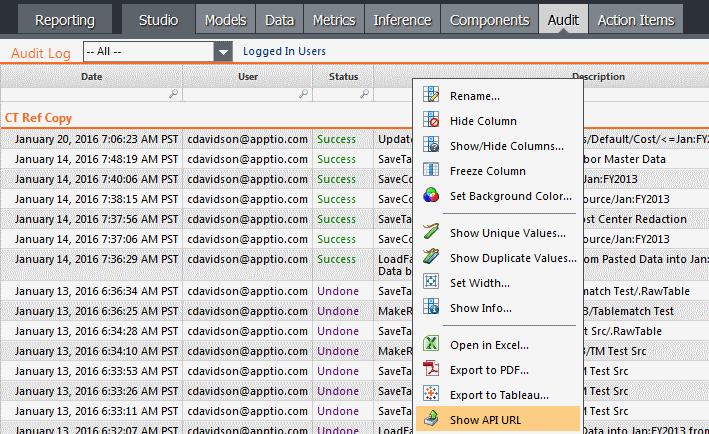
The URL will be quite long, but you can shorten it if needed--from its beginning to the /AuditLog portion, e.g.:
https://customer.apptio.com/biit/api/v2.tsv?date=Dec:FY2015&dataPath=-@@customer.com%3ACost+Transparency/AuditLog
Since we have a direct URL, we can use Excel to automatically download and monitor the table at regular intervals (e.g. every 1-60 minutes).
I accomplished this via Excel 2013:
1. Open a new Excel spreadsheet file.
2. (top) Ribbon > Data > From Text.
3. Paste the API URL into the File name field.
4. When prompted, enter your Apptio username and password (and click Remember my credentials).
5. Click Finish and then OK in the Text Import Wizard dialog.
6. (top) Ribbon > Data > Properties.
7. Check box: Refresh every (5) minutes.
8. Uncheck box: Prompt for file name on refresh. Click OK to save changes.
Now the audit log will refresh every five minutes.
It's a bit large though, so you may also want to:
9. Select all data (e.g. CTRL + A).
10. (top) Ribbon > Insert > PivotTable.
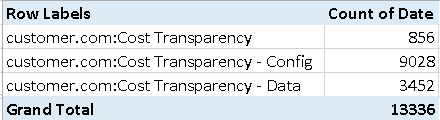
11. Within new pivot table, select Project field for ROWS area.
12. Within new pivot table, select Date field for VALUES area.