Overview
This article shows how to build, configure, deploy, and run an App Connect Toolkit integration with the Workday system. The sample App Connect Toolkit flow will use Workday provided WebService Staffing WSDL to retrieve Worker details. This flow is a REST API that will call Workday getWorkers webservice.
Workday's WSDL's can be downloaded directly by logging into Workday, search for “Public Web Services”, and download the WSDL. Based on the WSDL you can create SOAP message model's in App Connect Toolkit as below.
App Connect Toolkit
Creating SOAP Message Model
Create App Connect Message Model based on the attached Workday's staffing.wsdl.
From the Toolkit, create a Library Workday_WSDL_Shared_Library). Create Message Model, and import the Staffing WSDL as below.
Click <Finish>. This will create Message Model for the Workday Staffing WebService.
App Connect Policy project
In this section, we will create WebServices "Policy Set", and "Policy Set Bindings" security to connect with Workday.
From the App Connect Integration Perspective, create a new Policy Project (ex: x_workday_ws_security).
Create “WS Policy Sets and Bindings” as below. Right click on the Policy Project > New > WS Policy Sets and Bindings.
Security profile
Create a security profile. Right click on the Policy Project > New > Policy.
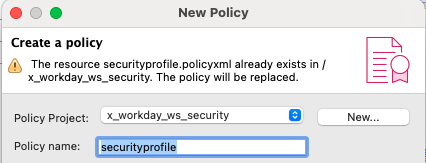
The value set in "Transport propagation configuration" will be used to set Workday Integration user, and password using mqsisetdbparms command.
Import App Connect API
This REST API is pre-built already, so please open each component and see how it's wired. The API expects a Worker ID, which gets mapped to WorkDay's getWorkers WebService.
Note: To invoke a WebService Operation simply drag the WSDL from the left to the canvas on the right. Once the wsdl is dragged, it will show the list of Operations that it support and select the ones that you want to use (as below).
Build bar file
Create a bar file and select the projects (x_invoke_workday_staffing_service, Workday_JSON_Shared_Library, and x_workday_ws_security).
Update Bar file
Populate Policy Set, PolicySetBindings of SOAPRequest as below.
Note: you could also populate from command line.
> Create a properties file (override.props) with below content.
gen.X_Invoke_WorkDay_Staffing_Service#consumerPolicySet={x_workday_ws_security}:usernamePolicySet
gen.X_Invoke_WorkDay_Staffing_Service#consumerPolicySetBindings={x_workday_ws_security}:usernamePolicySetBindings
> mqsiapplybaroverride -b x_invoke_workday_service.bar -p override.props -r
Deploying the bar file to IBM CloudPak for Integration
Login to IBM Cloud Pak for Integration > App Connect Dashboard > Create Server > Quick Start Toolkit Integration.
Drag and drop x_invoke_workday_staffing_service.bar file.
<Next>, and under select "Create configuration", create setdbparms configuration as below. This is where you need to set Workday's integration user and password.
Click Create to create the Integration Server "tk-invoke-workday-worker-service".
Make sure the Integration is in Ready state.
Testing
Test the API by navigating to the Integration Server > Select the API (x_invoke_workday_staffing_service). Pass Worker WID to retrieve the Worker details from Workday.
Acknowledgements
I would like to thank Joel Gomez (Cloud Pak for Integration Tech Lead) for reviewing the article. Joel's feedback was helpful for fine-tuning the article.