Hi @Rebecca Brent, there is some nuance here that begs further explanation.
As @Robert Krauss points out the original and main use case for the join step is to allow joined columns to be used in reporting. However, there are some caveats when it comes to how you would take advantage of that, and there are also some other ways to use it you can stumble into which can lead to performance issues or simply confusion. I will attempt to clarify here.
Please bear in mind that what I outline here applies to version 12.9.x of Apptio’s Cost Transparency product.
First, let’s say you want to take advantage of that main use case. You have a custom modeled table called “Storage Arrays” and within that table you have a “Site ID” column, but no other site specifics. You have a report based on Storage Arrays and you want to add additional site specifics like geographic location which exist in another table called “Site Info” which has the Site ID and the additional site specifics you want. You could do a lookup from the Storage Arrays table to the site table to pull in the additional information, but if there are a bunch of columns you want to bring in (e.g. country, state/province, city, etc.) then that can become tedious and even lead to performance issues if the tables in question are large enough. In that case you could add a join step to the Storage Arrays table that joins it to the Site Info table based on the Site ID column. This would allow you to select the columns in the Site Info table when configuring reporting elements based on Storage Arrays.
I emphasize the “custom modeled table” above because you can not and would not want to do this with an out-of-the-box master table. For that you there is another option. Which brings us to the second use case.
Second, it is possible to use columns associated via a join step in Map Columns steps. This allows you to incorporate columns from a joined table into a master table. So your join step might look like this: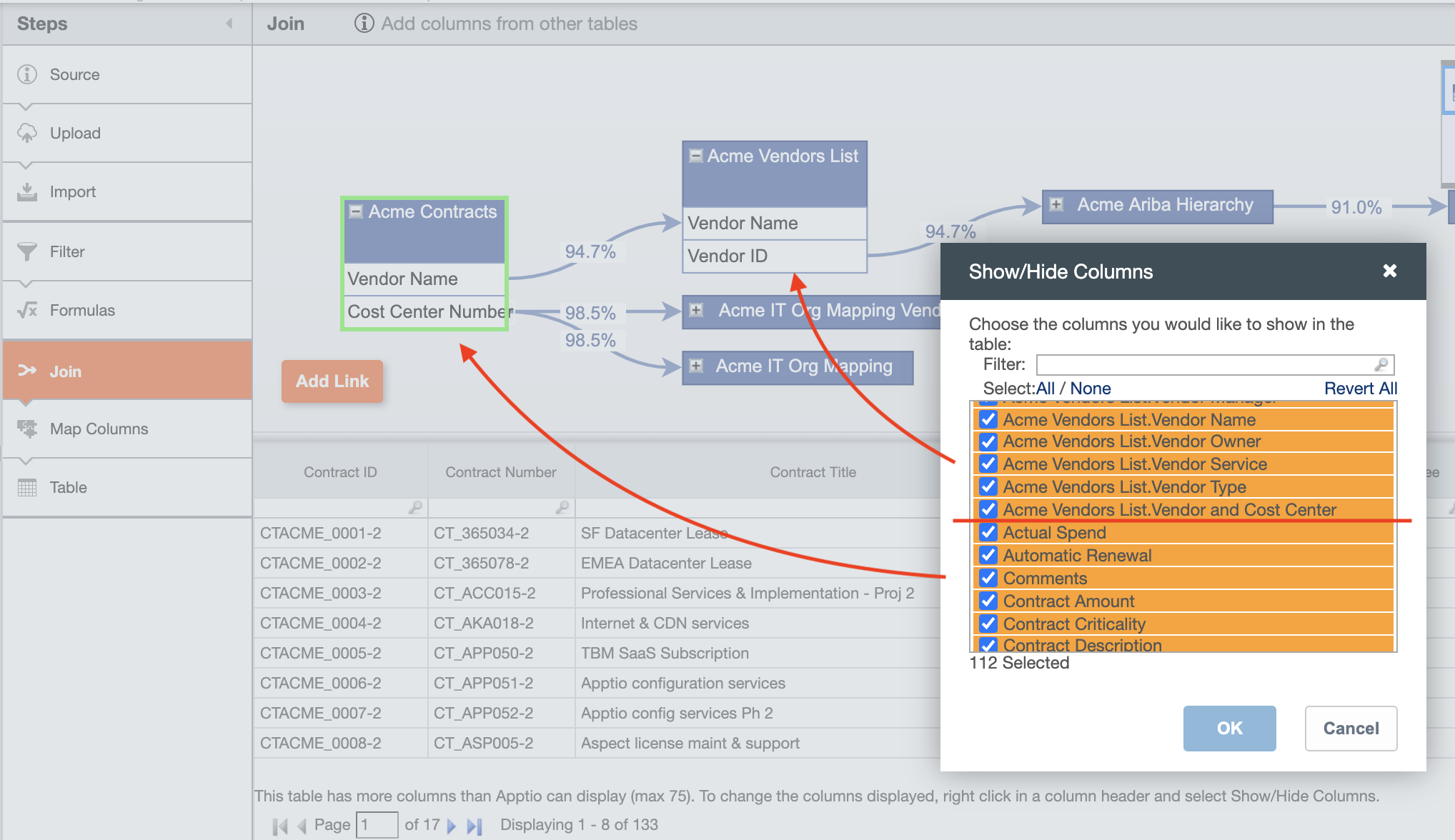
And then in your Map Columns step you can click the drop downs and choose the joined columns:
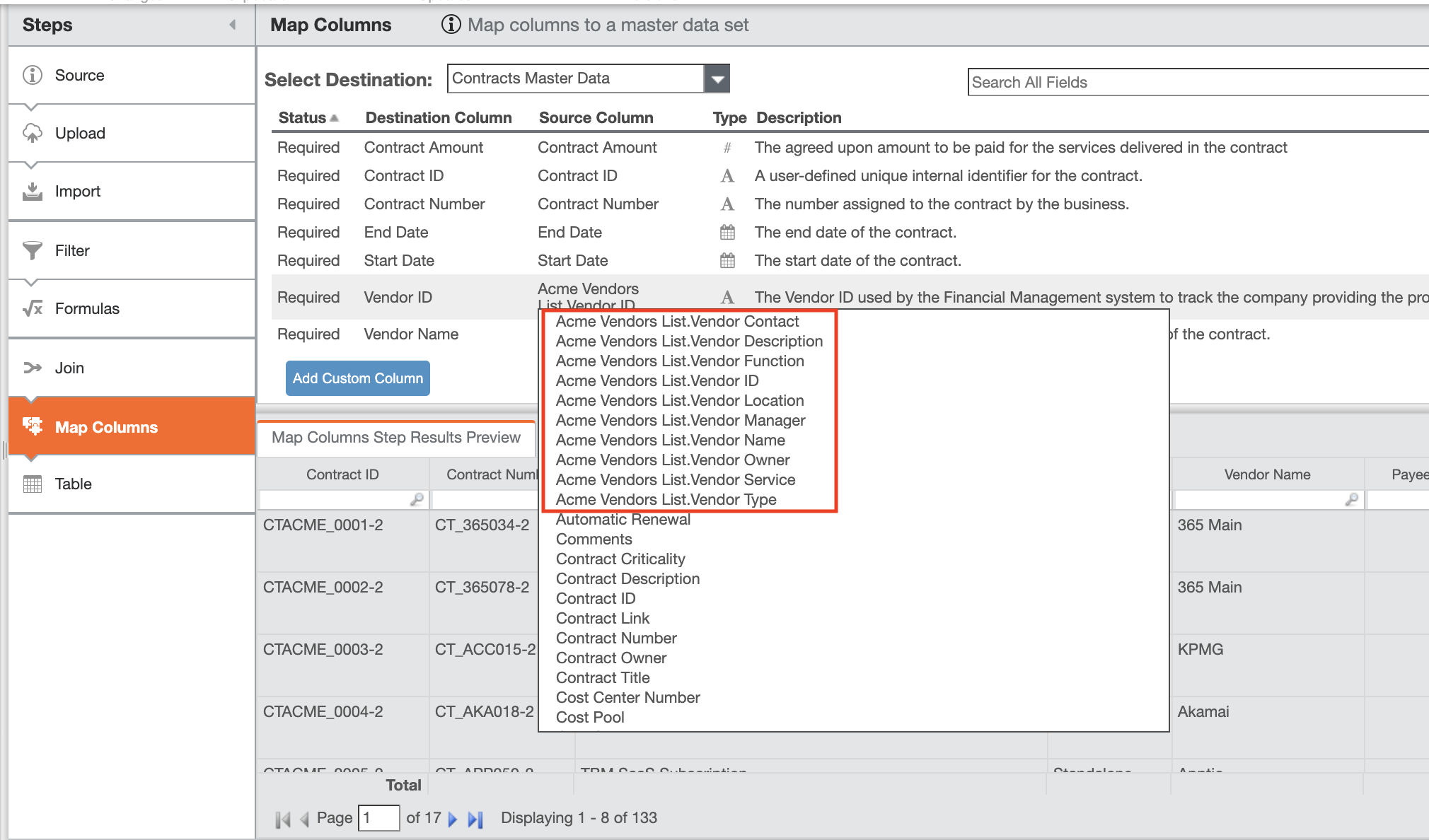
Columns added via Map Columns in this way are available both in the model and in reporting.
Finally, the Join help documentation touches on using joined columns in model drivers. In fact, you can use join columns almost anywhere in the modeler, but there are pitfalls and potential negative performance implications. This use case is implemented in the same manner as the first in that If you were to add a join step to a custom modeled table then the joined columns would be available for selection in any modeling element that references the table’s columns. However, the pitfalls I mention include:
- Degradation in performance due to too excessive join steps - Join steps do create a table in the background which can become excessively large. This can result in slowness when accessing the modeler and increased calc times.
- Confusion resulting from grouping - If you include columns via join there is an implied grouping based on the granularity of the column you are joining on. This can lead to “various” in other column values that isn’t obvious when looking at the table being joined. This results in confusion and calls to our help desk.
I recommend sticking with lookups if you are working with custom modeled tables and need to pull columns in. If you are working with out-of-the-box masters then using a join and a Map Columns step is fine.
#CostingStandard(CT-Foundation)