Printer Setup – Print-To-Disk
Personal Communications (PCOMM)-Print Setup- Print-To-Disk feature is used to save a host print job or the contents of the session window (print screen) to a PC file instead of printing it on paper. The function has an advantage over the print-to-disk function provided by printer drivers.
PCOMM: Print-To-Disk saves the user’s print job data to a configured file by Appending, Overwriting, or Making a new copy. The Print-To-Disk feature supports the .txt and .doc file formats. Users can browse/select any one of the file formats through the browse option to append or overwrite the print job data.
PCOMM users can use the “Overwrite” option in the “Print to Disk” feature. It helps the customer to clear the existing configured print file when the user purges the collection of screens. This setting helps the customer to overwrite the configured file when the user clicks the print screen.
The Print-To-Disk feature helps the customer to use the .doc formatted files for the migration from another emulator to PCOMM and print automation.
Printer Setup
Users can set up specific information for each printer and able to change the printer assignment.
The menu displays the list of available printers. Users can assign different printers to different windows, as printer assignment is unique to each WorkStation window.
The highlighted printer in the list is currently active and to choose another printer, select and click OK to activate the printer.
To change the configuration of a printer, like resolution, orientation, paper width/height, etc. choose the printer and click on the Setup button (setup values vary from printer to printer).
Print-to-Disk
The Print-to-Disk function allows the user to save a host print job or the contents of the session window (print screen) to a PC file instead of printing it on paper. The function has an advantage over the print-to-disk provided by printer drivers.
The Append and Overwrite functions support the .txt and .doc file formats. The user can browse/select any file format through the browse option to append or overwrite the print job data.
Print-To-Disk UI: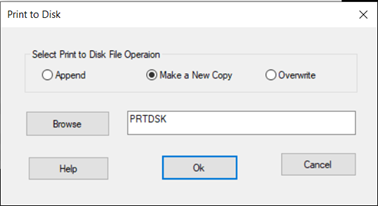
Append:
If the user configures an existing file / new file, subsequent print jobs will be appended to the data in the original file. The functionality has the advantage of having the existing printed job data.
Make a New Copy:
If the user configures the default file name while performing the print screen operation, it will create a new file with the number for each print job.
Refer to the below example,
Make a New Copy UI -Print-To-Disk
Example 1:
User-configured File format with the default file name:
“PRTSCR.txt” or “PRTSCR.doc".
Generated File Format:
“PRTSCR001.txt” or “PRTSCR001.doc” to “PRTSCRnnn.txt” or “PRTSCRnnn.doc”.
Example 2:
The user is configured with the default file name: PRTSCR.
Generated File format: PRTSCR001.txt to PRTSCRnnn.txt.
The functionality has the advantage of having printed job data in the new file for each "Print Screen" job request.
Overwrite
If the user configures an existing file, subsequent print jobs will be overwritten to the data in the original file. This functionality enables clearing the print file between printing the print collection.
Print-to-Disk is available for the following print operations:
- Host-directed printing (LU type 1 or type 3).
- Host-initiated local copy (LU type 2).
- Print Screen.
Note:
- The user must use PDT mode for Print-to-Disk.
- The user cannot use the printer drivers.
- For host-directed printing, the user must have a printer session configured, this must be set up to Print-to-Disk.
- Print-to-Disk is not available for the Print Graphics function.
Steps to Configure the File via the Print-To-Disk dialog:
- Launch the Printer Setup dialog and go to the File and select Printer Setup from the Menu.
- From the list, select the Print-To-Disk printer name and click the Setup button on the Printer Setup dialog
- Now, the Print to Disk window appears.
- Choose an Append / Make a new copy / Overwrite option from the dialog window.
- Browse the filename(.txt/.doc) to configure the printer setup.
- If you specify the name of an existing file, subsequent print jobs will be appended to the data in the original file.
- Click the OK button.
- Select the PDT file and click the Select PDT button from the Printer Setup screen.
- Select the Make a New Copy/ Overwrite operation from the “Print-To-Disk” UI dialog and click the Setup button from the Printer setup screen.
- Browse .txt and .doc format files from the local directory.
- Click OK from the Print-To-Disk and Printer setup screens.
- Click Print Screen.
Print Screen
Print Screen sends the contents of the presentation space to the printer assigned to the session. Users can print the contents of a WorkStation window using a printer. Users can print the entire window (screen print) or part (trim print).
Note: Only the presentation space gets printed.
Print Screen Collection
The Print Screen Collection functions are available for 3270, and 5250 display sessions Users can capture all or part of the screen, add it to a collection of screen captures, and then print all the collected screen captures simultaneously.
The current Page Setup settings are applied to the printed screens.
Collect Screen
Users can use this function to gather display session screens to print multiple screens in a single job. Each time user clicks on Collect Screen, the currently displayed screen is added to the collection of screen captures. The status bar indicates the number of collected screen captures.
Note:
- While you are collecting screens, the normal Print Screen function can be used to print a single screen per job.
- There is no limitation on the number of screens collected unless buffer space is not available.
- Users can use the Print Screen Collection function to capture part of a screen.
To use the Print Screen Collection function to collect part of a screen, take the following steps:
- Use the marking rectangle to mark an area of the screen.
Click on "File," go to "Print Screen Collection," and select "Collect Screen" in the usual way. Personal Communications captures the entire screen image (including the white marking rectangle) and adds the screen image to the list of collected screens captured in the usual way so that the user can see the context of the area enclosed by the white marking rectangle.
- Print the screen image. Personal Communications prints only the area that lies inside the white marking rectangle.
Process Collection
This function opens the Process Print Screen Collection dialogue. Users can preview the collected screen captures, can select collected screens to be printed or purged. Process Collected Screens allow the user to
- Review the screen images that you have collected.
- Select one or more screen images.
- Print or delete selected images.
Users can process collected screen images in the following ways:
- Use the scroll bar to scroll through the collected screen images.
- Click a collected screen image to view a larger version of the image.
- Select one of the check boxes next to the image for printing or deletion.
- Collect and print part of a screen.
The definition of the available options is as follows:
- Select All: Select all the screen images in the collection.
- Deselect All: Clear the selection of all the screen images in the collection.
- Print and Purge Selected / Print and Purge Collection: Print each screen image the user has selected and purge it from the collection (Selected images will be removed from the collection).
- Print and Keep Selected / Print and Keep Collection: Print each screen image the user has selected and retained it in the collection (Each selected image will still be selected).
- Purge Selected / Purge Collection: Purge all the selected screen images from the collection.
Note: The above fields are enabled only if the user has selected one or more screen images.
- OK: Save the list of selected images and highlighted image list and close the dialogue. The last action would be "Printed number screen(s)" or "Purged number screen(s)," which will be updated on the status bar of the main window.
- Cancel: Close the dialogue without saving the list of selected images or highlighted image list. Any action done on "Print and Purge Selected," "Print and Keep Selected," or "Purge Selected" cannot be canceled by clicking the Cancel button. The last action, such as "Printed number screen(s)" or "Purged number screen(s)," will be updated on the status bar of the main window.
Generated File Name after each Print Screen Job:
- Configured files must be overwritten/ created newly in the selected directory when the user has selected the “Overwrite” operation from the “Print-To-disk” dialog.
- New files should be created in the configured directory when the user selects the “Make a New Copy” / “Overwrite” option from the “Print-To-disk” screen. The session screen Status bar gets updated based on the selected Print-To-disk file operation in the Print-To-Disk UI.
- The Generated files should be in the .txt /.doc format with collected screen content.
- For “Make a New Copy,” the file format should be “PRTSCT.txt” / “PRTSCT.doc” when the user performs the “Print Screen” for the first time. After that, the filename starts adding the number based on the occurrence like “PRTSCT001.txt” / “PRTSCT001.doc”.