As you step through the IBM Installation Manager’s Install path, this page appears.
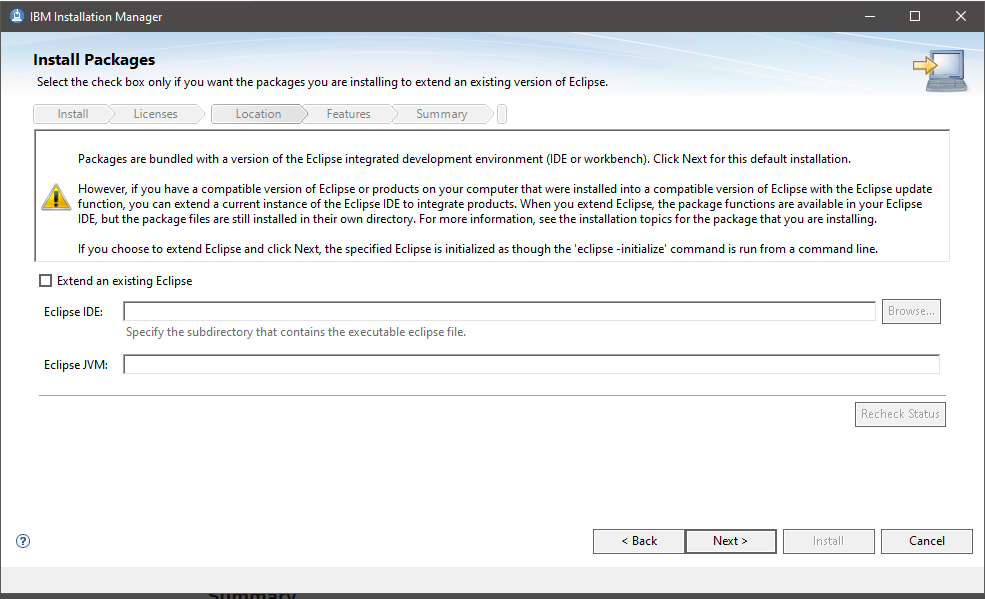
It looks intriguing. If you have other Eclipse-based products installed, you might be interested in consolidating. “What’s the use in having multiple Eclipse installations on this one machine? Let’s put them together.”
It’s not going to work. The devil is in the details, which are right there next to the yellow triangle.
|
Packages are bundled with a version of the Eclipse integrated development environment (IDE or workbench). Click Next for this default installation.
However, if you have a compatible version of Eclipse or products on your computer that were installed into a compatible version of Eclipse with the Eclipse update function, you can extend a current instance of the Eclipse IDE to integrate products…
|
The key is “compatible version of Eclipse”. Across the broad spectrum of Eclipse-based products out in the world, there is no specific coordination to make sure this family of products uses the same Eclipse version as this other family of products. Couple this with the fact that the automated testing tools use a relatively old version of Eclipse and you simply will not find a “compatible version of Eclipse”.
In the end, that may be just as well, as the automated testing tools are only tested on the Eclipse foundation with which they are built. Trying to use them with an extended existing Eclipse is an untested and unsupported configuration.
The best advice for a successful installation comes near the beginning of that text box.
Click Next for this default installation.