Applies to: DataLink 4.0+
 | Apptio Uplifted Content This document was contributed by Apptio expert and Product Management Analyst @Jas Banwait. |
In this article:
About RVTools
You can import VMware data (Learn more) using RVTools to allocate infrastructure costs within the Apptio Cost Transparency (CT) application. RVTools is a Windows .NET 4.0 application that uses the VI (VMware Infrastructure) API to display information about your virtual environments.
Accessing VMware data
You can access VMware data by installing RVTools and then logging in to the vCenter or ESX Server. RVTools supports logging in using a username/password or Windows credentials. You can download RVTools from https://www.robware.net/rvtools/.
NOTE While this document describes how to use data from RVTools in Cost Transparency, it is not intended to be an endorsement of this third-party utility. Work with your VMware administrator to ensure that it is approved and used properly.
Type of VMware data
The types of VMware data you can access and import into the Apptio Cost Transparency application are:
- Physical servers
- Hypervisors
- Logical servers
- Storage
Data sources supported
| Source | Description |
|---|
| Flat CSV File | Use RVTools to extract data from your vCenter or ESX Server and export them to a .CSV file that can be uploaded into Apptio Cost Transparency. |
Versions supported
This guide was created for and tested with RVTools version 3.9. It might work with earlier or later versions of RVTools, however, it has not been tested against them.
RVTools supports the following:
- VirtualCenter 2.5
- ESX Server 3.5
- ESX Server 3i
- ESX Server 4i
- VirtualCenter 4.x
- ESX Server 4.x
- VirtualCenter 5.x
- VirtualCenter Appliance
- ESX Server 5.x
- VirtualCenter 6.0
- ESX Server 6.0
- VirtualCenter 6.5
- ESX Server 6.5
TIP Navigate to the RVTools download page ( https://www.robware.net/rvtools/) to check for the latest list of supported VMware Software.
Use RVTools to export VMware data
RVTools allows for the manual export to a .CSV file of each of the datasets it collects. For Apptio Cost Transparency, the following datasets must be exported: vInfo, vPartition, vHost, and vDatastore.
- Log in to RVTools using one of the methods listed below:
- Local VMware Credentials
- Active Directory(AD) Windows Credentials
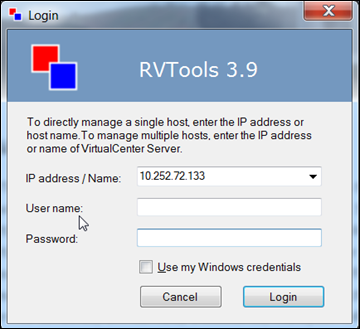
(Click to enlarge)
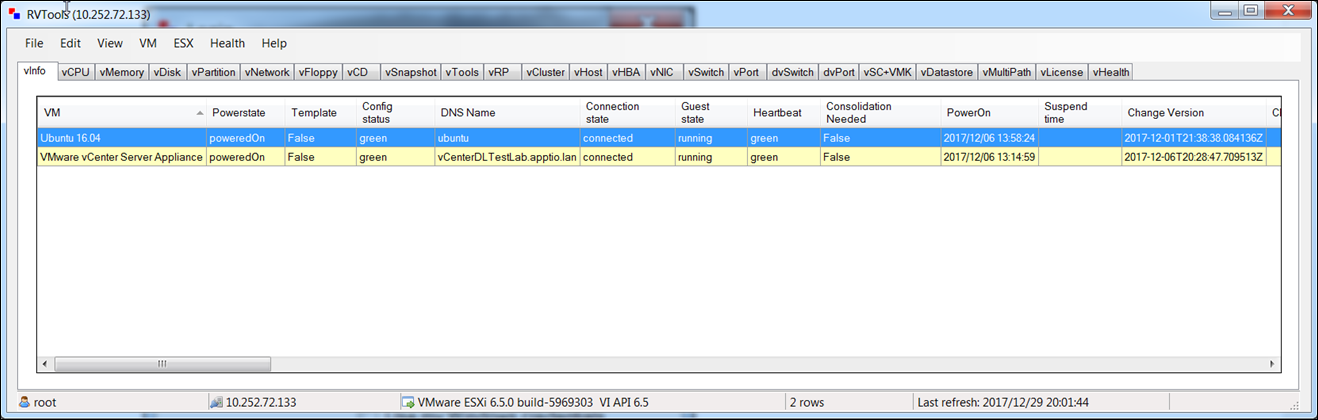
Follow steps 2 and 3 for each of the following data tabs:
- vInfo
- vPartition
- vHost
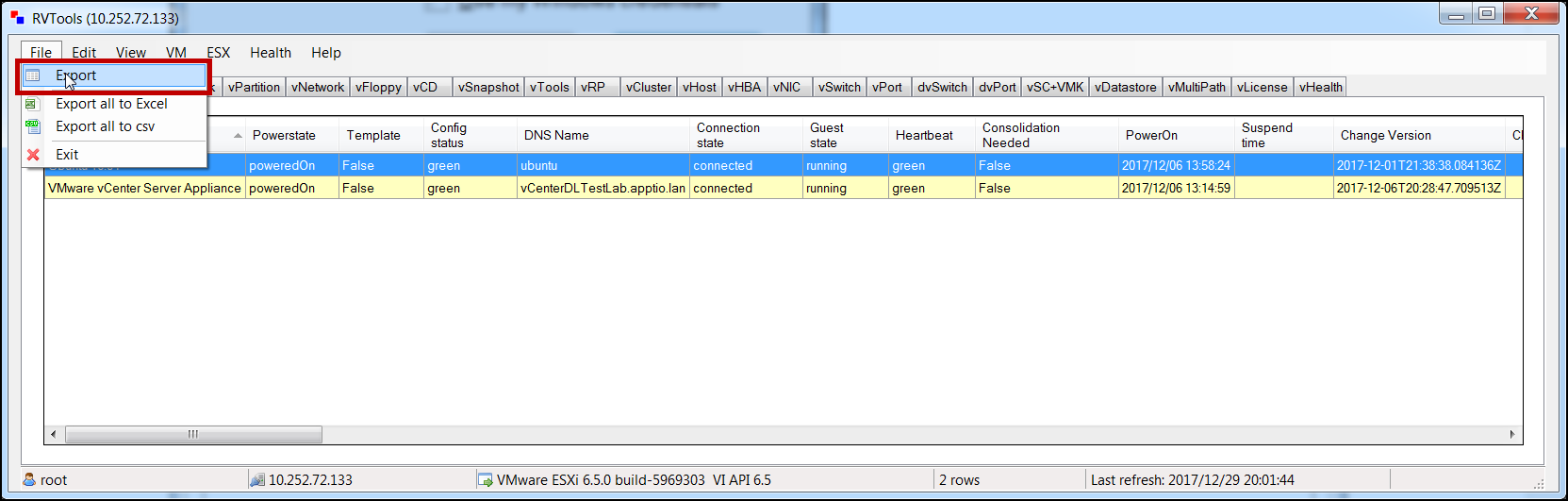
- vDatastore - Click File > Export.
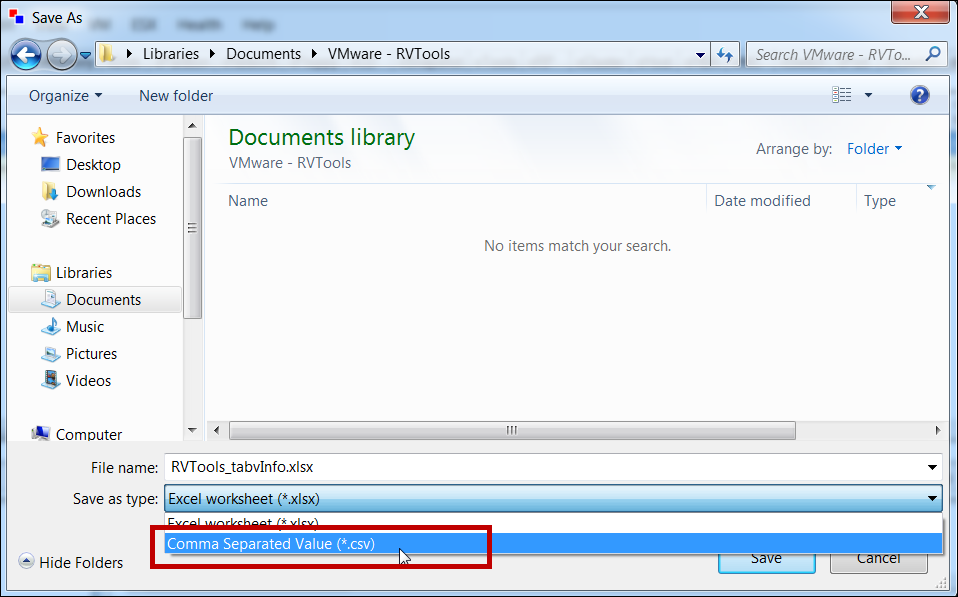
- Change the Save as type to Comma Separated Value (.csv), and then click Save.
Map VMware Data to Apptio
After importing the VMware data into the Apptio Cost Transparency application, you must map the data to their respective data sets.
Reports described above return hardware asset data sets. The data sets include a mapping guide for appending the data into their respective Master Data sets. Install the following components within the Cost Transparency project to map the data in Apptio:
- CT Apps – Servers
- CT Apps – Storage
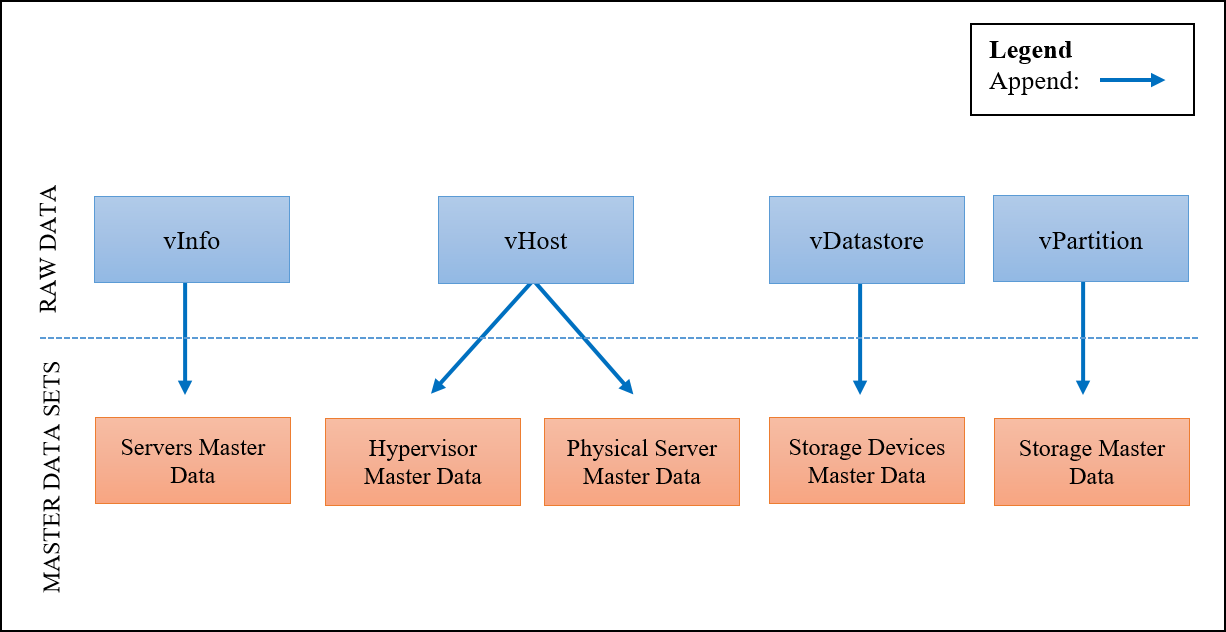
NOTE Usage Data within Physical Server Master Data: Within the vHost table, RVTools records current Memory and CPU usage percentage, however, we do not recommend that they be mapped within Apptio. Usage data that is collected represent the utilization of the server at the point in time when RVTools data was refreshed.
Prerequisites to Mapping
Convert RVTools Data Units MB to GB
Because the units are measured in MB within RVTools, you must convert these MB units into GB units before you append them into their master data sets.
Relate the Storage Device Master Data to the Storage Master Data
You have to manually derive the relationship between the Storage Device Master and Storage Master data sets:
- Within the table vPartition, create a new column “Storage Device ID”.
Formula: =Split((Lookup(VM UUID,vInfo,VM UUID,Path)),1,"[""]")
Hypervisor Master Data
Hypervisor Master Data Column | RVTools – vHost Column | Data Advisor Description |
CPU Cores | = {# Cores} | The number of CPU cores for the hypervisor |
Cloud | =“VMware” | The name of the Private Cloud infrastructure in the company's environment. The name may be identified and based on the platform (e.g., OpenStack or VMWare), location (EMEA Cloud, NA East Cloud) or purpose (eCommerce Cloud) |
Hypervisor | =ESX version | The hypervisor software |
Hypervisor Count | =1 | The number of hypervisors represented by this line of data |
Hypervisor ID | =Host | A user-defined unique identifier for the hypervisor |
Location | =Datacenter | The location of the server running on this hypervisor |
Total Memory GB | = Total Memory GB | The amount of memory designated for this hypervisor (GB) |
Physical Server Master Data
Physical Master Data Column | RVTools – vHost Column | Data Advisor Description |
Actual Units | =1 | Physical servers currently in use |
CPU Cores | ={# Cores} | The number of CPU cores for an individual physical server |
Location | =Datacenter | The number of CPU cores for an individual physical server |
OS | =ESX Version | The physical server operating system |
Physical Server ID | =Host | A user-defined unique identifier for the Physical Server, such as Asset Tag or Hostname |
Total Memory GB | =Total Memory GB | The amount of RAM (GB) for each individual server |
Virtualization Profile | =“Physical” | Determines the categorization of the server asset. Apptio Required values include: Physical, Virtual, Private Cloud, Public Cloud |
Server Master Data
Server Master Data Column | RVTools – vInfo Column | Data Advisor Description |
Actual Units | =1 | The number of servers currently in use |
CPU Cores | =CPUs | The number of CPU cores for an individual server |
Hosted On | =Host | If the server is virtual, specify the physical server that is hosting the virtual server; if the server is a physical server, leave blank |
Memory Capacity | =Memory Capacity GB | The highest amount of memory supported by the server (GB) |
OS | =OS according to the configuration file | The server operating system |
Platform | =“ESX” | Indicates if the server is physical or virtual, by naming the platform that the server is running on, such as x86 or ESX |
Server Count | =1 | The number of servers represented by this line of data |
Server ID | =VM UUID | A unique identifier for each server |
Storage Capacity (GB) | = Storage Capacity GB | The highest amount of storage supported by the server (GB) |
Virtualization Profile | =“Virtual” | Determines the categorization of the server asset. Apptio Required values include: Physical, Virtual, Private Cloud, Public Cloud |
Storage Master Data
Storage Master Data Column | RVTools – vPartition Column | Data Advisor Description |
Actual Units | =1 | Storage units represented by this line of data that are currently in use |
Location | =Datacenter | The geographical location of the storage device |
Management | =Host | The entity that manages the storage |
Server ID | =VM UUID | A unique field that represents the server that uses this storage |
Storage Device ID | =Storage Device ID | A user-defined unique identifier for the Storage Device, such as Array Name |
Storage ID | =VM UUID&&Disk | The logical storage unit identifier (e.g., LUN) that is used to allocate storage to a server or application |
Total Space | =Total Space GB | The total number of space (GB) allocated to each storage volume - this number refers to usable space, not raw (unformatted) space |
Type | =“DAS” | Designates the technology type of the storage, such as SAN, NAS, or DAS |
Used Space | =Used Space GB | The number of gigabytes of space in use by a storage volume |
Storage Device Master Data
Storage Device Master Data Column | RVTools – vDatastore Column | Data Advisor Description |
Actual Units | =1 | Storage Device units represented by this line of data that are currently in use |
Storage Device ID | =Name | A user-defined unique identifier for the Storage Device, such as Array Name |
Total Space | =Total Space GB | The total amount of installed or raw disk before any mirroring, raid striping or formatting has occurred. The Total Space should be expressed in GB |
Type | =“DAS” | Designates the technology type of the storage, such as SAN, NAS, or DAS |
Usable Capacity | =Usable Capacity GB | The total amount of addressable space after the storage disks have been formatted for use. The Usable Capacity should be expressed in GB |
Used Space | =Used Space GB | The total amount of addressable space that has been allocated for use. The Used Space should be expressed in GB |
(Back to top)
This topic is open for your feedback. At the bottom of this screen, click Add a comment.