Organizations with an Identity Provider (IdP) that can be integrated with Apptio can manage how users authenticate, create password policies, and what roles users are granted in Apptio environments with that IdP. IdP-managed credentials usually use single sign-on (SSO)—an authentication process that allows a user to access multiple applications with one set of login credentials.
An SSO login can occur in two ways:
- Service-provider-initiated login (SP-initiated login)
- Identity-provider-initiated login (IdP-initiated login)
If your organization does not use IdP, you can create and manage user accounts on the Access Administration page and grant appropriate access to use Apptio resources.
Service-provider-initiated login
In a service-provider (SP)-initiated login flow, the SP (in this case, Frontdoor) generates an authentication request that is sent to the IdP as the first step in the Federation process. The IdP then authenticates the user and responds with a response to confirm the logged-in user’s identity.
The following sequence of steps describes how authentication works in an SP-initiated login:
- A user accesses a Frontdoor-enabled Apptio application (either via a direct application or Frontdoor URL).
- Frontdoor prompts for a user name.
- The user is redirected to their organization’s IdP and is asked to enter credentials.

IdP-initiated login
In an IdP-initiated login flow (unsolicited Web SSO), the Federation process is initiated by the IdP sending an unsolicited Security Assertion Markup Language (SAML) response to the SP.
The following sequence of steps describes how authentication works in an idP-initiated login:
- A user connects to an SSO portal on their IdP and authenticates.
- IdP sends a response with the user’s identity.
- When the user connects to an Apptio application, the user’s identity is provided to the Apptio application as part of the connection. The user is not asked to re-enter their credentials.
- The user enters the application.
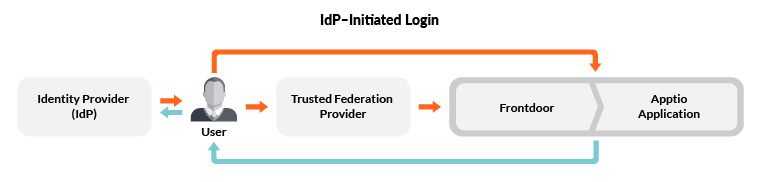
If the IdP is configured to use only an IdP-initiated login, users can access Apptio applications only via their IdP portal. If the restriction doesn't exist, then users can access applications directly via URL as well as the IdP portal.
Authentication frequently asked questions
Can I bypass entering my user name in the landing page?
Yes. To bypass there are two options.
- Add a domain name to the Frontdoor URL. For example, there may be a corporate internal portal for the Acme corporation with a link for users to access Apptio. The link within Acme could be crafted to use the URL
https://frontdoor.apptio.com/login?domain=acme.
- Add a user name to the Frontdoor URL. A user can add
username=abc@abc.com to the Frontdoor URL and bookmark that URL. For example, user joe@acme.com can bookmark the URL https://frontdoor.apptio.com/login?username=joe@acme.com//frontdoor.apptio.com/login?username=joe@acme.com.
NOTE: For Apptio customers of versions 12.2.3 or later, users don’t have to modify URLs as described previously. Accessing their Apptio application URL (for example, https://acme.apptio.com) will land the user directly in the IdP’s authentication page.
If your organization has configured the IdP to support SP-initiated logins, you can skip being prompted for credentials if the user is already logged in via SSO. However, with this option, users who log out of any Apptio application can return to that application without having to log in (assuming they are still logged in via the IdP). Please contact Apptio support to enable this feature for your organization.
Can I go directly to my application instead of going to the Frontdoor application homepage?
Yes. You can create a URL in the following format to go directly to an application. For example, https://frontdoor.apptio.com/login?&redirect=REDIRECT_URL&environmentId=ENVIRONMENT_ID&applicationId=APP_ID.
- REDIRECT_URL=URL of the application (for example,
https://acme.apptio.com).
- ENVIRONMENT_ID and APP_ID are the Frontdoor configuration parameters. If you go to the application (for example, Cost Transparency or IT Planning Foundation) prior to logging in to Apptio, your browser will be redirected to Frontdoor with these parameters already set in the URL. You can also use the previous information on bypassing a user name to populate the user name.
If you are using an IdP-initiated login, you can configure the application you want to visit via your IdP.
I am an SSO-enabled customer. My users have already entered credentials and authenticated on my IdP side. Do I need to re-enter credentials to access Apptio applications?
Yes. When a user tries to access an Apptio application, the application redirects the user to Frontdoor for authentication and authorization. After the user authenticates by providing credentials, Frontdoor creates a session for the user. If the user explicitly logs out (or their session times out due to inactivity), their session is cleared only at the Frontdoor level and not at the customer’s IdP level. This ensures that the user gets logged out of Apptio but not out of other applications (for example, corporate email or intranet sites) using IdP. To ensure users authenticate each time they attempt to access an Apptio application, Frontdoor passes a flag to the IdP to prompt for a login again (even if the user is logged in to their IdP).
If a user prefers not to be prompted for credentials when accessing Apptio applications when logged in to their IdP, this can be configured by contacting Apptio support.
NOTE: If you choose not to prompt for credentials when a user logs out of Apptio, users can click on a link or use the Back button on the web browser to simply re-enter and log in to the application with no request for additional credentials. Apptio recommends you to discuss these options with your information security team. Your company can also consider using an IdP-initiated login to access Apptio applications directly from your IdP.