♦ Applies to: Apptio TBM Studio v.12.0 and later
In this article:
Introduction
This article highlights best practices for TBMAs or other users who modify Apptio platform configuration. It focuses on users who develop practices to help them find symptoms that can reveal potential performance issues. Also, it refers users to other documents about how to improve performance when an issue is identified.
TIP: See also Improving performance in your R12 projects for a list of articles on ways to improve the calculation time and overall performance of your project.
Best practices before check-in
Table modifications
When you make modifications to tables in the table pipelines, the table renders in a reasonable amount of time (for example, in seconds, not in minutes). If the table does not render quickly, this might indicate issues with pipeline performance in the table on which you are working, or in another table on which that table depends.
SEE ALSO:
Model modifications
Step 1: Check the Assignment Ratios table
Before you make changes, navigate to the Allocation Strategies table for the model you want to modify. Click Row Count to sort the content in descending order to see the largest assignment ratios tables:
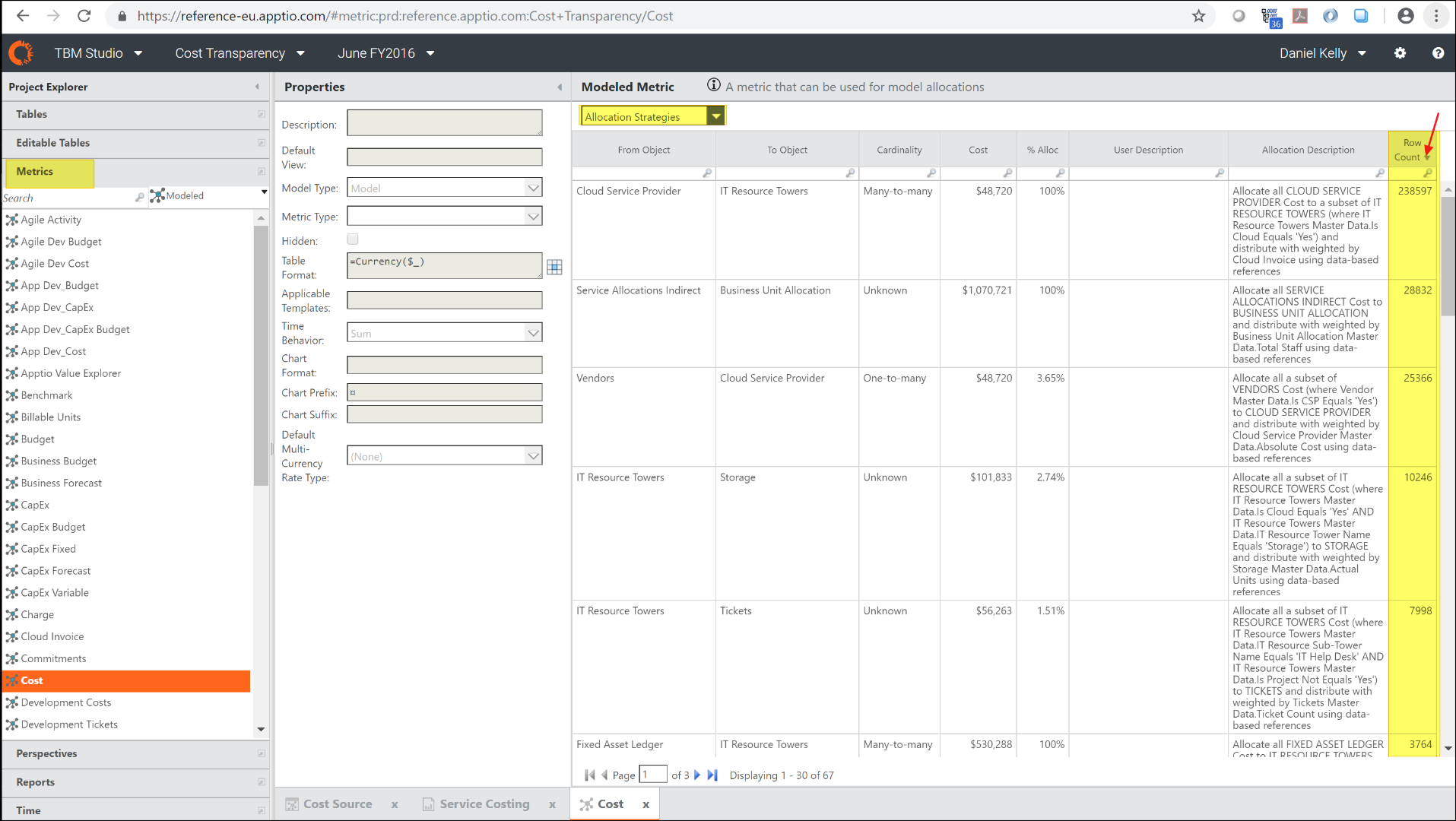
(Click to enlarge)
Before you check in the table, examine the table again. Make sure that items have not become much larger in size. If you find that some items have become much larger, then check the allocation to help ensure that the configuration is complete. For example, occasionally users start to configure an allocation and then don't finalize this work, or users purposefully create an allocation that is intended to tax costs over whatever is being allocated to. Assumptive allocations among large tables can result in multi-million row Assignment Ratios tables. In extreme cases, this can cause memory issues leading to instability.
As a rule, if the allocation row count for an individual is greater than one million rows, examine it. If the allocation row count is much greater than one million rows, then consider reducing the size of the allocation table.
Step 2: Use the Performance Review component
Use the Performance Review component after checking the Assignment Ratios table. The Performance Review component can put significant load on the workspace node. If the Assignment Ratios table shows one or more extremely large row counts for individual allocations, then address these rows before you examine the performance reporting.
SEE ALSO: Use the Performance Review component for information about how to use the Performance Review component and how to take full advantage of what it shows.
Report modifications
Make sure everything loads
Before you check in a report change, observe how the tables, charts, or other reporting elements load. If a reporting element shows "loading ..." for a prolonged period of time and never fully loads (especially if your workspace starts to become unresponsive), this might indicate that there is an issue with the configuration.
Unfortunately, because reporting elements that show time aggregates, such as Year-to-Date, multi-month trends, and so on, can take a long time to load, it isn't reasonable to expect a user to monitor the reporting element for the entire loading time. However, you can expect to return to the report and see a result even if you have to leave for a period of time.
NOTE: If you switch to work on something else within your workspace while the report is loading, this can lead to invalidation of the calculation. This means that, when you come back to the report later, the report may load again.
Best practices after check-in
Monitor calculation times
Calculation times can vary substantially between check-ins based on the number of changes. Apptio calculates the changes only.
Dev calc times
If dev calculation times are long (for example, greater than 10 minutes as viewed in the builds page), that might indicate issues with configuration. Contact your Apptio Support Manager or TAM if you are concerned about long dev calc times.
Invoke a more comprehensive stage calculation
Because calculation times vary, it can help to invoke a more comprehensive stage calculation to learn how a worst-case calculation might appear. The simplest way to do this is to toggle a time setting with no net change. For example:
- Open the time settings.
- Change the last month of the project.
- Save your changes.
- Open the time settings again.
- Change the last month of the project back to the original value.
- Save your changes.
- Check in the project settings.
The project now performs a more comprehensive calculation even though there is no net change to the settings.
Request a calculation report
If you find that your calculations have changed significantly, contact your Apptio Support or TAM and request a break out of the calculations. This can help you to understand the source of a calculation time increase.
(Back to top)
This article is open for your feedback. At the bottom of this page, click Add a comment.