 Applies to: Frontdoor; TBM Studio 12
Summary
When users log in to Apptio, you would like them to always see a specific page first (the landing page). You may also wish to dictate the page they are directed to when logging out (the logout page).
When logging in to Frontdoor, the system will always attempt to place you in the last project and environment that your last session ended on. New users logging in for the first time will be taken to the default landing page in Production, then taken to their last-accessed project and environment afterward.
Custom TBM Studio project landing page
It is possible to change the landing page for all users of a TBM Studio project.
- Find and Check Out the Params table.
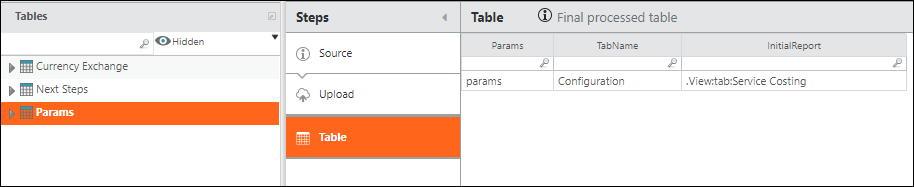
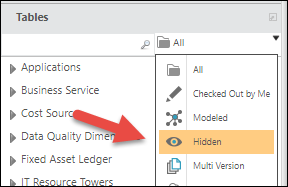
- You can usually find the Params table by navigating to the Project Explorer tables and selecting the Hidden filter:
- If the Params table does not exist in your project, you can add it instead. Just copy the format from a Params table in an existing Cost Transparency project, and upload it into a new Params table in your current project.
- Convert Params to an editable table by navigating to the Source step in the transform pipeline, and click Enter Manually.
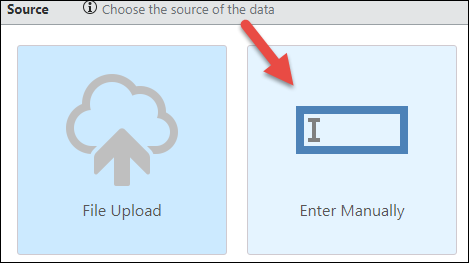
- Choose Blank Table. This will simply make the table editable, and will not delete existing content.
- The InitialReport column is case sensitive.Return to the Table step and click in the InitialReport column. This is the text that needs to be updated in order to point to a new landing page.
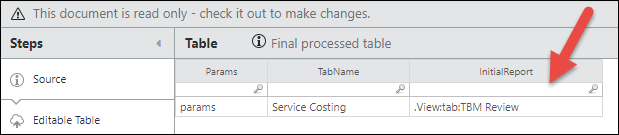
Care must be taken to ensure your new text in the InitialReport column is correct. Look at your new landing page and try to make sense of the URL text by looking at everything after "View."
- For example, see the end portion of the report URL: "View%253Atab%253ATBM+Review"
- This resolves to "View:tab:TBM Review" which informs what to enter in the InitialReport column. Here is a key to translate the URL's contents to text for the InitialReport column:
| String |
Replace with |
Description |
| "%253A" |
":" |
Colon |
| "+" |
" " |
Single Space |
| "%2F" |
"/" |
Forward Slash |
- Save the change, then Check In the Params table.
Users should now be greeted by your new landing page! For supplemental information, see How to change Landing / Home page in V12?
Custom Frontdoor logout page
By default, logging out returns you to Apptio.com. TBMAs can change the logout page for users with the following instructions:
- In TBM Studio 12, click on Settings menu, then Access Administration.
- Click the Console tab, then Authentication Domains.
- Find the user you wish to change the logout page for, and click the corresponding Edit button.
- Change the Logout URL to the specified URL.

- Click Update TBMA Settings to save the changes.