Cognos Analytics

Cognos Analytics

Connect, learn, and share with thousands of IBM Cognos Analytics users! 


#Product
#Analytics
#CognosAnalytics
#Analyticstools
#TechXchange Partner
#TechXchange Session
#TechXchange Presenter
 View Only

Customizing the Cognos Analytics 11.2 home page

By Tim Aston posted 04/07/21 10:53 AM

  
In a previous blog, I told you all about the amazing new home page in Cognos 11.2.  In this blog, I'm going to tell you about some of the ways you can customize that home page so that you can tailor it for your organization's users.

Here is an example of a highly customized home page.  I will summarize how I was able to achieve these different custom features.


Themes

Themes are a feature that have existed in Cognos since version 11.0.  They let you add some branding and colours to the Cognos UI.  Existing themes continue to be supported as-is in Cognos 11.2, and there are some new features that you will be able to take advantage of.    Themes are uploaded by going to 'Manage' and choosing 'Customization':
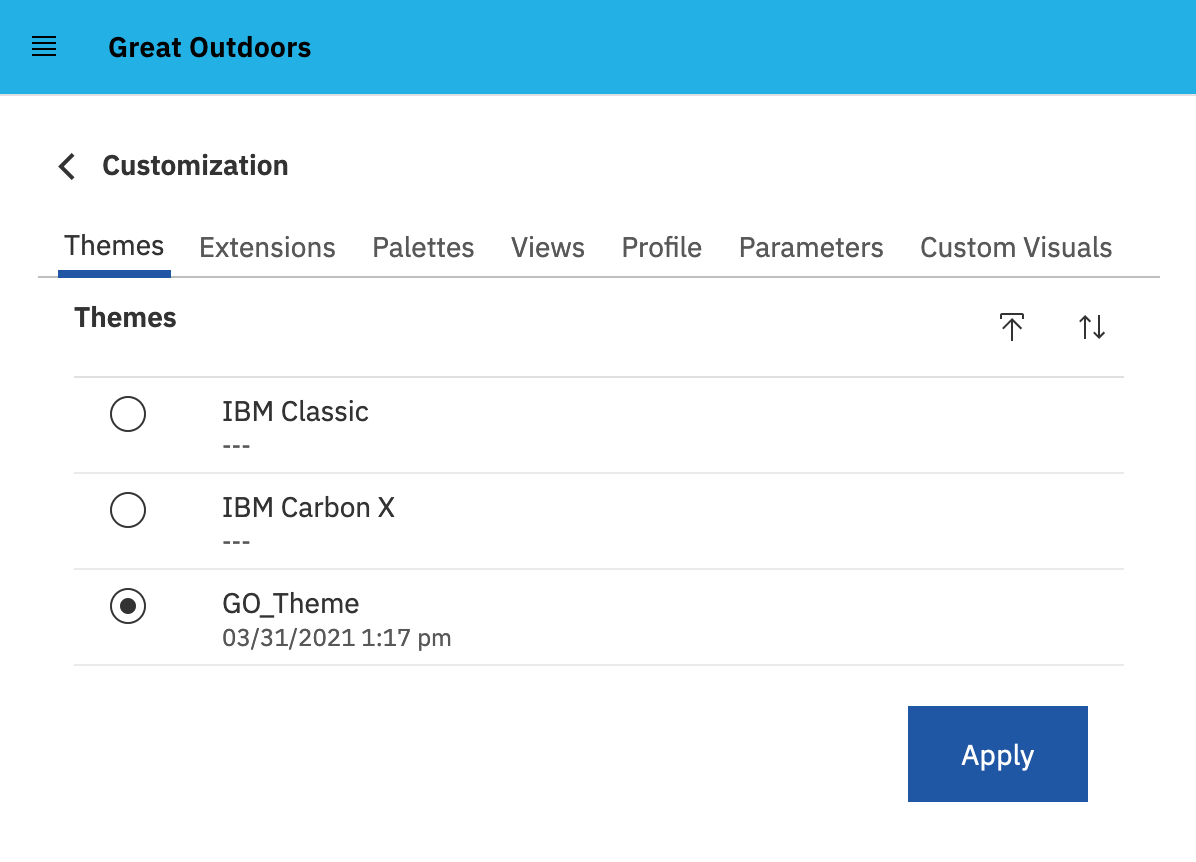


 Below is the theme's 'spec.json' that I used in the example home page I posted.

{
"name": "GO_Theme",
"schemaVersion": "1.0",
"brandText": "The Great Outdoors Company",
"brandTextSmall": "Great Outdoors",
"uiShellTheme": "light",
"welcomeBannerTitle": "Welcome to The Great Outdoors analytics portal",
"welcomeBannerDescription": "Everything you need to analyze Great Outdoors performance is here. You will find reports and dashboards and much more!",
"images": {
"brandIcon": "images/go-logo-small.png",
"brandIconSmall": "images/go-logo-small.png",
"favicon": "images/go-logo.png",
"welcomeBannerBgImage": "images/go-logo.png"
},
"colors": {
"appbarBackground": "#22B0E5",
"appbarForeground": "black",
"appbarSelectLine": "#0070a5",
"appbarPushButtonBackground": "#1190b5",
"navbarBackground": "rgb(240, 246, 235)",
"navbarForeground": "black",
"navbarSelectLine": "rgb(26, 83, 54)",
"navbarPushButtonBackground": "rgb(0, 138, 0)"
}
}

Quick Launch extensions

Extensions  are another feature that has been in Cognos for a while, but in 11.2 we have created some new extension points.   Extensions are also uploaded in the 'Customization' section of 'Manage', using the 'Extensions' tab.

One of the new extension points is the Quick Launch section of the home page.  You can create extensions that define your own custom quick launch tiles.  Below is an example 'spec.json' for a custom quick launch tile to launch  an HR portal.   The 'CustomQuickLaunchActionController.js' code (which must be zipped up with the 'spec.json' file) would simply open up the URL for the portal in a new browser tab.

{
"name": "CustomQuickLaunch",
"schemaVersion": "1.0",
"version": "1.1.1",
"extensions": [
{
"perspective": "home",
"features":[{
"id": "com.ibm.bi.caHome.customQuickLaunch",
"collectionItems": [{
"containerId": "com.ibm.bi.caHome.quickLaunch",
"id": "com.ibm.bi.caHome.quickLaunch.customQuickLaunch",
"name": "CustomQuickLaunch",
"weight": 600,
"actionController": "v1/ext/CustomQuickLaunch/js/CustomQuickLaunchActionController.js",
"properties": {
"title": "HR Portal",
"description": "Need HR data? Go to our seperate HR portal for that."
}
}]
}]
}
]
}

Home page tab extensions

Another new extension point in 11.2 are the tabs that appear near the bottom of the home page.  You can create extensions that add new tabs here.  These tabs can point to a folder in your content, or they can contain Javascript code.  This allows you to imbed any custom content you want, such as a news feed to an embedded report, like below:
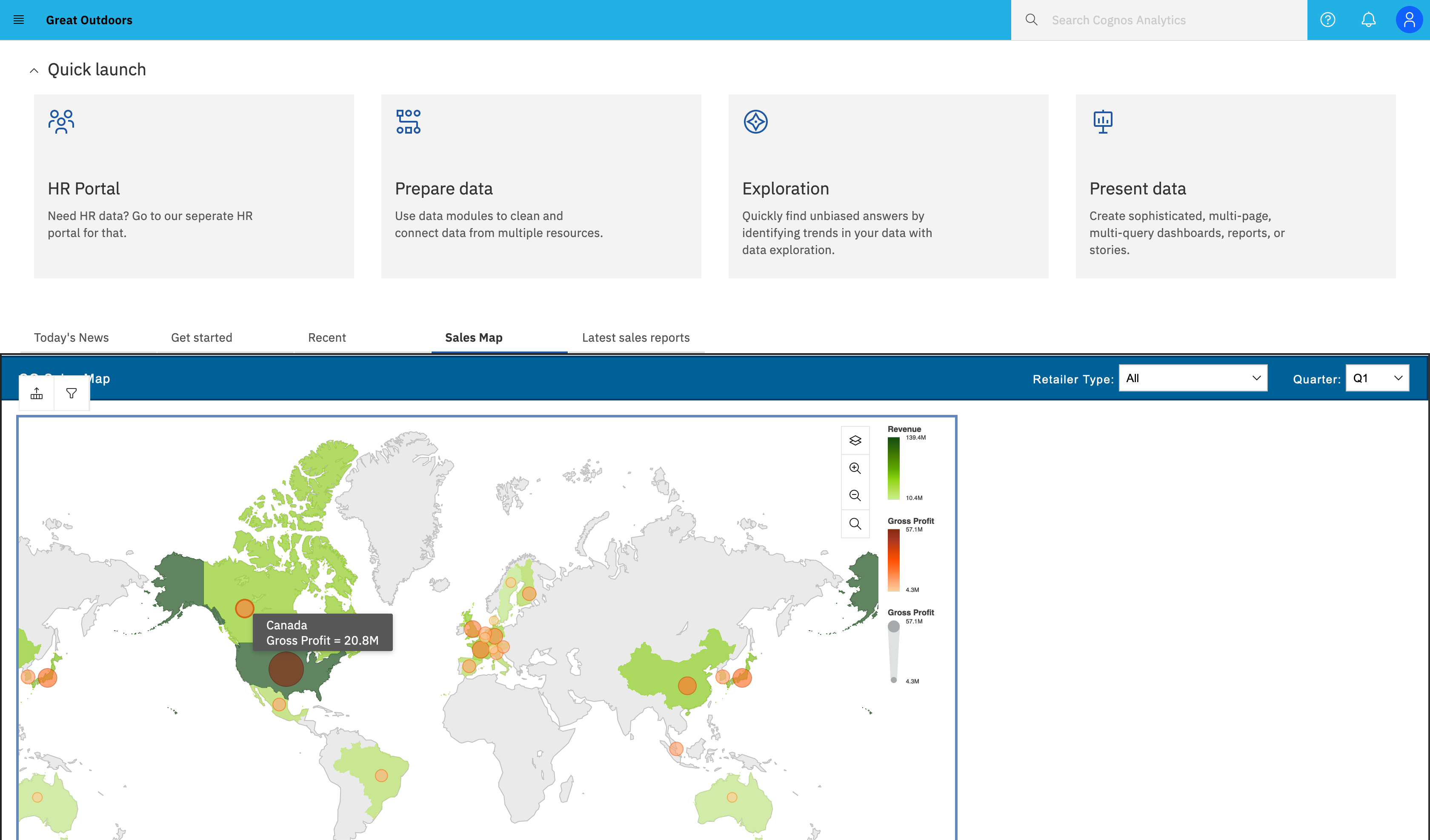


In this example 'spec.json' you can see that there are 2 tabs that use custom Javascript code, and another that points to a folder within Team Content.

{
"name": "CustomizedTab",
"extensions": [
{
"perspective": "home",
"features": [
{
"id": "com.ibm.caHome.customizedTabFeature",
"collectionItems": [
{
"containerId": "com.ibm.bi.caHome.navigator",
"id": "com.ibm.bi.caHome.navigator.customizedTab",
"name": "customizedTab",
"label": "Today's News",
"weight": 600,
"module": "v1/ext/CustomizedTab/js/CustomizedTabView",
"properties": {}
},
{
"containerId": "com.ibm.bi.caHome.navigator",
"id": "com.ibm.bi.caHome.navigator.reportTab",
"name": "reportTab",
"label": "Sales Map",
"weight": 2,
"module": "v1/ext/CustomizedTab/js/ReportTabView",
"properties": {}
},
{
"containerId": "com.ibm.bi.caHome.navigator",
"id": "com.ibm.bi.caHome.navigator.customizedNavigatorTab",
"name": "customizedNavigatorTab",
"label": "Latest sales reports",
"weight": 0,
"properties": {
"path": ".public_folders/Sales Reports",
"toolbar": [
"filter",
"sort",
"refresh",
"settings"
],
"listOptions": true
}
}
]
}
]
}
]
}

Conclusion

As you can see, we've made a lot of enhancements to customization in Cognos 11.2.  These changes will allow you to create the exact experience that your users are demanding.
#CognosAnalyticswithWatson
51 comments
824 views

Permalink

Comments

10/13/23 05:45 AM

@René Kent Nielsen

Thanks very much for your response.  I have attempted this solution, and whilst the first section (.ca-home-welcomeBanner) does amend the background colour of the welcome banner, the sections below "welcomeBanner-greetingLabel" and "welcomeBanner-greetingDescription" don't seem to change the colour - I've amended the code to set the colour to black, but it remains white?

10/13/23 05:07 AM

@Lindsay Young I think what you are looking for is changing the home "view"

This is the json file

{
    "name": "CustomHome",
    "schemaVersion": "1.0",
    "version": "1.1.1",
    "extensions": [
        {
            "perspective": "home",
            "features":[{
                "id": "com.customHome",
                "cssStyles": [
                    "v1/ext/CustomHome/css/CustomHomeCSS.css"
                ]
            }]
        }
    ]
}

And in the CustomHomeCSS.css you can change the style

Placed in a css folder

.ca-home-welcomeBanner {
    background-image: none !important;
    background: linear-gradient(180deg, #153c5f 0%, #ffffff 100%) !important;
}

.ca-home-welcomeBanner-brandText {
   color: white ;
}

.ca-home-welcomeBanner-greetingLabel {
   color: white ;
}

.ca-home-welcomeBanner-greetingDescription {
   color: white ;
   
}

Hope that helps

Br

René

#IBMChampion

10/13/23 04:27 AM

@Tim Aston  how do you change the colour of the welcome banner text - where you've said "Welcome to the Great Outdoors Analytics Portal", the writing is in black, yet I cannot see where you've changed that in any of the json files.

I have managed to change my background to a pale blue, but the writing becomes unreadable as it remains in white. 

Has anyone managed to change the colour of the welcome banner text and description?  

08/18/23 02:09 AM

@Tim Aston, May I ask you, if you have a solution to the following?

We have a multi-tenant environment and to optimize the user experience we assigned a custom folder to each individual tenant as a customization property of each tenant (Manage -> Multitenancy -> [tenant-properties] -> Tab customization -> Custom folder)

In 11.1.7 this folder will appear as a item in the menu.

With the same configuration, in 11.2.4 you must go to the hamburger-menu followed by Content to navigate to the same folder. This is kind of hidden for the end-users.

Our goal is to add this custom folder as a new tab to the homepage using an extension. Using the knowledge from this community topic I’m familiar with adding navigation tabs ".public_folders" that refer to the team content folder. That works great.

However in this particular case I would like to add a custom tab wherein I can refer dynamically to the custom folder set on tenant-level? I can’t just enter a folder name since it is tenant specific. 

So basically is there some placeholder I can use as "path" property? Is this even possible?

08/14/23 06:29 AM

Hi, 

How can we keep the Navigation Menu slide out part always expanded. 

Thanks.

08/04/23 04:03 PM

In the example above I see that the HR Portal quick launch link has a custom icon, but I do not see anything in the spec that specifies it. How do you add a custom icon to the quick launch button?

03/02/23 06:22 AM

Hello, thanks for all the good information here.

I prepared my 11.2.4 welcomepage now, but I have one thing left I would like to hide as well.

Button:  "Take a product tour"

For hiding the video button next to it, i found a setting on the roles funktion. But not for this. But I see, that on Tim's Page this Button is gone. Do I need a extension as my only option? Maybe somebody has allready one. Thanks.

02/09/23 11:02 AM

Hello.  A few things we have been unable to achieve in our UI customization to date...

1)  Change (not hide) the link for the video button.  We have our own video we'd like to include instead. 

2)  In addition, we'd like to add a second button or link to additional documentation. I think if we figure out #1 - the answer to this will follow. 

3)  Apply a background image.  We tried an extension with css file including the code....ca-home-welcomeBanner {background-image: url('v1/ext/Theme_CSS/images/intro-background.png') }​  without success. 

These type modifications were easy in the old UI by changing the sample welcome extension which included html and css files but this sample has not been updated for new UI and it is unclear how to achieve the same today.

Has anyone else has success with similar customizations?  Thanks in advance!

01/04/23 02:41 AM

Hi Robert,

You could create an extension for the app bar with an icon.

01/03/23 01:24 PM

Thanks Patrick. That helped confirm that it's not possible. The favicon puts it on the browser tab and the brand icon puts it on the welcome banner. It doesn't appear that there is an option for the app bar.

12/29/22 12:21 PM

Is there any way to add a logo to the app bar or is that what the brand icon is for. Will that show in the app bar if there is no brand text?

08/01/22 10:51 AM

ReportTabView.js is an example is:

define([
'react'
], function(React) {

class CustomizedTabView {
constructor(options) {
this.glassContext = options.glassContext;
this.itemSpec = options.itemSpec;
}

render() {
var content = React.createElement('iframe', { style: {width: "100%", height: "100%"}, src: 'https://CognosURL/InstanceNameifyouhaveone/bi/?perspective=authoring&pathRef=.public_folders%2FFolderName%2FReport%2BName&ui_appbar=false&ui_navbar=false&shareMode=embedded" width="320" height="200" frameborder="0" gesture="media" allow="encrypted-media" allowfullscreen=""'
}, '');
return content;
}

}
return CustomizedTabView;
});


Spec.json file as an example is:

{
"name": "CustomizedTab",
"extensions": [
{
"perspective": "home",
"features": [
{
"id": "com.ibm.caHome.customizedTabFeature",
"collectionItems": [
{
"containerId": "com.ibm.bi.caHome.navigator",
"id": "com.ibm.bi.caHome.navigator.customizedNavigatorTab1",
"name": "customizedNavigatorTab1",
"label": "Folder One",
"weight": 700,
"properties": {"path": ".public_folders", "toolbar": [ "filter", "sort", "addFolder", "refresh", "settings" ],
"listOptions":true}
},
{
"containerId": "com.ibm.bi.caHome.navigator",
"id": "com.ibm.bi.caHome.navigator.customizedNavigatorTab2",
"name": "customizedNavigatorTab2",
"label": "Folder Two",
"weight": 690,
"properties": {"path": ".public_folders/New%20FolderName%201", "toolbar": [ "filter", "sort", "addFolder", "refresh", "settings" ],
"listOptions":true}
},
{
"containerId": "com.ibm.bi.caHome.navigator",
"id": "com.ibm.bi.caHome.navigator.customizedNavigatorTab3",
"name": "customizedNavigatorTab3",
"label": "Report Name Runs",
"weight": 680,
"module": "v1/ext/CustomizedTab/js/ReportTabView.js",
"properties": {}
}
]
}
]
}
]
}

If you want to exclude samples (obviously this is in a separate folder/zip files):
spec.json

{
"name":"Exclude_Samples",
"schemaVersion": "1.0",
"extensions": [
{
"perspective": "home",
"comment": "common applies to all views, or you should use a specific view such as dashboard.",
"comment": "This code will apply only to the home perspective.",
"features": [{
"id": "exclude.PTC.GetStarted",
"excludeItems":["com.ibm.bi.caHome.navigator.getStarted.sampleSection", "com.ibm.bi.caHome.quickLaunch.exploreData", "com.ibm.bi.caHome.quickLaunch.prepareData"],
"comment": "Above, EXCLUDEITEMS will remove the samples from the get started, home perspective.",
"comment": "EXCLUDEITEMS or EXCLUDEFEATURES must be applied at the individual perspective level. It can not be used globally via the COMMON perspective."
}]
}]}

Spec.json example for a custom quick launch (in its own zip file/folder)

{
"name": "CustomQuickLaunch",
"schemaVersion": "1.0",
"version": "1.1.1",
"extensions": [
{
"perspective": "home",
"features": [
{
"id": "com.ibm.bi.caHome.customQuickLaunch",
"collectionItems": [
{
"containerId": "com.ibm.bi.caHome.quickLaunch",
"id": "com.ibm.bi.caHome.quickLaunch.customQuickLaunchBanner",
"name": "CustomQuickLaunchBanner",
"weight": 700,
"actionController": "v1/ext/CustomQuickLaunch/js/ControllerBanner.js",
"properties": {
"title": "Our Analytics",
"description": "Click here to go back to the Analytics homepage."
}
},
{
"containerId": "com.ibm.bi.caHome.quickLaunch",
"id": "com.ibm.bi.caHome.quickLaunch.customQuickLaunchEmail",
"name": "CustomQuickLaunchEmail",
"weight": 690,
"actionController": "v1/ext/CustomQuickLaunch/js/CustomQuickLaunchActionControllerEmail.js",
"properties": {
"title": "Our Email",
"description": "Need our help? Send us an email."
}
},
{
"containerId": "com.ibm.bi.caHome.quickLaunch",
"id": "com.ibm.bi.caHome.quickLaunch.customQuickLaunchTest",
"name": "CustomQuickLaunchTest",
"weight": 680,
"actionController": "v1/ext/CustomQuickLaunch/js/ControllerTestHome.js",
"properties": {
"title": "Our Home Page",
"description": "Click here to go back to our homepage."
}
}

]
}
]
}
]
}

and in that js folder, the above actionController files with their corresponding code:

Controller Banner
define([], () => {

class ControllerBanner {

doAction() {
window.open('https://www.cnn.com');
}

}

return ControllerBanner;
});

ControllerTestHome.js

define([], () => {

class ControllerBanner {

doAction() {
window.open('https://www.msnbc.com/');
}

}

return ControllerBanner;
});

CustomQuickLaunchActionControllerEmail.js

define([], () => {

class CustomQuickLaunchActionController {

doAction() {
window.open('mailto:youremail@cnn.com');
}

}

return CustomQuickLaunchActionController;
});

This doesn't include our theme, but this is it.

Vic

07/21/22 12:27 PM

Having a few problems trying to put a tab with a report showing. I can get folders to display but not a report. 

I'm using the below from @Tim Aston posted on Tue April 12, 2022 11:32 AM. I put that in a ReportTabView.js file. I get an error on the 'define' part when I test it in a javascript browser. 

Otherwise I have var content = React.createElement('iframe', { style: {width: "100%", height: "100%"}, src: 'https://insight.pprd.odu.edu/TestAnalytics/bi/?perspective=authoring&pathRef=.public_folders/Test/New%2Freport&ui_appbar=false&ui_navbar=false&action=run&format=HTML&mode=dashboard'}, '');
is this correct for a report called New report in a Test folder? I changed the perspective but left the mode to dashboard, and changed the action to run. 

@Stephan Quintelier the  report tab is some simple JS for creating an iframe, hope this helps:

​​Yes, the source apparently is incorrect. I've tried several different ways, including another format type, and still doesn't work.

07/20/22 07:58 AM

@rikke Thanks!

If anyone knows, I have one last question.

I have 5 navigator tabs with a couple of problems. I have weights of 500 (tab 1), 490 (tab 2), 480 (tab 3), the order showing is mytab1, Get Started, mytab2, mytab3, Recent. How to make that tab1, tab2, tab3, Get Started, Recent?  The weights should have fixed that issue. ​

07/19/22 02:30 PM

@Vic Nicholls, you can deactivate it for a user role, go to Manage -> Account -> Cognos -> select the user role the users belong to.
Go to Properties for the user role (Not user group but user role), select the customization tab -> Click on customized for Features.
Search for Samples and deactivate it for Home - Collections - Navigator - Samples.

07/19/22 07:42 AM

Can anyone remove the Samples section? I have an "excludeItems" that uses ["com.ibm.bi.caHome.navigator.getStarted.sampleSection" and that doesn't work. Its the only section I want to remove.

I have 5 tabs with a couple of problems.
a) although I have weights of 500 (tab 1), 490 (tab 2), 480 (tab 3), the order showing is mytab1, Get Started, mytab2, mytab3, Recent. How to make that tab1, tab2, tab3, Get Started, Recent?
b) the mytabs all go to a specific directory, can't make that work. Any helps? I'm looking at Rikke's code (thanks!) and don't see much difference between mine and hers.

07/14/22 10:32 AM

Hi,

O fix the issue with custom tab adding a CSS code to increase height:

table.bx--data-table.bx--data-table--no-border.bx--data-table--sticky-header {
    max-height: 2000px !important;
    padding-bottom: 25px !important;
}
​


You might create a custom extension with a .css and add this.

07/14/22 08:17 AM

Thank you for the update Michiel

07/14/22 07:57 AM

I received the following feedback from IBM in regards to this APAR (https://www.ibm.com/support/pages/apar/PH40761)

"It is fixed in 11.2.3. We currently do not have an ETA.".

@Rikke Jacobsen: So I think that's why you still experience these issues. 

07/14/22 04:49 AM

I just found out, there is still an issue, we now have the scroll bar, but it only shows up to 50 elements. so if anyone knows how to solve that in the custom tab, I am very interested in getting that solved.
@Tim Aston do you know if I can add some code to the extension, that can solve it?
The code I am using is this:

{
"name": "DGFS_CustomizedTab",
"extensions": [
{
"perspective": "home",
"features": [
{
"id": "com.ibm.caHome.customizedTabFeature",
"collectionItems": [
{
"containerId": "com.ibm.bi.caHome.navigator",
"id": "com.ibm.bi.caHome.navigator.customizedNavigatorTabTeamContent",
"name": "customizedNavigatorTabTeamContent",
"label": "Team Content",
"weight": 1,
"properties": {
"path": ".public_folders",
"toolbar": [
"filter",
"sort",
"addFolder",
"refresh",
"settings"
],
"listOptions": true
}
},
{
"containerId": "com.ibm.bi.caHome.navigator",
"id": "com.ibm.bi.caHome.navigator.customizedNavigatorTab0",
"name": "customizedNavigatorTabMyFolders",
"label": "My content",
"weight": 2,
"properties": {
"path": ".my_folders",
"toolbar": [
"filter",
"sort",
"addFolder",
"refresh",
"settings"
],
"listOptions": true
}
}

]
}
]
}
]
}
​​

07/14/22 04:49 AM

I just found out, there is still an issue,. we now have the scroll bar, but it only shows up to 50 elements. so if anyone knows how to solve that in the custom tab, I am very interested in getting that solved

07/14/22 04:49 AM

I just found out, there is still an issue,. we now have the scroll bar, but it only shows up to 50 elements. so if anyone knows how to solve that in the custom tab, I am very interested in getting that solved

07/11/22 05:21 AM

Hi Michiel

I tried to insert a picture, to show the scrollbar, but that is not working.
But it is solved in 11.2.2, so IBM has forgotten to update your APAR.


07/08/22 03:33 AM

We logged a case at IBM for this issue September last year which resulted in an APAR: https://www.ibm.com/support/pages/apar/PH40761.

The APAR is still open but good to hear that it's solved

07/08/22 02:45 AM

Hi Rikke and thank you for a quick reply! Great, then we should plan for an upgrade as soon as possible. Currently running on version 11.2.1.

07/08/22 02:37 AM

Hi David, the problems is solved in version 11.2.2. I use the same Extension, but now it has grotten a scrollbar like on the HomePage

07/08/22 02:36 AM

Hi David, the problems is solved in version 11.2.2. I use the same Extension, but now it has grotten a scrollbar like on the HomePage

07/08/22 02:28 AM

Hi all,

We are experiencing the same issue as Rikke with the folder navigator not presenting all items. You could all try it if you point the navigatortab to a folder with many objects.

Rikke, did you find a solution? Anyone else that know of more properties for this extension type that could solve the problem? The code for the problem tab "Delat" is included below.
{
"containerId": "com.ibm.bi.caHome.navigator",
"id": "com.ibm.bi.caHome.navigator.customizedNavigatorTab_Delat",
"name": "customizedNavigatorTab",
"label": "Delat",
"weight": 1,
"properties": {
"path": ".public_folders/Rapporter/Delat",
"toolbar": [
"filter",
"sort",
"refresh",
"settings"
],
"listOptions": true
}
},​

BR,
David

06/21/22 05:08 AM

Hi Emily,

I've found a working workaround:
You need to create a Workspace with a single object, an RSS feed. Maximize this widget and save this Workspace​.

Workspace is a legacy studio.

Then you need to use the following URL for this workspace:
'/bi/v1/disp?b_action=icd&pathinfo=/main&ui.action=edit&src=%2Fbi%2Fv1%2Fdisp%3Fb_action%3Dicd%26pathinfo%3D%252Ffeeds%252Fcm%252Fpath%252FTeam%2520Content%252FPTC%252FWorkspace-RSS%26entry%3D&remUI=banner,sidebar,tabs,globalarea'

&remUI will remove application bar, global area, content pane and tabs.

Note: you need to use the CustomizedTabView.js shared by @Tim Aston.

Second note: the following article is useful to remove the HTML markup:
https://www.ibm.com/docs/en/cognos-analytics/11.2.0?topic=workspace-removing-html-markup-from-rss-feed-details

Best regards, ​

Patrick Neveu

06/21/22 02:40 AM

Does anyone have an example of a news feed as a tab? What elements are needed to make a RSS feed to show up in the tab?

Also, is it possible to hide/delete the non-custom quick launch tiles (Upload data, prepare data etc.)?

04/12/22 11:32 AM

@Stephan Quintelier the  report tab is some simple JS for creating an iframe, hope this helps:

define([
	'react'
], function(React) {

	class CustomizedTabView {
		constructor(options) {
			this.glassContext = options.glassContext;
			this.itemSpec = options.itemSpec;
		}

		render() {
      		var content = React.createElement('iframe', { style: {width: "100%", height: "100%"}, src: location.protocol+'//'+location.hostname+':'+(location.port)+'/bi/?perspective=dashboard&pathRef=.public_folders%2FSamples%2FBy%2Bindustry%2FHealthcare%2FDashboards%2FHospital%2Badmissions%2Bexecutive%2Bdashboard&ui_appbar=false&ui_navbar=false&action=view&mode=dashboard'}, '');
		return content;
		}

	}
	return CustomizedTabView;
});​

04/12/22 11:22 AM

Great article!  I'm customizing our home page in Cognos 11.2.2 and until now I've taken all the hurdles (a big thanks to @Patrick Neveu and @Jeam Coelho for the help).

I have one problem left.  We would like to show a report (with system information) as a Tab on the home page.  I've followed what has been posted here, but I can't get it to work.

Would it be possible to share the ReportTabView.js file?  I tried to copy the code that @Michiel Schakel posted, but the tab stays empty. 

Any advice is VERY welcome!​​​

04/11/22 09:58 AM

@Jeam Coelho Thanks​

04/08/22 07:30 AM

To disable Get Started for roles you can try:

Manage > People > Accounts > Select Namespace and Role > Properties > Customization > Features > Type Get Started at search bar and then uncheck it.

04/07/22 01:22 PM

Anyone know how can we hide the "Get Started" tab?

12/15/21 01:57 AM

@Slava Biziakin, For the first two see the code snippet I posted a couple of months ago. Use these as your JS-files and adjust them to fit your purpose.​

12/14/21 02:55 PM

Where I can find files mentioned in the article:
v1/ext/CustomizedTab/js/ReportTabView
v1/ext/CustomizedTab/js/CustomizedTabView
v1/ext/CustomQuickLaunch/js/CustomQuickLaunchActionController.js
???

11/29/21 05:57 PM

Hi Tim
I have added 2 new Tabs to the Homepage. I use this java script for the My Content:

,
{
"containerId": "com.ibm.bi.caHome.navigator",
"id": "com.ibm.bi.caHome.navigator.customizedNavigatorTab0",
"name": "customizedNavigatorTabMyFolders",
"label": "Mit indhold",
"weight": 500,
"properties": {
"path": ".my_folders",
"toolbar": [
"filter",
"sort",
"addFolder",
"refresh",
"settings"
],
"listOptions": true
}
}

But it only shows the first 20 rows if the setting of the Tab is Default. How can I change that, so I at least get a Scroll bar to show all the rows?

11/17/21 03:21 PM

Hi,

To hide Watch Video button, you might create a new extension.

In spec.json, write a code like this:

{
  "name":"Theme_CSS",
  "schemaVersion": "2.0",
  "extensions": [
  {
    "perspective": "home",
    "features": [{
      "id": "cognos.home.perspective.theme.css",
	  "cssStyles": ["v1/ext/Theme_CSS/css/style.css"]
    }]
  }
  ]
}
​

Then, create a subfolder called "css", a file called style.css and the this code inside

div.ca-home-welcomeBanner-buttonsGroup{
	display:none !important;
}

09/01/21 01:44 AM

Hi,

With some help of IBM Customer support I was able to get an example of the necessary Java-script to open a report or dashboard in a tab. See the code snippet below:

define(['react'],
  function(React) {
    class CustomizedTabView {
      constructor(options) {
        this.glassContext = options.glassContext;
        this.itemSpec = options.itemSpec;
      }
      render() {
        var content = React.createElement('iframe', {
          style: {
            width: "100%",
            height: "100%"
          },
          src: '<URL to report/dashboard>" width="320" height="200" frameborder="0" gesture="media" allow="encrypted-media" allowfullscreen=""'
        }, '');
        return content;
      }
    }
    return CustomizedTabView;
  });

To hide the edit-buttons and header of Cognos within the tab you have to add extra parameter to the URL: &ui_appbar=false&ui_navbar=false&shareMode=embedded

The Java-script should be saved as a file in a subfolder js. If I refer to the original post of Tim, you should name it "ReportTabView.js". In de JSON extension with all the tabs you refer to the Java-script(s).

"module": "v1/ext/CustomizedTab/js/ReportTabView"

If you want to create multiple tabs, you have to create multiple Java-scripts as well (for each tab a js-file with the proper URL).


08/31/21 09:16 PM

Thanks Tim,

I'll second the request for a copy of the javascript code.

Regards
Matt

08/10/21 03:45 PM

Hi Tim,

Are you able to share the javascript code behind CustomizedTabView and ReportTabView?

Thanks,
Nipun

08/05/21 11:18 AM

@René Kent Nielsen I've never tried doing a full image, but it is likely possible.  You'd put the image in your extension, have the CSS reference that as the background-image, and you may have to tweak some other CSS properties as well.  You'll need to play around a bit.  One thing to be aware of is that the more CSS hacking you do, the more you increase the odds of your extension not working 100% with newer Cognos versions.​

08/05/21 02:29 AM

@Tim Aston is it possible to use a image as background in the extension ?

.ca-home-welcomeBanner {
  background-image: none !important;
  background: linear-gradient(180deg, #FFFFFF 0%, #D4A37D 100%) !important;
}

And what is the syntax ?

08/04/21 10:51 AM

@Michael Schesny I didn't actually extend the image, I altered the background to match the image (which has a transparent background).  I did this by creating a separate extension that just pointed to a CSS file with the following:
.ca-home-welcomeBanner {
  background-image: none !important;
  background: linear-gradient(180deg, #FFFFFF 0%, #D4A37D 100%) !important;
}

08/04/21 10:48 AM

@René Kent Nielsen there's no way to remove that button currently, sorry.​

08/04/21 08:01 AM

Thank you @Tim Aston for sharing your knowledge with us! I do have a question regarding the welcome banner: How can I extend my background picture to the full size of the welcome banner (as it is in your example above)? So far it only appears partially on the welcome banner, with lots of black space around it. It would be awesome if you had a solution for this as well!
All the best
MS

08/03/21 10:15 AM

Hi @Tim Aston ​, thanks for the good blog.
I wonder how to remove or change the "Watch video" icon on the welcome banner ?

Br
René

05/18/21 02:51 AM

Can we control Quick Launch widgets and Home page tabs based on security (roles/groups) so that different widgets or tabs appear for different users?

05/16/21 10:52 AM

Great job @Tim Aston. Where can I find the used javascripts. I don't see them in the examples provided by IBM.​