Authors : Sindhuja BD (sindhujabd@ibm.com), Dilip B (Dilip.Bhagavan@ibm.com), Modassar Rana (modassar.rana@ibm.com), Rishika Kedia (rishika.kedia@in.ibm.com)
Introduction
This document provides a step-by-step guide to deploying an AI model on the Red Hat OpenShift AI platform, leveraging IBM Spyre cards on IBM Z or IBM® LinuxONE systems with the IBM Spyre Operator.
The IBM Spyre Operator for IBM Z and IBM® LinuxONE automates the setup and configuration of the necessary software stack to make the Spyre accelerators available to AI workloads running on Red Hat OpenShift.
At high-level, here is the overview of the workflow we will cover in this guide.
- Mounting the Spyre cards to the OCP worker node.
- Applying machine config to the worker node.
- Installing the dependency operators.
- Install and configure the IBM Spyre operator.
- Install the Red Hat OpenShift AI operator.
- Configure the Hardware profile for model deployment.
- Deploy the model on Red Hat OpenShift AI.
- Make Inference Request.
Prerequisites
- A running OpenShift cluster, version 4.19.10 or later installed on an IBM Z or IBM® LinuxONE machine with Spyre cards.
- A minimum of one Spyre card is required to proceed. The supported configurations allow mounting 1, 2 or 4 Spyre cards, with a maximum capacity of 4.
- Cluster administrator privileges for your OpenShift cluster.
Verification
Log in to the OCP Cluster and verify Spyre card availability:
On KVM:
$ lspci
0000:00:00.0 Processing accelerators: IBM Spyre Accelerator Virtual Function (rev 02)
0001:00:00.0 Processing accelerators: IBM Spyre Accelerator Virtual Function (rev 02)
0002:00:00.0 Processing accelerators: IBM Spyre Accelerator Virtual Function (rev 02)
0003:00:00.0 Processing accelerators: IBM Spyre Accelerator Virtual Function (rev 02)
0004:00:00.0 Processing accelerators: IBM Spyre Accelerator Virtual Function (rev 02)
0005:00:00.0 Processing accelerators: IBM Spyre Accelerator Virtual Function (rev 02)
0006:00:00.0 Processing accelerators: IBM Spyre Accelerator Virtual Function (rev 02)
0007:00:00.0 Processing accelerators: IBM Spyre Accelerator Virtual Function (rev 02)
On ZVM:
$ /sbin/vmcp q pcif
0000:00:00.0 Processing accelerators: IBM Spyre Accelerator Virtual Function (rev 02)
0001:00:00.0 Processing accelerators: IBM Spyre Accelerator Virtual Function (rev 02)
0002:00:00.0 Processing accelerators: IBM Spyre Accelerator Virtual Function (rev 02)
...
Note
Maximum 4 cards is a constraint of vLLM if granite-3.3-8b-instruct model is being used along with built-in model cache
Spyre setup
Mounting of Spyre cards to the worker nodes on KVM:
Note: If you are on a ZVM machine, follow the next section to mount cards on ZVM.
- Log in to the OpenShift cluster and identify the worker node where Spyre cards will be mounted:
Note: Available Spyre cards can be distributed across multiple worker nodes if you intend to run multiple workload pod replicas.
For simplicity, this guide demonstrates mounting the card(s) on a single worker node to deploy a single workload pod.
$ oc get no
NAME STATUS ROLES AGE VERSION
ocpz-standard-1-comts-0 Ready worker 22h v1.32.9
ocpz-standard-1-condi-0 Ready control-plane,master 22h v1.32.9
ocpz-standard-1-conlz-2 Ready control-plane,master 22h v1.32.9
ocpz-standard-1-connt-1 Ready control-plane,master 22h v1.32.9
- Run the following command on the worker node you want to mount the cards on:
virsh edit <worker-node-name>
- Add the following host dev entry code block after
<audio id='1' type='none'/> . The values of domain can be obtained by running the command lspci output and the first four digits will be your domain. Each card must have its own hostdev entry
<hostdev mode='subsystem' type='pci' managed='yes'>
<source>
<address domain='<domain-value>' bus='0x00' slot='0x00' function='0x0'/>
</source>
</hostdev>
- After adding the entry save and exit and run the following commands:
virsh destroy <worker-node-name>
virsh start <worker-node-name>
- Ensure that the worker node is ready before proceeding.
Note:
You can also use the following script to attach the cards.
#!/bin/bash
set -e
# Usage: ./attach_device.sh <VM_NAME> pci_id1 pci_id2 pci_id3 ...
# Example: ./attach_device.sh worker1 0000:00:00.0 0001:00:00.0
VM_NAME=$1
shift
if [ -z "$VM_NAME" ] || [ $# -eq 0 ]; then
echo "Usage: $0 <VM_NAME> <PCI_ID1> [PCI_ID2 ...]"
exit 1
fi
PCI_IDS=("$@")
echo "[*] Attaching PCI devices to VM $VM_NAME: ${PCI_IDS[*]}"
# Fetch currently attached PCI devices for target VM
ATTACHED=$(virsh dumpxml "$VM_NAME" | grep -oP "domain='0x\K[0-9a-f]+(?=')" || true)
for PCI_ID in "${PCI_IDS[@]}"; do
DOMAIN=$(echo $PCI_ID | cut -d: -f1)
BUS=$(echo $PCI_ID | cut -d: -f2)
SLOT=$(echo $PCI_ID | cut -d: -f3 | cut -d. -f1)
FUNCTION=$(echo $PCI_ID | cut -d. -f2)
# Check if device is already attached to this VM
if echo "$ATTACHED" | grep -qi "$DOMAIN"; then
echo "[*] PCI device $PCI_ID is already attached to $VM_NAME. Skipping."
continue
fi
# Check if device is attached to any other VM
for OTHER_VM in $(virsh list --all --name | grep -v "^$VM_NAME$"); do
if virsh dumpxml "$OTHER_VM" | grep -qi "$DOMAIN:$BUS:$SLOT.$FUNCTION"; then
echo "[!] ERROR: PCI device $PCI_ID is already attached to VM $OTHER_VM. Aborting."
exit 1
fi
done
# Create temporary XML for this device
XML_FILE=$(mktemp /tmp/pci_XXXX.xml)
cat > "$XML_FILE" <<EOF
<hostdev mode='subsystem' type='pci' managed='yes'>
<source>
<address domain='0x$DOMAIN' bus='0x$BUS' slot='0x$SLOT' function='0x$FUNCTION'/>
</source>
</hostdev>
EOF
echo "[*] Attaching PCI device $PCI_ID to $VM_NAME..."
virsh attach-device "$VM_NAME" "$XML_FILE" --persistent
# Cleanup
rm -f "$XML_FILE"
done
echo "[+] All PCI devices processed successfully!"
virsh destroy "$VM_NAME"
virsh start "$VM_NAME"
Usage
./attach_device.sh <worker-node-name> <pci_id1> <pci_id2> <pci_id3> ...
Example
./attach_device.sh ocpz-standard-1-comts-0 0000:00:00.0 0001:00:00.0 0002:00:00.0 0003:00:00.0
Mounting of Spyre cards to the worker nodes on ZVM:
- Identify the ZVM Guest name where you want to attach the PCI cards.
- Check if the cards are present by running the query command
/sbin/vmcp q pcif
- Before attaching PCI cards, you need to set the
IO_OPT UID to OFF for the target guest
vmcp SET IO_OPT UID OFF <guest-name>
Note: Wait a few seconds after this command before proceeding to the next step
- Attach each PCI card to the ZVM guest using the following command format
vmcp att pcif <pci-id> to <guest-name>
Where:
• <pci-id> is the PCI function identifier (e.g., 302, 312, 322, etc.)
• <guest-name> is the name of your ZVM guest
Note:
• Attach cards one at a time
• Wait a few seconds between each attachment to ensure proper initialization
• Each card must be attached individually
• Run /sbin/vmcp q pcif (and lspci on the worker) after each attachment batch to confirm the
card is visible before proceeding
- Verify the attachment by querying the PCI functions, after attaching all cards
/sbin/vmcp q pcif
- Verify from Worker Node, SSH into the worker node and verify that the cards are visible using lspci
- You should see output similar like
0000:00:00.0 Processing accelerators: IBM Spyre Accelerator Virtual Function (rev 02)
0001:00:00.0 Processing accelerators: IBM Spyre Accelerator Virtual Function (rev 02)
0002:00:00.0 Processing accelerators: IBM Spyre Accelerator Virtual Function (rev 02)
...
Each attached card should appear as an "IBM Spyre Accelerator Virtual Function" device
Apply machine config
Prerequisites
- Before applying the machine config, label the worker node on which the cards are mounted with the
spyre role to identify it as a Spyre-enabled node.
oc label node <worker-node-name> node-role.kubernetes.io/spyre=""
- Verify that the label has been applied correctly. The node should show both
spyre and worker in the ROLES column.
$ oc get no
NAME STATUS ROLES AGE VERSION
ocpz-standard-1-comts-0 Ready spyre,worker 22h v1.32.9
ocpz-standard-1-condi-0 Ready control-plane,master 22h v1.32.9
ocpz-standard-1-conlz-2 Ready control-plane,master 22h v1.32.9
ocpz-standard-1-connt-1 Ready control-plane,master 22h v1.32.9
- Create a MachineConfigPool (MCP) specifically for Spyre nodes. This allows you to apply machine configurations only to nodes with the Spyre role.
apiVersion: machineconfiguration.openshift.io/v1
kind: MachineConfigPool
metadata:
name: spyre
spec:
machineConfigSelector:
matchExpressions:
- key: machineconfiguration.openshift.io/role
operator: In
values:
- worker
- spyre
nodeSelector:
matchLabels:
node-role.kubernetes.io/spyre: ""
- Apply the MachineConfigPool to your cluster
oc apply -f worker-mcp.yaml
machineconfigpool.machineconfiguration.openshift.io/spyre created
Create and apply the MachineConfig files
- Create a YAML file with following host user bind machine config contents and apply it as
oc apply -f 99-vhostuser-bind.yaml
apiVersion: machineconfiguration.openshift.io/v1
kind: MachineConfig
metadata:
labels:
machineconfiguration.openshift.io/role: spyre
kubernetes.io/arch: s390x
name: 99-vhostuser-bind
spec:
config:
ignition:
version: 3.4.0
systemd:
units:
- name: vhostuser-bind.service
enabled: true
contents: |
[Unit]
Description=Vhostuser Interface vfio-pci Bind
Wants=network-online.target
After=network-online.target ignition-firstboot-complete.service
ConditionPathExists=/etc/modprobe.d/vfio.conf
[Service]
Type=oneshot
TimeoutSec=900
ExecStart=/usr/local/bin/vhostuser
[Install]
WantedBy=multi-user.target
storage:
files:
- contents:
inline: vfio-pci
filesystem: root
mode: 0644
path: /etc/modules-load.d/vfio-pci.conf
- contents:
# This b64 string is an encoded shell script (bind-vfio.sh), run `make power-update-machineconfig`
# to re-encode if you need to update the script
source: data:text/plain;charset=utf-8;base64,IyEvYmluL2Jhc2gKc2V0IC1lCgpQQ0lfREVWSUNFUz0kKGxzcGNpIC1uIC1kIDEwMTQ6MDZhNyB8IGN1dCAtZCAiICIgLWYxIHwgcGFzdGUgLXNkICIsIiAtKQoKZWNobyAiJFBDSV9ERVZJQ0VTIgpJRlM9JywnIHJlYWQgLXJhIERFVklDRVMgPDw8ICIkUENJX0RFVklDRVMiCgpmb3IgVkZJT0RFVklDRSBpbiAiJHtERVZJQ0VTW0BdfSI7IGRvCiAgICBjZCAvc3lzL2J1cy9wY2kvZGV2aWNlcy8iJHtWRklPREVWSUNFfSIgfHwgY29udGludWUKCiAgICBpZiBbICEgLWYgImRyaXZlci91bmJpbmQiIF07IHRoZW4KICAgICAgICBlY2hvICJGaWxlIGRyaXZlci91bmJpbmQgbm90IGZvdW5kIGZvciAke1ZGSU9ERVZJQ0V9IgogICAgICAgIGV4aXQgMQogICAgZmkKCiAgICBpZiAhIGVjaG8gLW4gInZmaW8tcGNpIiA+IGRyaXZlcl9vdmVycmlkZTsgdGhlbgogICAgICAgIGVjaG8gIkNvdWxkIG5vdCB3cml0ZSB2ZmlvLXBjaSB0byBkcml2ZXJfb3ZlcnJpZGUiCiAgICAgICAgZXhpdCAxCiAgICBmaQoKICAgIGlmICEgWyAtZiBkcml2ZXIvdW5iaW5kIF0gJiYgZWNobyAtbiAiJFZGSU9ERVZJQ0UiID4gZHJpdmVyL3VuYmluZDsgdGhlbgogICAgICAgIGVjaG8gIkNvdWxkIG5vdCB3cml0ZSB0aGUgVkZJT0RFVklDRTogJHtWRklPREVWSUNFfSB0byBkcml2ZXIvdW5iaW5kIgogICAgICAgIGV4aXQgMQogICAgZmkKCmRvbmUK
filesystem: root
mode: 0744
path: /usr/local/bin/vhostuser
- Create another YAML file with following worker-aiu-kernel machine config contents and apply it as
oc apply -f 05-worker-aiu-kernel-vfiopci.yaml
apiVersion: machineconfiguration.openshift.io/v1
kind: MachineConfig
metadata:
labels:
kubernetes.io/arch: s390x
machineconfiguration.openshift.io/role: spyre
name: 05-worker-aiu-kernel-vfiopci
spec:
config:
ignition:
version: 3.4.0
storage:
files:
- contents:
compression: gzip
source: data:;base64,H4sIAAAAAAAC/2TMQQrDIBCF4X1O4QFaUBqMFDzLYOsUHqgjGRvw9oVCFyW7B+/nkz4gTc3xglz7EwZZo7NuvVuftstvheUUckuPwqQ75Iju7ydIrW8as7MzuSbiNvZJBRUj+s3ZEPx6FjP0SyIXpnyLk3X5BAAA//9a8ioOoAAAAA==
mode: 420
path: /etc/modprobe.d/vfio-pci.conf
- contents:
compression: ""
source: data:,vfio-pci%0Avfio_iommu_type1%0A
mode: 420
path: /etc/modules-load.d/vfio-pci.conf
- contents:
compression: ""
source: data:;base64,W2NyaW8ucnVudGltZV0KZGVmYXVsdF91bGltaXRzID0gWwogICJtZW1sb2NrPS0xOi0xIgpdCg==
mode: 420
path: /etc/crio/crio.conf.d/10-custom
- contents:
compression: ""
source: data:,SUBSYSTEM%3D%3D%22vfio%22%2C%20MODE%3D%220666%22%0A
mode: 420
path: /etc/udev/rules.d/90-vfio-3.rules
- contents:
compression: ""
source: data:,%40sentient%20-%20memlock%20134217728%0A
mode: 420
path: /etc/security/limits.d/memlock.conf
Apply SELinux Policy
Note: This step is required for IBM Spyre Operator version above 1.0.0. We install IBM Spyre Operator - 1.1.0 in this guide.
- Create an YAML file with the following SELinux policy machine config contents and apply it as
oc apply -f 50-spyre-device-plugin-selinux-minimal.yaml
apiVersion: machineconfiguration.openshift.io/v1
kind: MachineConfig
metadata:
labels:
machineconfiguration.openshift.io/role: spyre
name: 50-spyre-device-plugin-selinux-minimal
spec:
config:
ignition:
version: 3.2.0
storage:
files:
- contents:
source: data:text/plain;charset=utf-8;base64,bW9kdWxlIHNweXJlX2RldmljZV9wbHVnaW5fbWluaW1hbCAxLjA7CgpyZXF1aXJlIHsKICAgIHR5cGUgY29udGFpbmVyX3Q7CiAgICB0eXBlIGNvbnRhaW5lcl9ydW50aW1lX3Q7CiAgICB0eXBlIGNvbnRhaW5lcl92YXJfcnVuX3Q7CiAgICBjbGFzcyB1bml4X3N0cmVhbV9zb2NrZXQgY29ubmVjdHRvOwogICAgY2xhc3Mgc29ja19maWxlIHdyaXRlOwp9CgojIEdyYW50IE9OTFkgdGhlIHNwZWNpZmljIHBlcm1pc3Npb25zIG5lZWRlZCBmb3IgQ1JJLU8gY29tbXVuaWNhdGlvbgphbGxvdyBjb250YWluZXJfdCBjb250YWluZXJfcnVudGltZV90OnVuaXhfc3RyZWFtX3NvY2tldCBjb25uZWN0dG87CmFsbG93IGNvbnRhaW5lcl90IGNvbnRhaW5lcl92YXJfcnVuX3Q6c29ja19maWxlIHdyaXRlOwo=
mode: 0644
path: /etc/selinux/spyre_device_plugin_minimal.te
systemd:
units:
- contents: |
[Unit]
Description=Install minimal SELinux policy for spyre device plugin
After=multi-user.target
[Service]
Type=oneshot
ExecStartPre=/bin/bash -c 'if [ ! -f /etc/selinux/spyre_device_plugin_minimal.pp ]; then checkmodule -M -m -o /etc/selinux/spyre_device_plugin_minimal.mod /etc/selinux/spyre_device_plugin_minimal.te && semodule_package -o /etc/selinux/spyre_device_plugin_minimal.pp -m /etc/selinux/spyre_device_plugin_minimal.mod; fi'
ExecStart=/bin/bash -c 'semodule -i /etc/selinux/spyre_device_plugin_minimal.pp || true'
RemainAfterExit=true
[Install]
WantedBy=multi-user.target
enabled: true
name: install-spyre-selinux-minimal-policy.service
- contents: |
[Unit]
Description=Setup device plugin directories with permissions and SELinux context
After=network-online.target
Before=kubelet.service
[Service]
Type=oneshot
# Fix kubelet directory permissions for device plugin socket operations
ExecStart=/usr/bin/chmod 770 /var/lib/kubelet/plugins_registry
ExecStart=/usr/bin/chmod 770 /var/lib/kubelet/device-plugins
# delete device plugin directories before creating it
ExecStart=/usr/bin/rm -f /usr/local/etc/device-plugins/complete
ExecStart=/usr/bin/rm -rf /usr/local/etc/device-plugins/spyre-config
ExecStart=/usr/bin/rm -rf /usr/local/etc/device-plugins/spyre-metrics
ExecStart=/usr/bin/rm -rf /usr/local/etc/device-plugins/metadata
# Create device plugin directories
ExecStart=/usr/bin/mkdir -p /usr/local/etc/device-plugins/spyre-config
ExecStart=/usr/bin/mkdir -p /usr/local/etc/device-plugins/spyre-metrics
ExecStart=/usr/bin/mkdir -p /usr/local/etc/device-plugins/metadata
# Set permissions for group write access (device plugin runs as UID 1001, GID 0)
ExecStart=/usr/bin/chmod 770 /usr/local/etc/device-plugins
ExecStart=/usr/bin/chmod 770 /usr/local/etc/device-plugins/spyre-config
ExecStart=/usr/bin/chmod 770 /usr/local/etc/device-plugins/spyre-metrics
ExecStart=/usr/bin/chmod 770 /usr/local/etc/device-plugins/metadata
# Fix SELinux context for container access
ExecStart=/usr/bin/chcon -R -t container_file_t /usr/local/etc/device-plugins
ExecStart=/usr/bin/chcon -R -t container_file_t /usr/local/etc/device-plugins/spyre-config
ExecStart=/usr/bin/chcon -R -t container_file_t /usr/local/etc/device-plugins/spyre-metrics
ExecStart=/usr/bin/chcon -R -t container_file_t /usr/local/etc/device-plugins/metadata
RemainAfterExit=true
[Install]
WantedBy=multi-user.target
enabled: true
name: setup-device-plugin-directories.service
- Once the machine config is applied, monitor the status using following command. Wait until the MachineConfigPool reflects the following status.
$ oc get mcp worker -w
NAME CONFIG UPDATED UPDATING DEGRADED MACHINECOUNT READYMACHINECOUNT UPDATEDMACHINECOUNT DEGRADEDMACHINECOUNT AGE
worker rendered-worker-dd.. True False False 1 1 1 0 133m
Optional:
If you want to prevent workloads from being scheduled on Spyre nodes until configuration is complete, you can temporarily taint the worker node:
oc adm taint nodes <worker-node-name> ibm.com/spyre=:NoSchedule
Install Dependency Operators
Prerequisites
The following are dependency operators that need to be installed before installing IBM Spyre Operator
Node Feature Discovery (NFD) Operator is an OpenShift Operator that automates the detection of
hardware features and system configurations across cluster nodes.
Red Hat Cert Manager Operator is a cluster-wide service that automates application certificate
lifecycle management.
Secondary Scheduler Operator: allows to deploy a custom scheduler alongside the default OpenShift
scheduler.
Node Feature Discovery (NFD) Operator
Installation Steps:
- Log in to the OpenShift web console as a cluster administrator.
- In the left panel, navigate to Operators → OperatorHub.
- On the OperatorHub page, type Node Feature Discovery into Filter by Keyword box.
- Click on the Node Feature Discovery provided by Red Hat.
- Select Stable from Channel drop down and choose latest version available from Version drop down.
- Click Install. The Install Operator page opens.
- Choose A specific namespace on the cluster under Installation mode.
- Choose Operator recommended Namespace under Installed Namespace which will be created for you.
- Choose Automatic under Update approval.
- Click Install.
- The Installing Operator pane appears. When the installation finishes, a checkmark appears next to the Operator name.
Verification
- In the OpenShift web console, from the side panel, navigate to Operators → Installed Operators and confirm that the Node Feature Discovery is in Succeeded state.
Configure the Node Feature Discovery Operator
- Click on Node Feature Discovery Operator.
- Navigate to Node Feature Discovery tab.
- Select Create NodeFeatureDiscovery.
- Provide the following YAML contents and then click Create at the bottom of the page.
apiVersion: nfd.openshift.io/v1
kind: NodeFeatureDiscovery
metadata:
  name: nfd-instance
  namespace: openshift-nfd
spec:
  extraLabelNs:
  - ibm.com
  instance: "" # instance is empty by default
  operand:
    image: 'registry.redhat.io/openshift4/ose-node-feature-discovery-rhel9:v4.16'
    imagePullPolicy: Always
    servicePort: 12000
  workerConfig:
    configData: |
      #core:
      #  labelWhiteList:
      #  noPublish: false
      #  sleepInterval: 60s
      #  sources: [all]
      #  klog:
      #    addDirHeader: false
      #    alsologtostderr: false
      #    logBacktraceAt:
      #    logtostderr: true
      #    skipHeaders: false
      #    stderrthreshold: 2
      #    v: 0
      #    vmodule:
      ##   NOTE: the following options are not dynamically run-time configurable
      ##         and require a nfd-worker restart to take effect after being changed
      #    logDir:
      #    logFile:
      #    logFileMaxSize: 1800
      #    skipLogHeaders: false
      #sources:
      #  cpu:
      #    cpuid:
      ##     NOTE: whitelist has priority over blacklist
      #      attributeBlacklist:
      #        - "BMI1"
      #        - "BMI2"
      #        - "CLMUL"
      #        - "CMOV"
      #        - "CX16"
      #        - "ERMS"
      #        - "F16C"
      #        - "HTT"
      #        - "LZCNT"
      #        - "MMX"
      #        - "MMXEXT"
      #        - "NX"
      #        - "POPCNT"
      #        - "RDRAND"
      #        - "RDSEED"
      #        - "RDTSCP"
      #        - "SGX"
      #        - "SSE"
      #        - "SSE2"
      #        - "SSE3"
      #        - "SSE4.1"
      #        - "SSE4.2"
      #        - "SSSE3"
      #      attributeWhitelist:
      #  kernel:
      #    kconfigFile: "/path/to/kconfig"
      #    configOpts:
      #      - "NO_HZ"
      #      - "X86"
      #      - "DMI"
      #  pci:
      #    deviceClassWhitelist:
      #      - "0200"
      #      - "03"
      #      - "12"
      #    deviceLabelFields:
      #      - "class"
      #      - "vendor"
      #      - "device"
      #      - "subsystem_vendor"
      #      - "subsystem_device"
      #  usb:
      #    deviceClassWhitelist:
      #      - "0e"
      #      - "ef"
      #      - "fe"
      #      - "ff"
      #    deviceLabelFields:
      #      - "class"
      #      - "vendor"
      #      - "device"
      #  custom:
      #    - name: "my.kernel.feature"
      #      matchOn:
      #        - loadedKMod: ["example_kmod1", "example_kmod2"]
      #    - name: "my.pci.feature"
      #      matchOn:
      #        - pciId:
      #            class: ["0200"]
      #            vendor: ["15b3"]
      #            device: ["1014", "1017"]
      #        - pciId :
      #            vendor: ["8086"]
      #            device: ["1000", "1100"]
      #    - name: "my.usb.feature"
      #      matchOn:
      #        - usbId:
      #          class: ["ff"]
      #          vendor: ["03e7"]
      #          device: ["2485"]
      #        - usbId:
      #          class: ["fe"]
      #          vendor: ["1a6e"]
      #          device: ["089a"]
      #    - name: "my.combined.feature"
      #      matchOn:
      #        - pciId:
      #            vendor: ["15b3"]
      #            device: ["1014", "1017"]
      #          loadedKMod : ["vendor_kmod1", "vendor_kmod2"]
Red Hat Cert Manager Operator
Installation Steps:
- Log in to the OpenShift web console as a cluster administrator.
- In the left panel, navigate to Operators → OperatorHub.
- On the OperatorHub page, type cert-manager Operator for Red Hat OpenShift into Filter by Keyword box.
- Click on cert-manager Operator for Red Hat OpenShift (not community version).
- Select stable-v1 from Channel drop down and choose latest version available from Version drop down.
- Click Install. The Install Operator page opens.
- Select A specific namespace on the cluster under Installation mode.
- Select Operator Recommended Namespace under Installed Namespace.
- Choose Automatic under Update approval.
- Click Install.
- The Installing Operator pane appears. When the installation finishes, a checkmark appears next to the Operator name.
Verification
- In the OpenShift web console, from the side panel, navigate to Operators → Installed Operators and confirm that the cert-manager Operator for Red Hat OpenShift is in Succeeded state.
- Verify if the pods under cert-manager are in running state.
Secondary Scheduler Operator
Installation Steps:
- Log in to the OpenShift web console as a cluster administrator.
- In the left panel, navigate to Operators → OperatorHub.
- On the OperatorHub page, type Secondary Scheduler Operator for Red Hat OpenShift into Filter by Keyword box.
- Click on Secondary Scheduler Operator for Red Hat OpenShift.
- Select stable from Channel drop down and choose latest version available from Version drop down.
- Click Install. The Install Operator page opens.
- Select A specific namespace on the cluster under Installation mode.
- Select openshift-secondary-scheduler-operator from Installed Namespace drop down.
- Choose Automatic under Update approval.
- Click Install.
- The Installing Operator pane appears. When the installation finishes, a checkmark appears next to the Operator name.
Verification
- In the OpenShift web console, from the side panel, navigate to Operators → Installed Operators and confirm that the Secondary scheduler Operator for Red Hat OpenShift is in Succeeded state.
Install IBM Spyre Operator
- Log in to the OpenShift web console as a cluster administrator.
- In the left panel, navigate to Operators → OperatorHub.
- On the OperatorHub page, type IBM Spyre Operator into Filter by Keyword box.
- Click the IBM Spyre Operator tile. The IBM Spyre Operator information pane opens.
- Select stable from channel dropdown.
- Select 1.1.0 from version dropdown.
- Click Install. The Install Operator page opens.
- Select All namespaces on the cluster under Installation mode.
- Select Operator recommended Namespace from Installed Namespace drop down.
- Choose Automatic under Update approval.
- Click Install.
- The Installing Operator pane appears. When the installation finishes, a checkmark appears next to the Operator name.
Verification
- In the OpenShift web console, from the side panel, navigate to Operators → Installed Operators and confirm that the IBM Spyre operator shows one of the following statuses:
- Installing: Installation is in progress; wait for this to change to Succeeded. This might take several minutes.
- Succeeded: Installation is successful.
- Navigate to Workloads → Pods from side panel of OpenShift web console and verify if pods under spyre-operator namespace are in running state.
Create Spyre Cluster Policy
- Once the Operator is in Succeeded state, click on IBM Spyre Operator and navigate to Spyre Cluster Policy tab.
- Click on Create SpyreClusterPolicy option and paste the follwing YAML contents under yaml view.
Note: externalDeviceReservation flag under experimentalMode will enable the use of spyre-scheduler. If you want to use the default scheduler, you can remove this flag from the SpyreClusterPolicy yaml.
Verification
- Navigate to Administration → CustomResourceDefinitions on side panel of OpenShift web console.
- Search for SpyreNodeState in the search box and click on SpyreNodeState from the results.
- Navigate to Instances tab and click on the worker node on which the cards are mounted.
- Click on YAML tab and verify if cards are in healthy state under spec section of the YAML.
Install Red Hat OpenShift AI Operator
Refer Red Hat OpenShift AI operator installation for installing the operator. Proceed to Model Serving only when Red Hat OpenShift AI is successfully installed.
Model Serving
In this guide, We use granite-3.3-8b-instruct model for deployment using the vLLM Spyre s390x ServingRuntime for KServe in RawDeployment mode.
Prerequisites
This guide is based on the Red Hat OpenShift AI Operator version 3.0.0
Ensure that the operator is installed and running successfully before proceeding.
Resources
The following minimum resources are required for the model deployment of the granite-3.3-8b-instruct model.
| Resource |
Minimum Requirement |
| vCPUs |
RAM (GiB) |
| 6 |
160 |
|
|
Model Storage
- To download the model, visit https://huggingface.co/ibm-granite/granite-3.3-8b-instruct and clone the repo.
- Upload the cloned model to one of the supported storage backends in Red Hat OpenShift AI.
- S3 - compatible object storage
- URI - based repository
- OCI - compliant registry
- This guide demonstrates accessing the model from an S3 - Compatible object storage backend.
Serving Runtime
Serving Runtime is a template that defines how a model server should run on KServe, including its container image, supported protocols, and runtime configuration.
You need to create a serving runtime with Red Hat AI inference server 3.2.5 as container image.
Procedure
- Click on Settings option from left panel on dashboard and expand Model resources and operations.

- Click on Serving runtimes and then on Add serving runtime.
- Select the API protocol as REST from API protocol drop down.
- Select Generative AI model from models type drop down.

- Click on Start from scratch in the YAML window and provide the following YAML contents
apiVersion: serving.kserve.io/v1alpha1
kind: ServingRuntime
metadata:
annotations:
opendatahub.io/recommended-accelerators: '["ibm.com/spyre_vf"]'
opendatahub.io/runtime-version: v0.10.2.0
openshift.io/display-name: vLLM Spyre s390x ServingRuntime for KServe - RHAIIS - 3.2.5
opendatahub.io/apiProtocol: REST
labels:
opendatahub.io/dashboard: "true"
name: vllm-spyre-s390x-runtime-copy
spec:
annotations:
opendatahub.io/kserve-runtime: vllm
prometheus.io/path: /metrics
prometheus.io/port: "8080"
containers:
- args:
- --model=/mnt/models
- --port=8000
- --served-model-name={{.Name}}
command:
- /bin/bash
- -c
- source /etc/profile.d/ibm-aiu-setup.sh && exec python3 -m
vllm.entrypoints.openai.api_server "$@"
- --
env:
- name: HF_HOME
value: /tmp/hf_home
- name: FLEX_DEVICE
value: VF
- name: TOKENIZERS_PARALLELISM
value: "false"
- name: DTLOG_LEVEL
value: error
- name: TORCH_SENDNN_LOG
value: CRITICAL
- name: VLLM_SPYRE_USE_CB
value: "1"
- name: LD_PRELOAD value: ""
image: registry.redhat.io/rhaiis/vllm-spyre-rhel9:3.2.5-1765361213
name: kserve-container
ports:
- containerPort: 8000
protocol: TCP
volumeMounts:
- mountPath: /dev/shm
name: shm
multiModel: false
supportedModelFormats:
- autoSelect: true
name: vLLM
volumes:
- emptyDir:
medium: Memory
sizeLimit: 2Gi
name: shm

- Click on Create and verify if a serving runtime named
vLLM Spyre s390x ServingRuntime for KServe - RHAIIS - 3.2.5 is listed under available serving runtimes.
Create a route to gateway to access Red Hat OpenShift AI Dashboard
OpenShift AI 3.0 uses a Gateway API and a dynamically provisioned load balancer service to expose its services. If you are deploying OpenShift AI 3.0 in private and on-premises environments, you must manually configure a route to access OpenShift AI Dashboard.
- Navigate to Networking → Routes in the OpenShift web console.
- Click on Create Route and go to the YAML view.
- Provide the below YAML contents, change the host as per your cluster details and click on create.
apiVersion: route.openshift.io/v1
kind: Route
metadata:
  name: data-science-gateway-data-science-gateway-class
  namespace: openshift-ingress
spec:
  host: data-science-gateway.apps.<CHANGEME>
  port:
    targetPort: https
  tls:
    termination: passthrough
  to:
    kind: Service
    name: data-science-gateway-data-science-gateway-class
    weight: 100
  wildcardPolicy: None
Deployment steps
Accessing Red Hat OpenShift AI Dashboard
- Login to OpenShift web console. Navigate to Operators → Installed Operators on the left panel.
- Verify that the Red Hat OpenShift AI Operator is installed and in the Succeeded state.
- Red Hat OpenShift Service Mesh 3 is a dependency operator and gets installed along with Red Hat OpenShift AI operator.
- Verify Red Hat OpenShift Service Mesh 3 is in succeeded state.
- Click the Application Launcher icon in the top right corner of the console.
- Click on the Red Hat OpenShift AI under OpenShift AI Self Managed Services to open the AI dashboard.
- Verify if the Dashboard is loaded.
Hardware profiles
The default profile available under Hardware Profiles limits vCPU to 2 and Memory to 4 GiB.
Create a new hardware profile to support granite-3.3-8b-instruct's minimum vCPU and memory config.
- Click on Settings option from left panel on dashboard and expand Environment Setup.
- Click on Hardware profiles and then on Create Hardware Profile.
- Provide a unique name and scroll down to edit the default and minimum allowed values.
- Set the default and minimum CPU value to 6
- Set the default and minimum Memory to 160 GiB.
- Set the maximum values of both CPU and Memory based on the resource availability of your OpenShift Cluster.
- Click on Add Resource to add Spyre Accelerator resource.
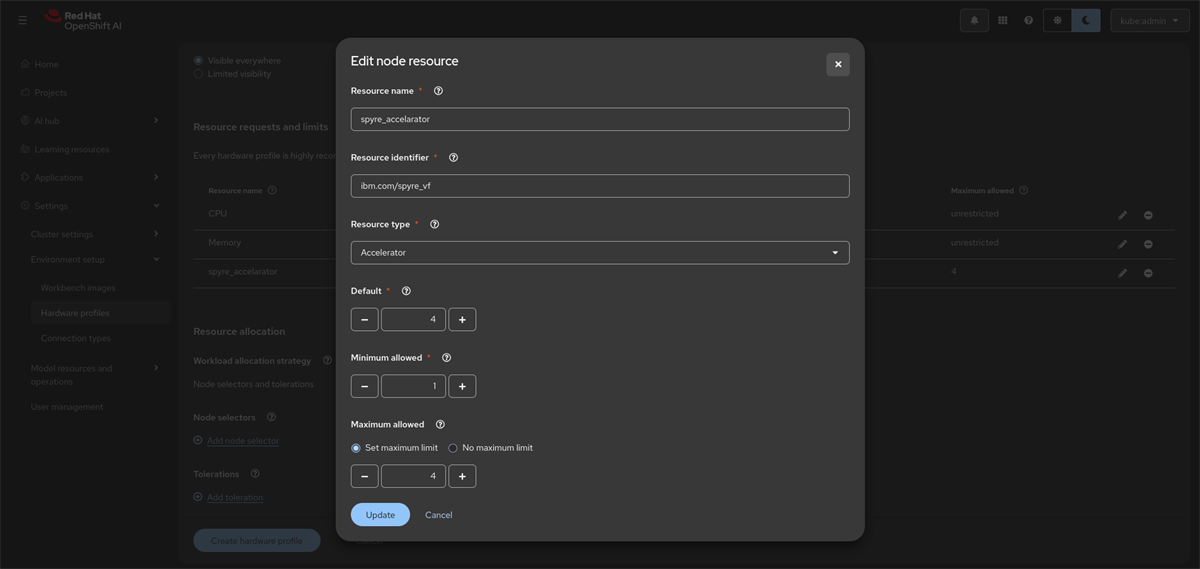
- Provide a unique name, Resource identifier as
ibm.com/spyre_vf, Resource type as Accelerator, Default and maximum allowed to 4.
- Click Update.
- Scroll down to add a toleration to the deployment so that it can be scheduled onto the worker node that was previously tainted.
- Click on Add toleration and provide the following values to add toleration.

- Click on Add and then on Create Hardware profile.
Deploy the model
- On the Dashboard, click on Projects on the left panel.
- Click Create Project, provide a name, and click Create. A project details page will appear with multiple tabs.
- Go to Connections tab.
- Click on Create connection and select S3 compatible object storage from the drop down.
- Enter the following details and click create.
- Connection name
- Access Key
- Secret Key
- Endpoint URL
- Region
- Bucket Name
- Go to Deploy tab.
- Select Existing Connection under Model Location.
- Choose the S3 connection created earlier.
- Provide the path to the model in your S3 bucket.
- Select Model type as Generative AI model from dropdown.
-
- Click Next and give a unique Model Deployment name.
- Under Hardware Profiles, select the profile you created earlier for granite 3.3 8b.
- Select
vLLM Spyre s390x ServingRuntime for KServe - RHAIIS - 3.2.5 created earlier from dropdown.
- Set Model server replicas to 1.
- Click Next.
- Under Model Route, enable Make deployed models available through an external route to allow external access.
- For test environments, token authentication is optional.
- For production environments:
- Select Require Token Authentication.
- Enter the Service Account Name for token generation.
- Check Add custom runtime arguments check box and enter the following custom runtime arguments in the text box given below.
--max-model-len=32768
--max-num-seqs=32
--tensor-parallel-size=4
- Wait until the deployment reaches the Starting state.
- Once active, verify that the model deployment end points has been generated.

-
- Hover over Internal and external endpoint under Inference endpoints and copy the external endpoint to proceed for Inferencing. You can use Internal endpoint to send an inferenece request with in the cluster.
Inferencing
Inference Request
After deployment, use the generated and external endpoint to send inference requests.
curl -k https://<external-endpoint>/v1/completions \
-H "Content-Type: application/json" \
-d '{
  "model": "<model-name>",
  "prompt": "<prompt>",
  "max_tokens": <max-tokens>,
  "temperature": 0
}' | jq
Example Request:
curl -k https://granite-8b-granite-8b.apps.ocpz-standard-spyre.b39-ocpai.pok.stglabs.ibm.com/v1/completions \
-H "Content-Type: application/json" \
-d '{
"model": "granite-8b",
"prompt": "What is London famous for?",
"max_tokens": 300,
"temperature": 0
}' | jq
Example Response:
{
"id": "cmpl-85d173db3625491385450feae1534ffd",
"object": "text_completion",
"created": 1765525457,
"model": "granite-8b",
"choices": [
{
"index": 0,
"text": "\n\nLondon is famous for its iconic landmarks such as the Tower of London, Buckingham Palace, the Houses of Parliament, and Big Ben. It's also known for its rich history, cultural institutions like the British Museum and the National Gallery, and its vibrant arts and entertainment scene. The city is a global hub for finance, fashion, and tourism.",
"logprobs": null,
"finish_reason": "stop",
"stop_reason": null,
"token_ids": null,
"prompt_logprobs": null,
"prompt_token_ids": null
}
],
"service_tier": null,
"system_fingerprint": null,
"usage": {
"prompt_tokens": 7,
"total_tokens": 102,
"completion_tokens": 95,
"prompt_tokens_details": null
},
"kv_transfer_params": null
}
external-endpoint = external endpoint generated under models tab
model-name = model deployment name
max-tokens = maximum number of tokens you need to be generated in response
Note:
If the inference request gets timed out, increase the timeout imposed on the haproxy route as follows
Through OpenShift CLI:
oc annotate isvc <isvc-name> -n <namespace> haproxy.router.openshift.io/timeout=5m --overwrite
For this example
oc annotate isvc granite-8b -n granite-8b- haproxy.router.openshift.io/timeout=5m --overwrite
Get isvc-name with:
oc get isvc -n <namespace>
namespace - namespace in which model is deployed, which is granite-8b in this demo.
Through UI:
-
In the OpenShift console, navigate to Administration → CustomResourceDefinitions.
-
Search for InferenceService in the search bar.


-
Select the entry corresponding to your model deployment
-
Go to YAML tab
-
Under the metadata → annotations section, add the following line:
haproxy.router.openshift.io: 5m

Conclusion
This guide walked through the complete end-to-end process from preparing the environment to validating model responses enabling you to confidently run large language models on OpenShift AI with IBM Spyre acceleration. As organizations increasingly adopt AI workloads on IBM Z and LinuxONE, this setup provides a reliable, efficient, and secure way to operationalize model serving at scale.