OpenID Connect provides us a ton of options for authenticating users and devices from the normal Authorization Code grants, to Client Credentials, to ROPC, and many more. However, in some cases, you are limited with what you can do once you've authenticated. In an Authorization Code grant flow, your session at the identity provider side may have expired but your access tokens may still be valid. In an ROPC grant flow, you have obtained rights to interact with the identity provider, but you never established a session with the browser so if you attempted to go elsewhere, you'd be out of luck.
In this scenario, we will use the ROPC grant flow with IBM Cloud Identity to obtain an access token, and then make an ajax based HTTP call with that token and obtain an established authenticated session with IBM Cloud Identity. Once the session has been established, users are able to traverse other applications, both SAML and OIDC, without re-authenticating directly with the identity provider.
Note: For the time being, CORS bypass needs to be enabled via a browser plugin. I'm working on a workaround at the moment.
New authentication session endpoint
In a recent release of IBM Cloud Identity, our developers added a new API endpoint that allows for session cookies to be set when performed by in a browser flow.
GET /v1.0/auth/session
In this case, to call this API, a valid token must be provided in the browser header (ex. Authorization: bearer {token}) to receive a successful response.
This new API is pretty simple to call from an ajax call. In the code sample below, I've created a javascript function, providing the access token I received, and upon a successful response from the API call, I send the user to the launchpad (which is in of itself an OIDC application) and I wont be asked for any further authentication (that is if you didn't apply MFA to it).
const hostname = "https://casesecurity.ice.ibmcloud.com"
function redirectUser() {
	window.location.replace(`${hostname}/usc`);
}
function establishSession(token) {
    var xhr = new XMLHttpRequest();
	xhr.withCredentials = true;

	xhr.addEventListener("readystatechange", function() {
		if(this.readyState === 4) {
		    console.log(this.responseText);
				redirectUser();
		  }
		});
	xhr.open("GET", "https://tenant.ice.ibmcloud.com/v1.0/auth/session");
	xhr.setRequestHeader("Authorization", `Bearer ${token}`);
	xhr.setRequestHeader("X-Forwarded-Host", `tenant.ice.ibmcloud.com`);
	xhr.setRequestHeader("Access-Control-Allow-Headers", `x-requested-with`);
	xhr.setRequestHeader("Access-Control-Allow-Origin", `*`);
	xhr.setRequestHeader("Access-Control-Allow-Methods", "POST, GET, OPTIONS");
	xhr.send();
    }
This function can apply to longer lived session based applications that have refresh tokens as well. Any authenticated user-based application access token can use this API to establish an underlying user session for other applications.
Sample form based login flow example
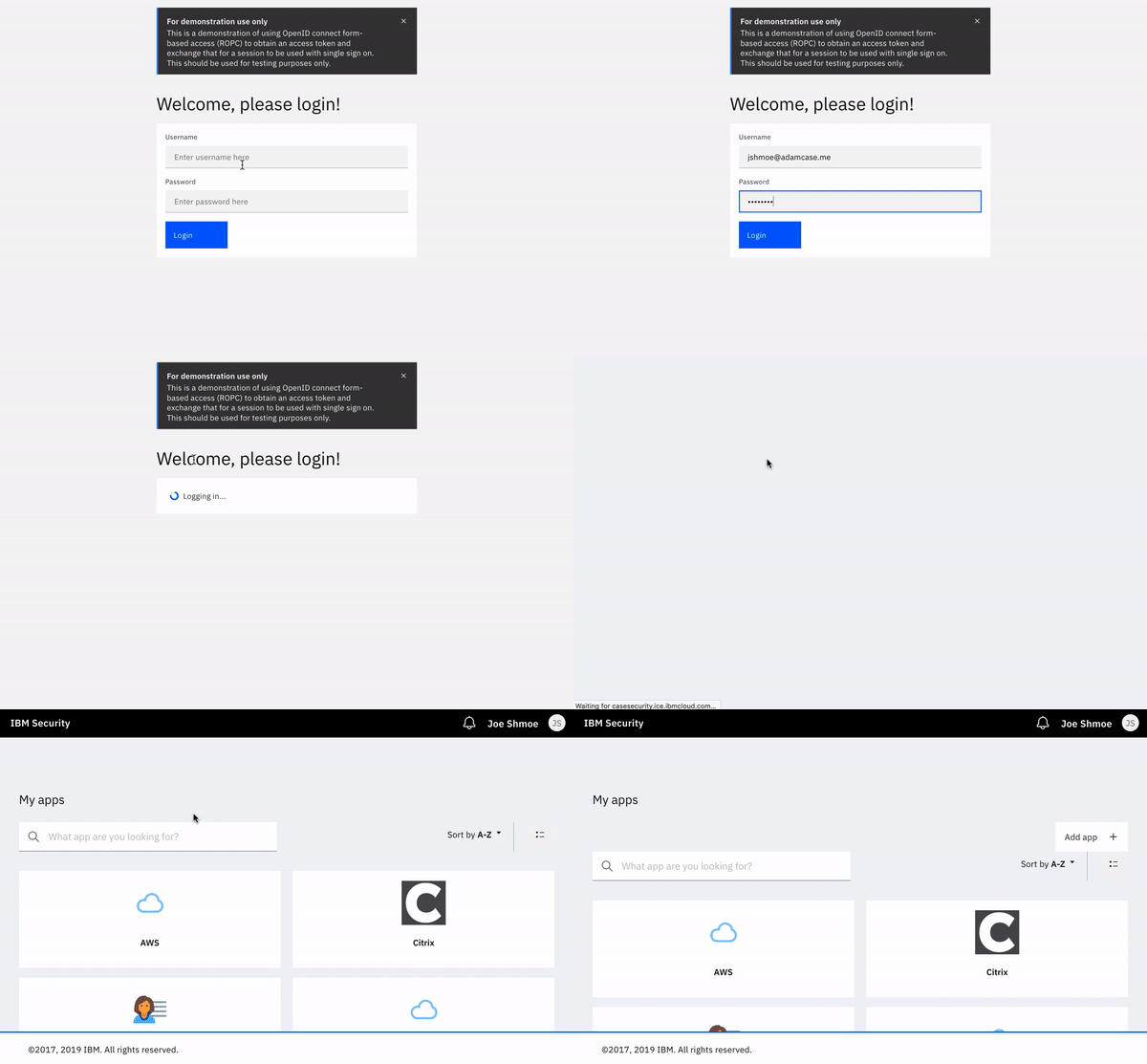
I have put together a sample application, no more than 160 lines of HTML/JS code. This application does one thing, and one thing only: logs a user in to the launchpad from an third party application.
Prerequisite) Create a new OIDC application for ROPC
Using a custom connector in in IBM Cloud Identity, create a new OIDC application, with Resource Owner Password Grant (ROPC) enabled, with a public client ID, and no secret. For this flow, the secret does not really do us much good because this is just a front-end based application. It wouldn't really be private anyway as there isn't a real good option to hide it.
Additionally, because this application is a third party, you will need to add your server URL, whether localhost or a fully-qualified domain, to your Allowed Domains.
Add your domain to allowed domains in IBM Cloud Identity
In the admin portal of IBM CLoud Identity, navigate to the Configuration tab. Under the API Clients tab, select Allowed Domains. Add your domain, port, and anything else necessary to allow CORS. In this case, I am using python to create a HTTP server on port 8000. I've added http://localhost:8000 to my list of allowed domains.
Step 1) Include the third party files for styling and jQuery
Create a single index.html file for this example. Within the <head> tags, include the following snippets. For styling we will be using the Carbon Design framework (an IBM open-sourced UI framework for quick application styling). Read more here: https://www.carbondesignsystem.com/
<link rel="stylesheet" type="text/css" href="https://unpkg.com/carbon-components/css/carbon-components.min.css">
<script src="https://unpkg.com/carbon-components/scripts/carbon-components.min.js"></script>
Step 2) Set the OIDC client variables and createfunctions
Still within the <head> tags, start the following:
2.1 Set the variables
<script>
    const hostname = "https://tenant.ice.ibmcloud.com";
    const client_id = "client_id";
2.2 Create the function for establishing the user session
function redirectUser() {
	window.location.replace(`${hostname}/usc`);
}
function establishSession(token) {
    var xhr = new XMLHttpRequest();
	xhr.withCredentials = true;

	xhr.addEventListener("readystatechange", function() {
		if(this.readyState === 4) {
		    console.log(this.responseText);
				redirectUser();
		  }
		});
	xhr.open("GET", "https://tenant.ice.ibmcloud.com/v1.0/auth/session");
	xhr.setRequestHeader("Authorization", `Bearer ${token}`);
	xhr.setRequestHeader("X-Forwarded-Host", `tenant.ice.ibmcloud.com`);
	xhr.setRequestHeader("Access-Control-Allow-Headers", `x-requested-with`);
	xhr.setRequestHeader("Access-Control-Allow-Origin", `*`);
	xhr.setRequestHeader("Access-Control-Allow-Methods", "POST, GET, OPTIONS");
	xhr.send();
    }
2.3 Create the function to perform the initial login
This will take in the form values upon submission and input them into the ROPC grant flow. You could easily add reCaptcha support
function login(form) {
        var un = encodeURI(form.Username.value);
        var pw = form.Password.value;
        var data = `grant_type=password&client_id=${client_id}&username=${un}&password=${pw}`;

        var xhr = new XMLHttpRequest();
        xhr.withCredentials = true;

        xhr.addEventListener("readystatechange", function () {
            if (this.readyState === 4) {
                var response = JSON.parse(this.responseText);
                console.log(response);
                loginResults(this.responseText);
                establishSession(response.access_token);
            }
        });

        xhr.open("POST", `${hostname}/oidc/endpoint/default/token`);
        xhr.setRequestHeader("Content-Type", "application/x-www-form-urlencoded");
        xhr.send(data);
    }
2.4 Add an event listener to get the data from the login form
window.addEventListener("load", function() {
        var loginForm = document.getElementById("LoginForm");
        loginForm.addEventListener("submit", function() {
             login(loginForm);
         });
     });
2.5 Add a show / hide function to change the user view upon login or error
function loginResults(response) {
        var loggedIn = document.getElementById("LoggedIn");
        var badLogin = document.getElementById("BadLogin");
        var form = document.getElementById("LoginForm");
        console.log(response.indexOf("error"));
        if (response.indexOf("error") == -1) {
            loggedIn.style.display = "block";
            form.style.display = "none";
            badLogin.style.display = "none";
        } else {
            badLogin.style.display = "block";
        }
    }
</script>
2.6 Add some extra style
<style>
        .tx--tile {
            background-color: #ffffff;
            margin-top:1rem;
        }
        .tx--title {

            margin-top:2rem;
        }
        .tx--m-t-1 {
            margin-top:1rem;
        }
</style>
Step 3) Create the login form
Add the following code snippet to the HTML file. There's obviously extra styling in here for effect but you get the idea.
<body style="font-family: IBM Plex Sans; background-color: #f4f4f4">
<div class="bx--grid">
<div class="bx--row">
<div class="bx--offset-lg-4 bx--col-lg-4 bx--offset-md-2 bx--col-md-4">
<div data-notification class="bx--inline-notification bx--inline-notification--info" role="alert">
<div class="bx--inline-notification__details">
<svg focusable="false" preserveAspectRatio="xMidYMid meet" style="will-change: transform;" xmlns="http://www.w3.org/2000/svg" class="bx--inline-notification__icon" width="20" height="20" viewBox="0 0 32 32" aria-hidden="true"><path d="M16,2A14,14,0,1,0,30,16,14,14,0,0,0,16,2Zm0,5a1.5,1.5,0,1,1-1.5,1.5A1.5,1.5,0,0,1,16,7Zm4,17.12H12V21.88h2.88V15.12H13V12.88h4.13v9H20Z"></path></svg>
<div class="bx--inline-notification__text-wrapper">
<p class="bx--inline-notification__title">For demonstration use only</p>
<p class="bx--inline-notification__subtitle">This is a demonstration of using OpenID connect form-based access (ROPC) to obtain an access token and exchange that for a session to be used with single sign on. This should be used for testing purposes <b>only</b>.</p>
</div>
</div>
<button data-notification-btn class="bx--inline-notification__close-button" type="button" aria-label="close">
<svg focusable="false" preserveAspectRatio="xMidYMid meet" style="will-change: transform;" xmlns="http://www.w3.org/2000/svg" class="bx--inline-notification__close-icon" width="16" height="16" viewBox="0 0 16 16" aria-hidden="true"><path d="M12 4.7L11.3 4 8 7.3 4.7 4 4 4.7 7.3 8 4 11.3 4.7 12 8 8.7 11.3 12 12 11.3 8.7 8z"></path></svg>
</button>
</div>
<h2 class="tx--title">Welcome, please login!</h2>
<div class="bx--tile tx--tile">
<form id="LoginForm" onsubmit="return false">
<div class="bx--form-item">
<label for="Username" class="bx--label">Username</label>
<input
required
id="Username"
type="text"
class="bx--text-input"
placeholder="Enter username here"
/>
</div>
<div class="bx--form-item tx--m-t-1">
<label for="Password" class="bx--label">Password</label>
<input
required
id="Password"
type="password"
class="bx--text-input"
placeholder="Enter password here"
/>
</div>
<button class="bx--btn bx--btn--primary tx--m-t-1" type="submit">Login</button>
</form>
<div data-notification class="bx--inline-notification bx--inline-notification--error" role="alert" id="BadLogin" style="display:none">
<div class="bx--inline-notification__details">
<svg focusable="false" preserveAspectRatio="xMidYMid meet" style="will-change: transform;" xmlns="http://www.w3.org/2000/svg" class="bx--inline-notification__icon" width="20" height="20" viewBox="0 0 20 20" aria-hidden="true"><path d="M10,1c-5,0-9,4-9,9s4,9,9,9s9-4,9-9S15,1,10,1z M13.5,14.5l-8-8l1-1l8,8L13.5,14.5z"></path><path d="M13.5,14.5l-8-8l1-1l8,8L13.5,14.5z" data-icon-path="inner-path" opacity="0"></path></svg>
<div class="bx--inline-notification__text-wrapper">
<p class="bx--inline-notification__title">Login error!</p>
<p class="bx--inline-notification__subtitle">The login information you entered does not match an account in our records. Please try again.</p>
</div>
</div>
</div>
<div id="LoggedIn" style="display:none">
<div data-inline-loading class="bx--inline-loading" role="alert" aria-live="assertive">
<div class="bx--inline-loading__animation">
<div data-inline-loading-spinner class="bx--loading bx--loading--small">
<svg class="bx--loading__svg" viewBox="-75 -75 150 150">
<circle class="bx--loading__background" cx="0" cy="0" r="30" />
<circle class="bx--loading__stroke" cx="0" cy="0" r="30"/>
</svg>
</div>
<svg focusable="false" preserveAspectRatio="xMidYMid meet" style="will-change: transform;" xmlns="http://www.w3.org/2000/svg" class="bx--inline-loading__checkmark-container" hidden="" data-inline-loading-finished="" width="16" height="16" viewBox="0 0 16 16" aria-hidden="true"><path d="M8,1C4.1,1,1,4.1,1,8c0,3.9,3.1,7,7,7s7-3.1,7-7C15,4.1,11.9,1,8,1z M7,11L4.3,8.3l0.9-0.8L7,9.3l4-3.9l0.9,0.8L7,11z"></path><path d="M7,11L4.3,8.3l0.9-0.8L7,9.3l4-3.9l0.9,0.8L7,11z" data-icon-path="inner-path" opacity="0"></path></svg>
</div>
<p data-inline-loading-text-active class="bx--inline-loading__text">Logging in...</p>
</div>
</div>
</div>
</div>
</div>
</grid>
</body>
Save this file and create a localhost server via php -S localhost:8000 or python -m SimpleHTTPServer on a terminal window while in the directory of the index.html file.
Download the full file here: index.html