Originally posted by: sco1
With IBM Data Science Experience (DSX) Local, users can run TensorFlow notebooks for single node deep learning training. As the training duration increases, users can take advantage of computing power of a cluster for distributed deep learning training. This blog shows how to prepare and run a TensorFlow notebook in distributed mode using IBM Spectrum Conductor Deep Learning Impact 1.1.0.
Prerequisites
- Access to IBM DSX Local where you can login, create and run notebooks. For more information on IBM DSX Local, see https://datascience.ibm.com/docs/content/local/welcome.html
- An IBM Spectrum Conductor with Spark 2.2.1 cluster with IBM Spectrum Conductor Deep Learning Impact 1.1.0 add-on installed. To try a free version of IBM Spectrum Conductor Deep Learning Impact, download the evaluation copy.
- Completed the configuring of IBM Spectrum Conductor Deep Learning Impact as described here https://www.ibm.com/support/knowledgecenter/SSWQ2D_1.1.0/in/installation-dli-configuration.html.
- Root access to the IBM Spectrum Conductor with Spark management node.
Step 1: Run a sample notebook in IBM DSX Local
In this step, you will download the sample cifar10 notebook and train it on a single node in IBM DSX Local. The steps are as follows:
- Download the cifar10 notebook from https://git.ng.bluemix.net/ibmcws-deep-learning-samples/ibmcws-deep-learning-cifar10-notebook/blob/master/cifar10fabric.ipynb. This notebook was created by combining python files from cifar10 TensorFlow from the community. Additional code was also added to take advantage of IBM Spectrum Conductor Deep Learning Impact features such as distributed training.
- Once downloaded, rename the notebook to fabricmodel.ipynb.
- Import the notebook to IBM DSX Local and edit the notebook.
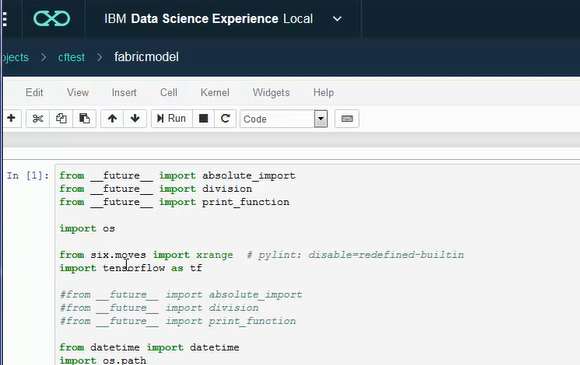
- Run each cell and observe the output. Sample training output is shown below.
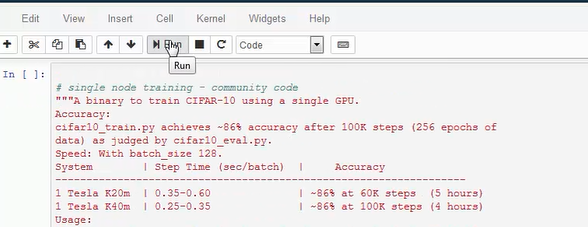
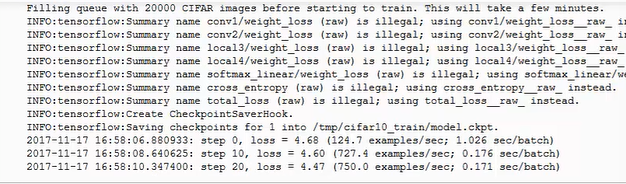
Next step is to get the same model to do distributed training using IBM Spectrum Conductor Deep Learning Impact’s IBM Fabric and auto-scaling feature.
Step 2: Distributed Training Using IBM Spectrum Conductor Deep Learning Impact’s IBM Fabric and auto-scaling
In this step, you will convert the notebook, export it from IBM DSX Local, and import it to IBM Spectrum Conductor Deep Learning Impact for training. The steps are as follows:
- Edit the notebook. In the first cell, change the DLI variable from ‘False’ to ‘True’ and uncomment the line importing tf_parameter_mgr as shown. Additional code was added to take advantage of IBM Spectrum Conductor Deep Learning Impact features as well as to enable distributed training. The DLI variable controls whether to run original community code or to make calls to IBM Spectrum Conductor Deep Learning Impact.

- Export the notebook as a Python program. The exported Python program must be named fabricmodel.py.
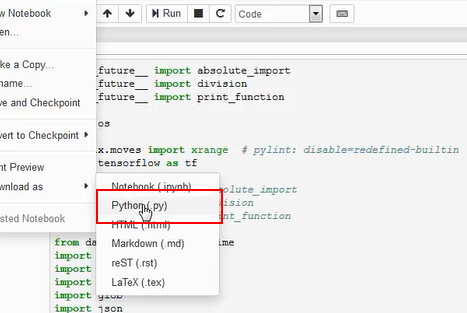
- Log in to IBM Spectrum Conductor with Spark management node and copy fabricmodel.py to /tmp.
- Download cifar10 dataset from http://www.cs.toronto.edu/~kriz/cifar-10-binary.tar.gz, extract it and use the IBM Spectrum Conductor with Spark cluster management console to create a dataset from the downloaded data using TensorFlow Records as the input data format.
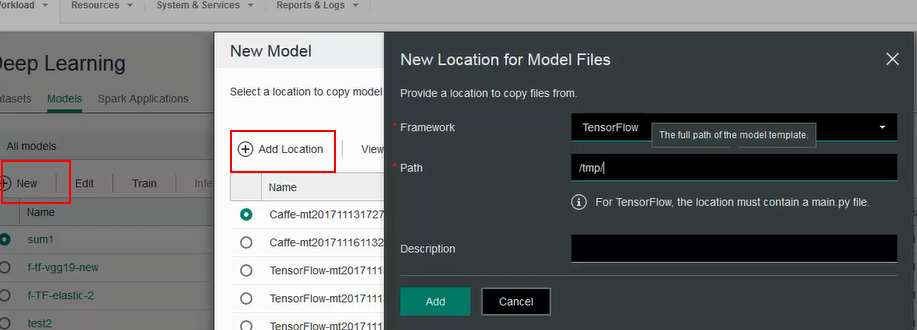
- In the cluster management console, create a model by specifying the directory where fabricmodel.py resides. You should see the following dialogs when creating a model. In this case the path is set to /tmp.
Note: IBM Spectrum Conductor Deep Learning Impact also requires a main.py in the same directory so you need to create a main.py in the same location as fabricmodel.py. The main.py can contain one line such as ‘import tensorflow as tf’.
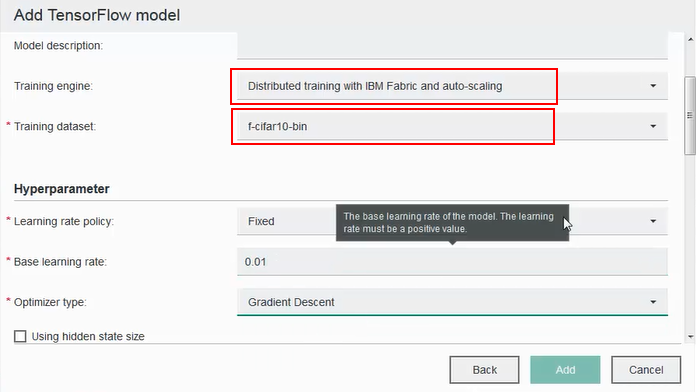
- Using the model that you just added, populate the model fields. Select the ‘Training engine’ as shown for IBM Fabric and auto-scaling, and select training dataset created earlier. For cifar10, you can set the following values for hyperparameters: “fixed” for learning rate policy, 0.01 for base learning rate, 0.9 for momentum, 0.004 for weight decay, 5000 for max iterations, Gradient Descent for optimizer type, 200 for batch size.
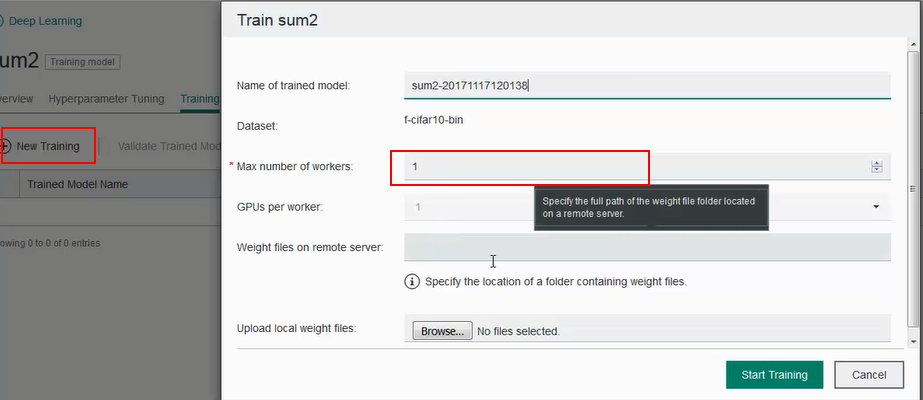
- Once the model is created, click on the model name to go to the model details screen. Under ‘Training’ tab, click ‘New Training’. Select the max number of workers and start training. The training starts with one worker and automatically adds more workers as resources become available.
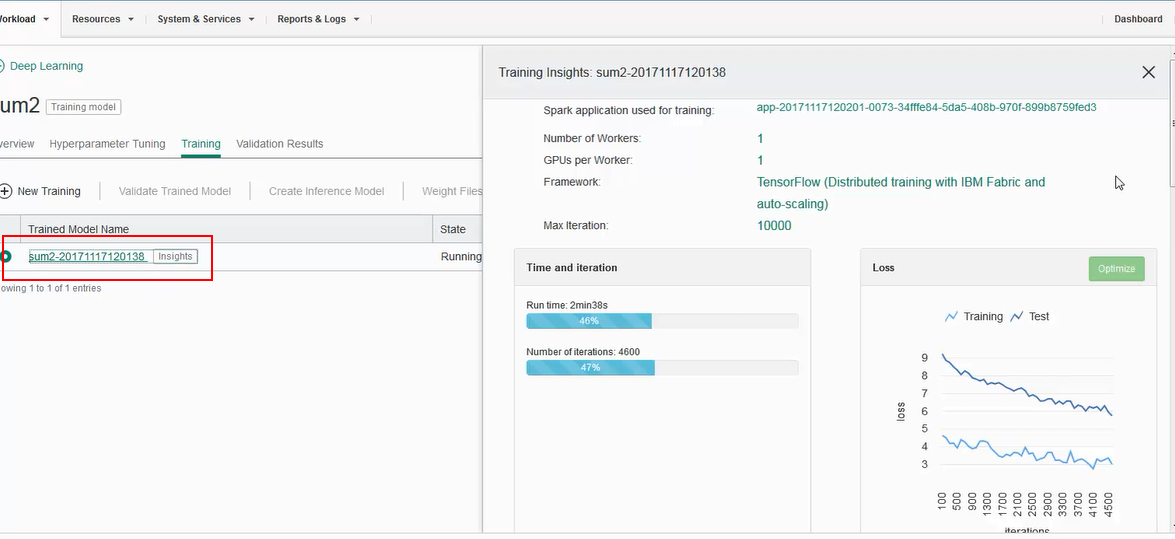
- The state of training, whether it is running or completed can be viewed from the Training page. For details regarding training progress, click the training name to get additional details in the Insights pane. Monitor the training run from the Insights pane:
For more information about IBM Spectrum Conductor Deep Learning Impact, see:
www.ibm.biz/DeepLearningImpact
#SpectrumComputingGroup