Introduction
In the landscape of legacy modernization, security frequently represents a primary challenge. The release of IBM Host Access Transformation Services (HATS) v10 streamlines the process of bridging legacy applications with modern, enterprise-grade security standards.
HATS v10 introduces native support for OpenID Connect (OIDC), enabling organizations to offload local identity management to centralized, enterprise-grade solutions.
To understand how HATS v10 handles this new handshake, here are the key concepts you need to know:
-
IdP: Authenticates the user and issues tokens (e.g., Okta or Keycloak).
-
Client: The application verifying the user's identity (Relying Party).
-
ID Token: The core JWT used for authentication, containing user claims.
-
Access Token: Used for authorization to protected APIs.
-
Scope: Defines requested access (e.g., openid, profile, email).
OpenID Connect (OIDC) in HATS
Here is how the OIDC flow works when configured in HATS:
-
HATS redirects user to the IdP: When a user hits your HATS web URL, the application recognizes it needs an authenticated session. It immediately redirects the user’s browser to the Identity Provider (IdP) (like Okta or Keycloak) with a request for the openid scope.
-
User logs in and consents at the IdP: The user enters their credentials on the IdP's login page.
-
IdP redirects user back to the Client with an authorization code: The IdP sends the user's browser back to a specific HATS endpoint (the redirect URI) with a short-lived authorization code.
-
HATS securely exchanges the code for an ID Token and Access Token: The HATS Web application securely communicates directly with the IdP to exchange the authorization code for two key tokens:
-
ID Token: A JWT (JSON Web Token) containing user identification information (claims like user ID, email).
-
Access Token: A token used to access protected resources or APIs.
5.HATS validates the ID Token and establishes a local session: HATS verifies the signature and claims within the ID Token to ensure it is valid and issued by the correct IdP. Once verified, HATS creates a secure, local session for the user, allowing them access to the HATS application.
Note:
Currently, OIDC support is limited to HATS Web Applications. Support for HATS APIs is planned for a future update.
Configuring OpenID Connect (OIDC) for HATS
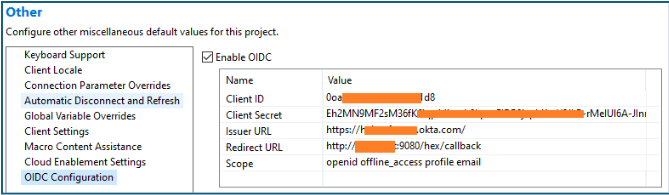
The OIDC Configuration panel enables secure authentication for the HATS application, which is restricted to the WEB ONLY environment. To set up OIDC, users must first select Enable OIDC. Once enabled, the following parameters are required: Client ID, Client Secret, Issuer URL, Redirect URL, and Scope.
These critical values must be obtained directly from your Identity Provider (IdP) team and accurately reflect their configuration. Precise matching is mandatory to guarantee successful authentication and correct callback processing within the HATS application.
To configure OpenID Connect (OIDC) in your HATS project, you must first access the project settings. Once there, go to the "Other" tab. Inside this tab, find and select "OIDC Configuration," and then activate the OIDC feature.
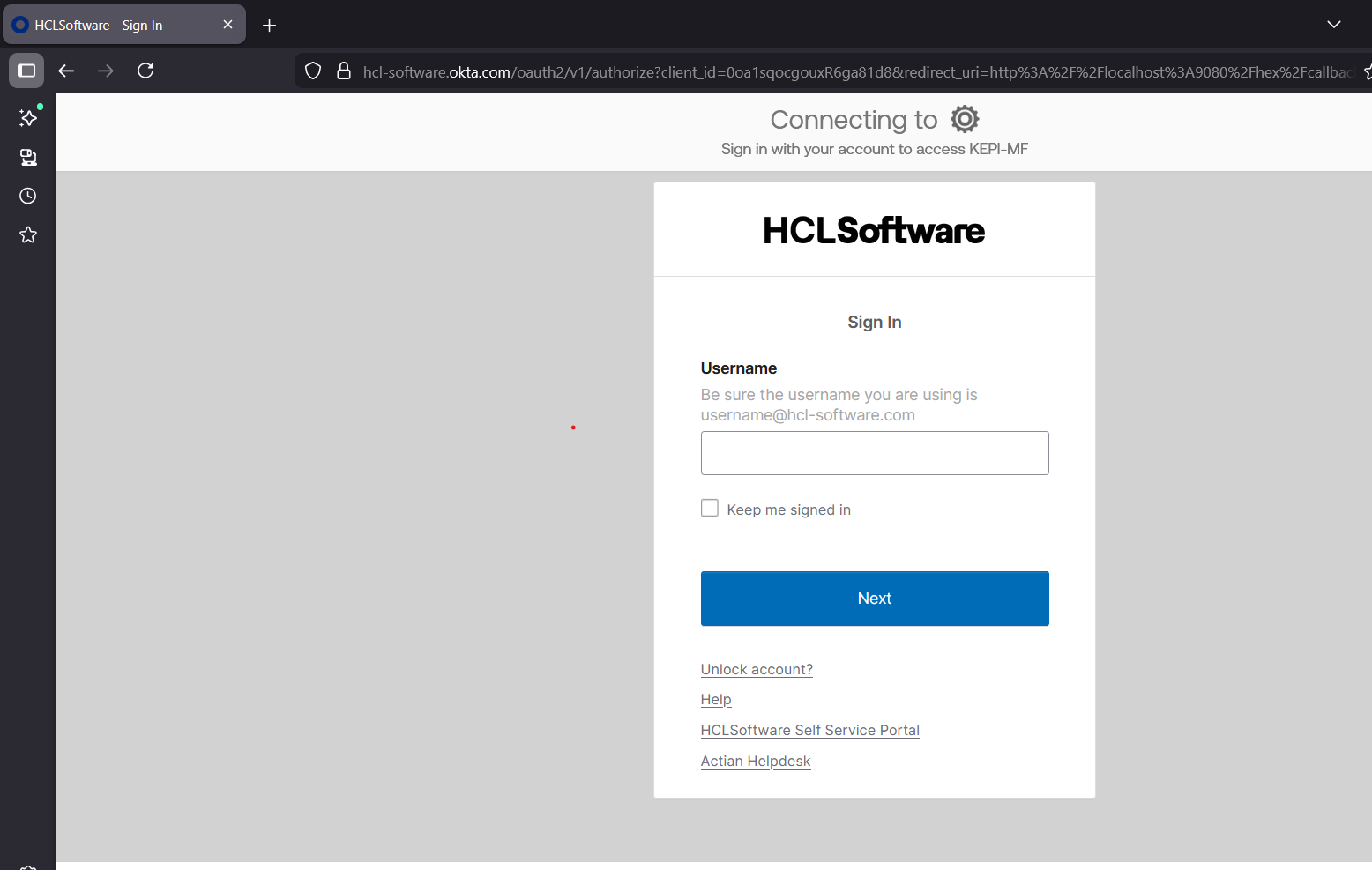
As an example, accessing the HATS URL initiates a redirection to the Okta login page. Upon successful authentication through Okta, the user is then directed to the HATS mainframe screen.
OIDC Configuration Input Fields
This section details the necessary input fields for configuring OpenID Connect (OIDC).
Client ID
Unique identifier for HATS application, used by the IdP for recognition.
Client Secret
Confidential value from IdP, used with Client ID to authenticate HATS during code-to-token exchange.
Issuer URL
Base URL of the IdP that issues OIDC tokens. HATS uses it to validate tokens and discover IdP endpoints (authorization, token, JWKS). E.g. https://[identity.yourcompany.com/oauth2/default](https://identity.yourcompany.com/oauth2/default)
Redirect URL
The callback URL where the IdP sends the user after successful authentication. Must match the registered URI. E.g. https://<myhatsapp.com>/callback
NOTE: The /callback path is a dedicated HATS handler for the authentication response.
Scope
A space-separated list of requested permissions/claims from the IdP (e.g., openid, profile, email), determining the information in the ID token.
Developer Corner and Deployment Essentials
NOTE 1: OIDC Filter class and Callback servlet
HATS provides filter OIDCAuthFilter and a callback servlet OIDCCallback to perform the OIDC based authentication. OIDCAUTHFilter is responsible for initiating the OIDC authentication flow. OIDCCallback processes the response after successful authentication and authorization process. These filter and callback entries are available in the web.xml. In case, you wish to override these configuration with your own implementation:
-
Disable the ‘Enable OIDC’ checkbox.
-
Verify the filter OIDCAuthFilter and servlet OIDCCallback are disabled in web.xml.
Note 2: Deploy HATS OIDC enabled project on WAS
To deploy and run an OIDC enabled HATS application on Websphere application server(WAS), create a HATS project by selecting Web server target as WAS and export the HATS project as EAR file and install it using the WAS Administrative Console.
After installing the application on WAS, make the following changes in the HATS application configuration:
Application-level class loader settings:
-
Log in to the WebSphere Integrated Solutions Console (ISC)
-
Navigate to:
Applications → Application Types → WebSphere enterprise applications
-
Select your application ( the HATS EAR)
-
Click Class loading and update detection
-
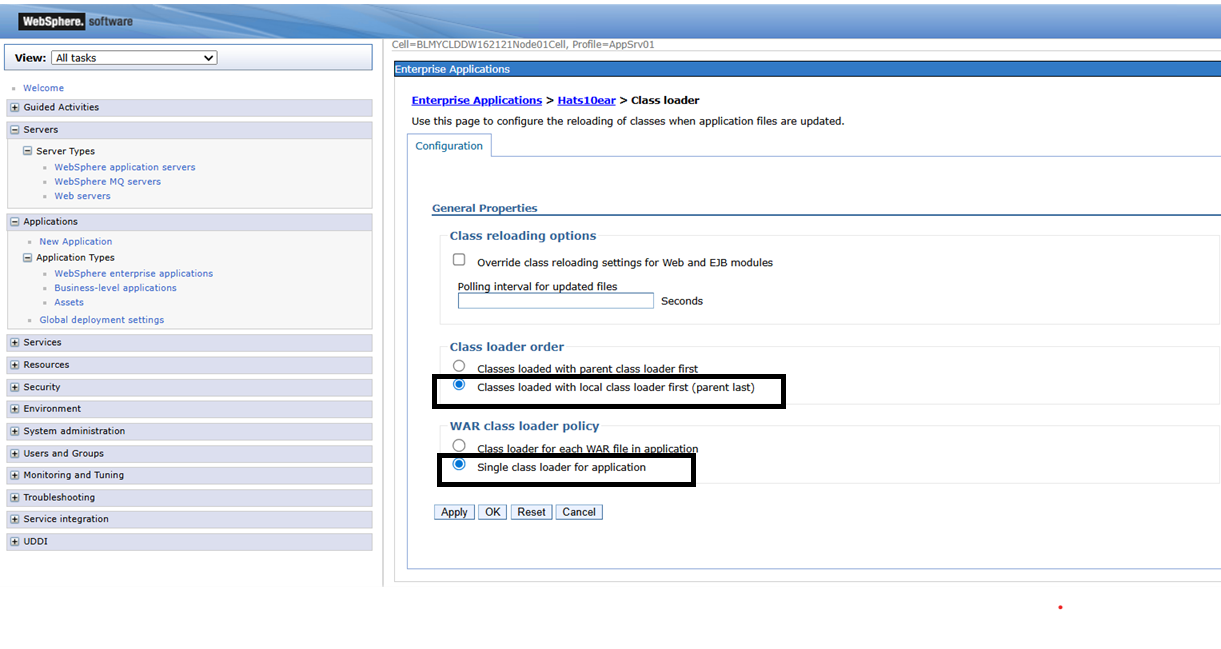
Set the following options:(Refer to image below)
Class loader order: Classes loaded with local class loader first (Parent Last)
Class loader mode: Single class loader for application
-
Save the configuration and restart the EAR.
Note 3: Migration considerations for OIDC configuration
When migrating older HATS projects to HATS v10 and enabling OIDC, users must ensure that the following entries are added to the HATS web.xml file to enable proper integration and connectivity with the OIDC provider.
1. <filter>
<description>Provides OIDC Auth Security</description>
<display-name>OIDCAuthFilter</display-name>
<filter-name>OIDCAuthFilter</filter-name>
<filter-class>com.ibm.hats.runtime.filters.OIDCAuthFilter</filter-class>
<async-supported>false</async-supported>
</filter>
2. <filter-mapping>
<filter-name>OIDCAuthFilter</filter-name>
<url-pattern>/*</url-pattern>
</filter-mapping>
3. <servlet id="callback">
<display-name>OIDCCallback</display-name>
<servlet-name>OIDCCallback</servlet-name>
<servlet-class>com.ibm.hats.runtime.OIDCCallback</servlet-class>
<enabled>true</enabled>
<async-supported>false</async-supported>
</servlet>
Troubleshooting
To capture detailed log statements in the HATS Trace, update HATS runtime properties file with values:
trace.UTIL=3
trace.RUNTIME=9
References
https://www.ibm.com/docs/en/hats/10.0.0?topic=other-oidc-configuration-securing-hats-web-application
Soumya Mallappa
HATS Developer
⚡️IBM z17 is here! Powered by the new IBM Telum II processor, IBM z17 makes more possible, empowering organizations to drive innovation and do more with their data while processing sixty percent more transactions per day than IBM z16. See what sets IBM z17 apart here.