Overview
IBM DevOps Deploy now offers a Configuration as Code (CAC) feature that can be downloaded from the DevOps Plugins page. It enables users to manage their deployment configurations including components, applications, environments, and processes as JSON or YAML files that can be checked into a git repository.
Users can download existing configurations from the server, edit them locally using an IDE of their choosing, and then upload them back making a source code repository like Git the single source of truth for collaboration and change tracking.
In this blog, I cover how to quickly get started using the CAC features and how you can enable an IDE like IBM Bob so the AI embedded in the solution can leverage CAC Skills that we provide to help train the AI agent.
Download of the Configuration as Code Tooling
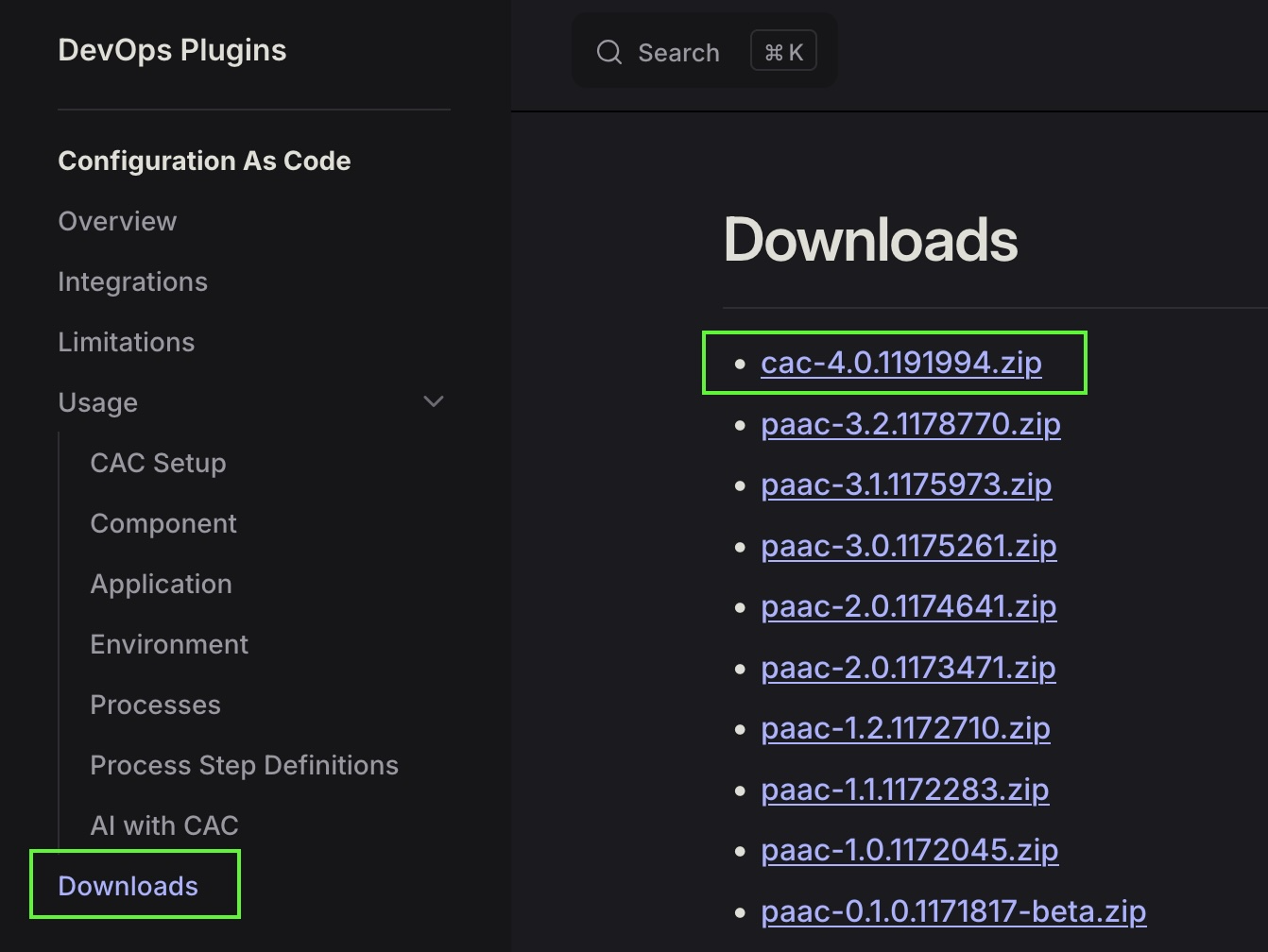
First, we need to download the CAC tool from the DevOps Plugin page found here:
https://urbancode.github.io/IBM-UCx-PLUGIN-DOCS/UCD/cac/downloads.html
I downloaded our latest version of the CAC which was cac-4.0.1191994.zip as shown below which I will use for the purpose of this blog.
You can extract this in a folder location that works best for you.
Setup of CAC
To enable easy setup of the Configuration as Code (CAC) commands, you can run a ‘cac setup’ command to store server credentials and context in a local configuration file. This helps to reduce repetitive command line arguments and simplifies the usage of the CAC capabilities.
Here is the command to run:
# ./cac setup –-server-url <url> --user <username> --pass <password>
You should see output that looks like this:
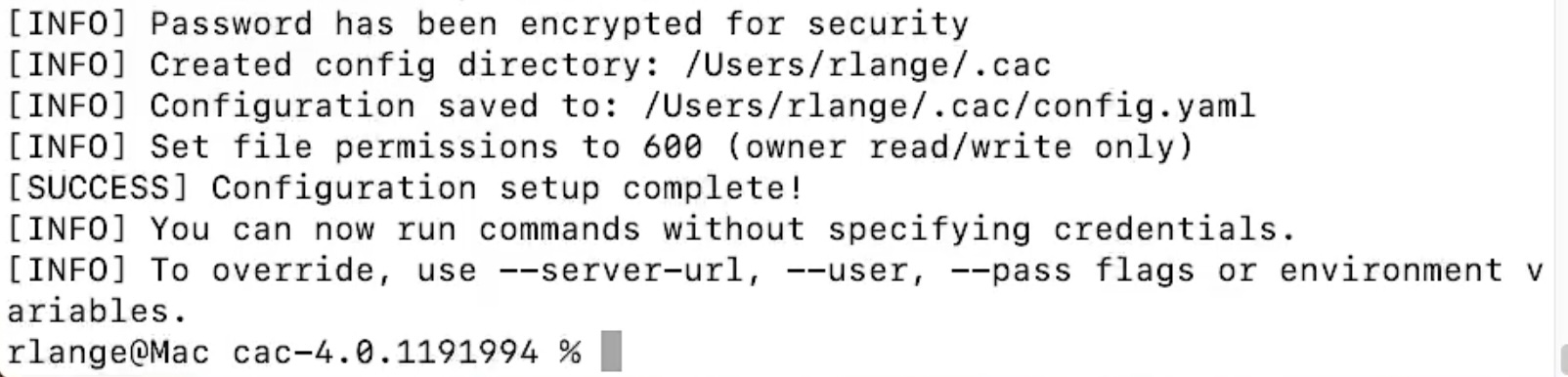
The password is encrypted and saved in a .cac/config.yaml file found in your user’s home directory. You can run a command to show the configurations by running:
# ./cac setup –show
We are now ready to work on a component process.
Working with an Application using CAC
When working with CAC, you can download an IBM DevOps Deploy Application and edit the configuration of the Application as code. For example:
# ./download-application AceCapital-Banking acecapital.yaml

NOTE: since we cached the credentials and server URL using the setup, it simplifies the command as shown above.
Notice that it creates an AceCapital-Banking folder on the filesystem for you and places the yaml file inside that folder.
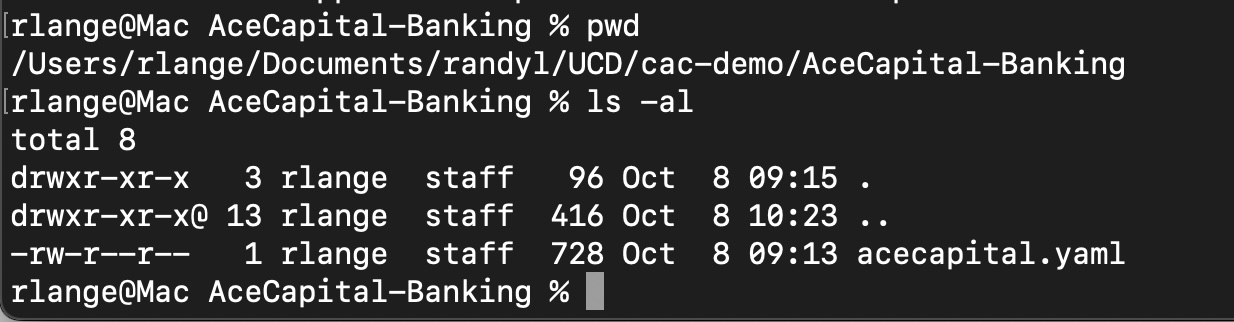
We can now edit the file and view the configuration of the Application as shown below:
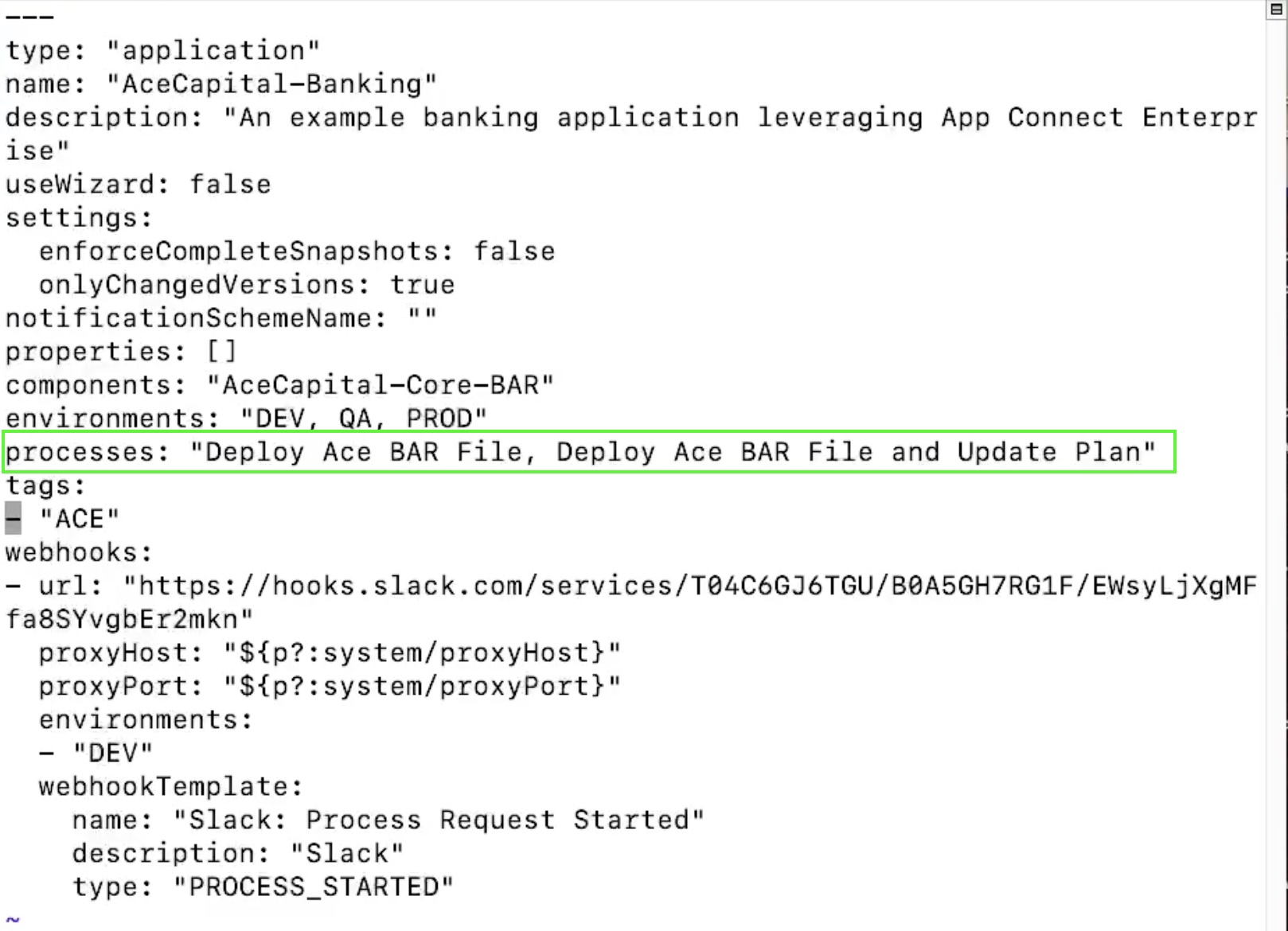
Notice this file will only list the application processes that are used by the application. If you want to edit the application processes as code, you will run a different command to download those processes as shown below:
# download-application-process <process-name> <application-name> <filename>
For example:
# download-application-process ‘Deploy Ace BAR File’ AceCapital-Banking deploy-ace-bar-file.yaml
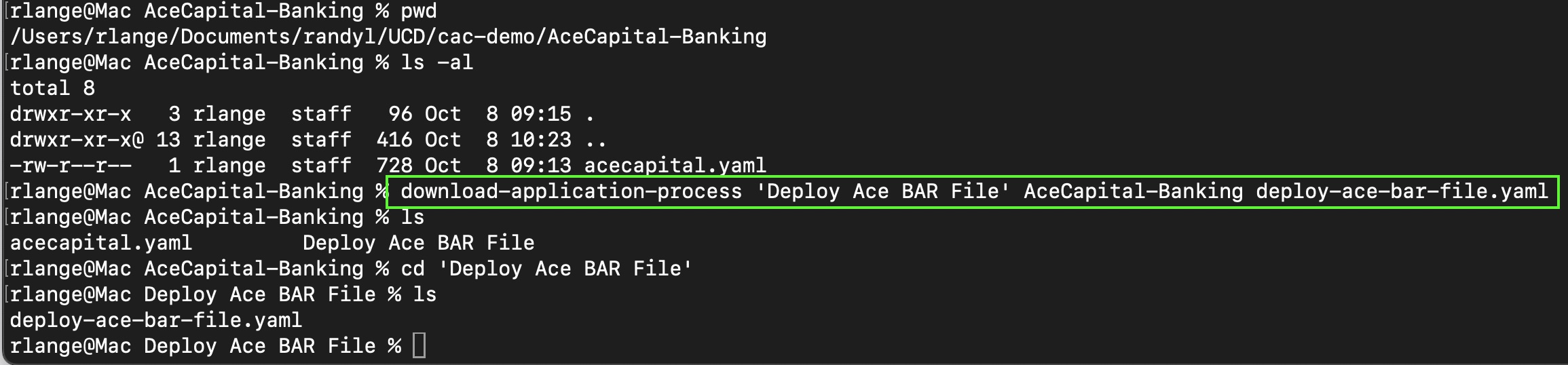
Notice that it creates a folder named ‘Deploy Ace BAR File’ and the yaml file will be placed in there.
You can then edit the application process and save your changes. When ready, you can run the following command to perform the upload:
# upload-application-process <process-file-name>
For example:
# upload-application-process deploy-ace-bar-file.yaml
No need to provide the application name with the upload. Very easy to work with.
Components
Similarly, you can work with components in DevOps Deploy in a similar manner using commands almost identical to what is shown above.
To download a component, you can run this command:
# ./download-component AceCapital-Core-BAR acecapital-core-bar.yaml
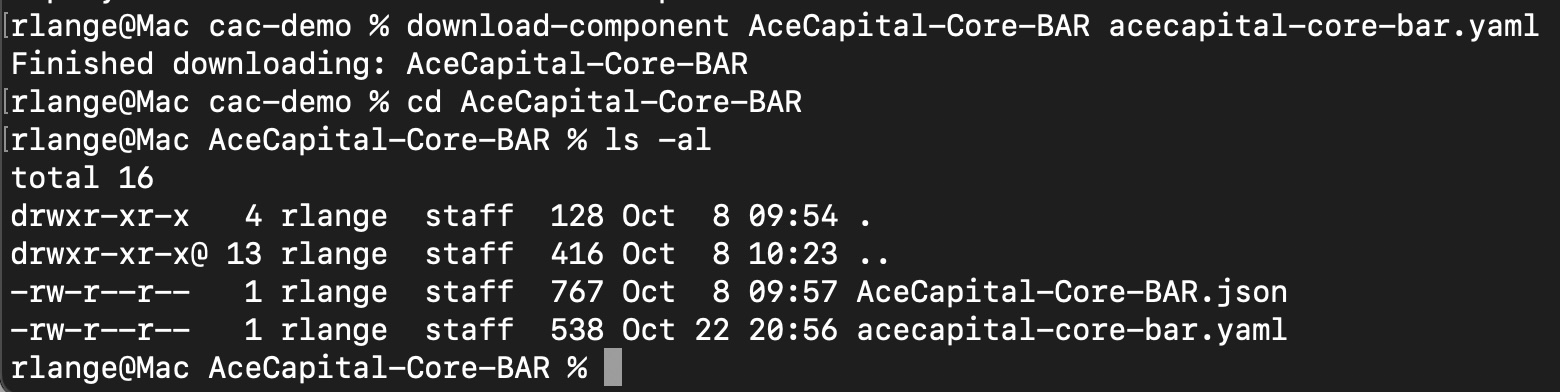
You can edit the file as shown below:
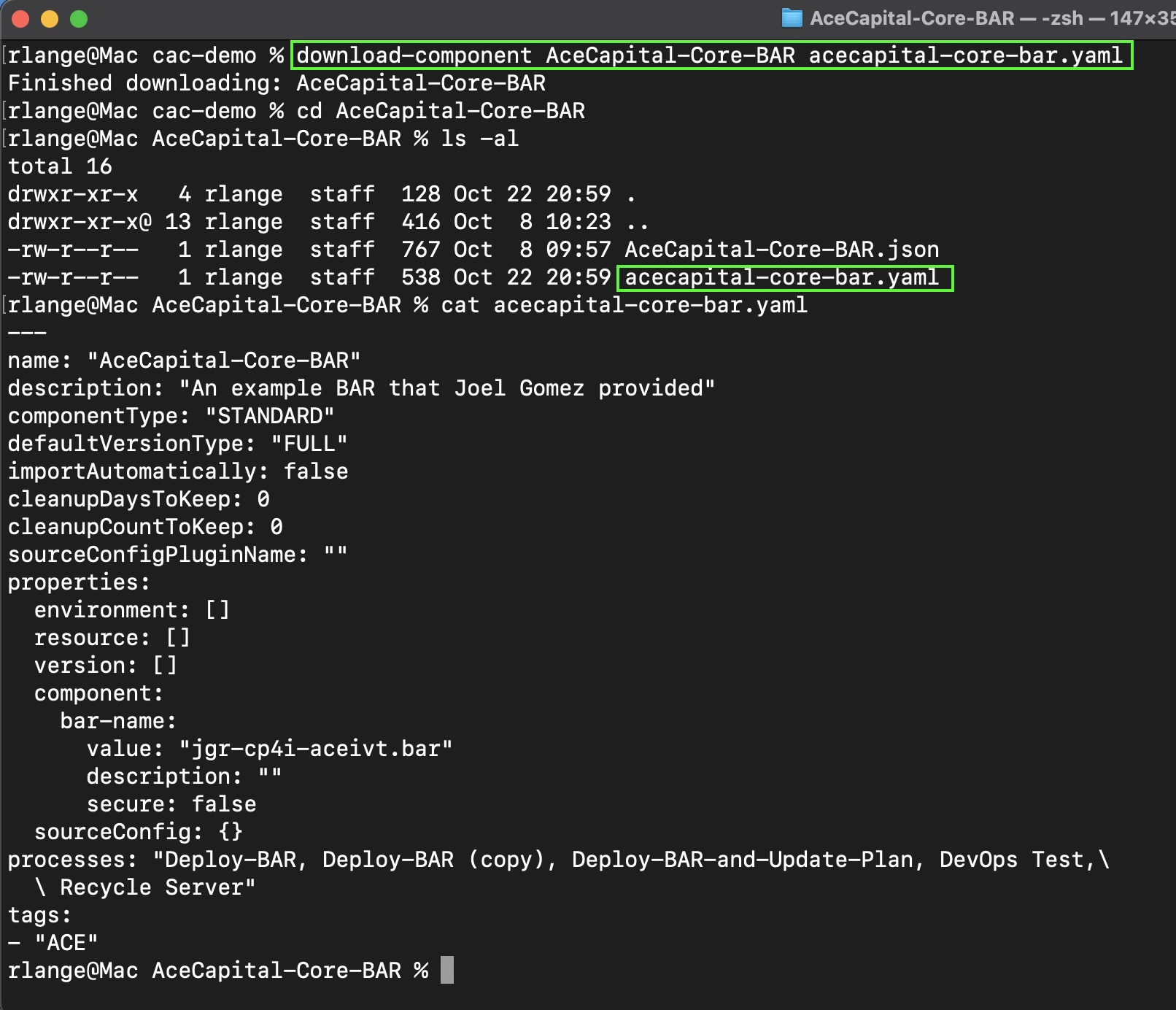
If you want to edit a process, for example, ‘Recycle Server’ as shown above, you can run this command:
# download-component-process <process-name> <component-name> <filename>
For example:
# download-component-process ‘Recycle Server’ AceCapital-Core-BAR recycle-server.yaml

You can then edit the file and make updates as shown below:
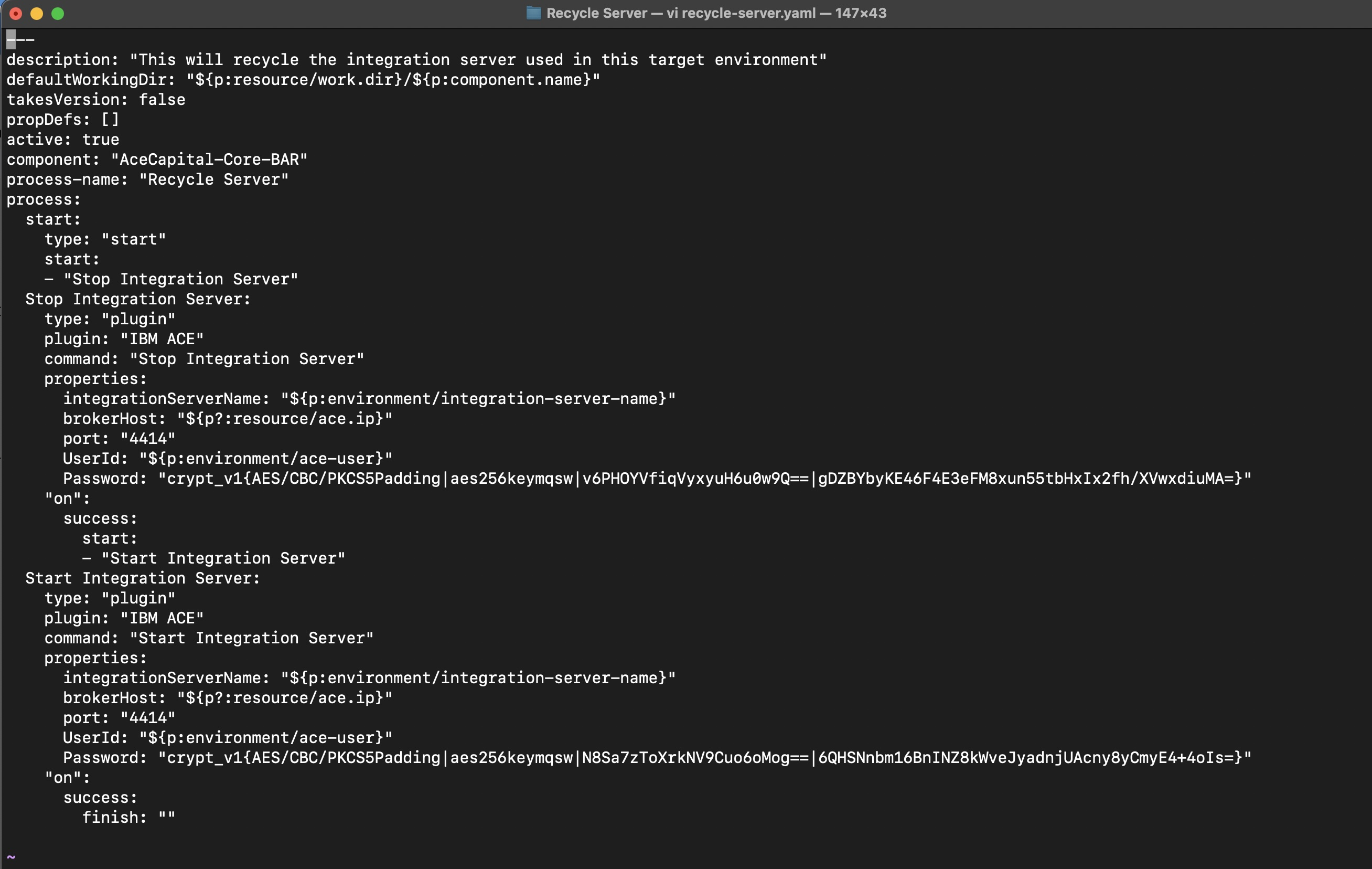
When ready, you can then upload the process using this command:
# upload-component-process <process-name>
For example:
# upload-component-process recycle-server.yaml

This is really simple. In the final segment of this blog, we will work with CAC inside IBM Bob.
IBM Bob
All of the CAC commands we just performed from the command line can be leveraged in IBM Bob. Since IBM Bob acts as an AI Agent, we can train the AI to leverage the CAC skills that are shipped with the utility which will allow you to ask questions in natural language to help with your development efforts.
First, you will need to copy the skills to your ~/.bob/skills folder as our documentation states as shown below:
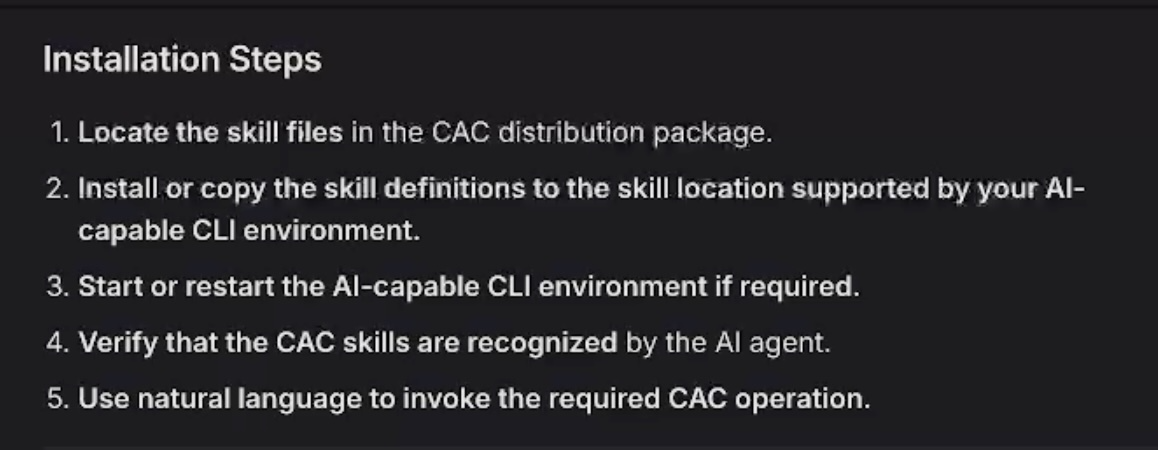
Be sure to set your credentials for DevOps Deploy as we discussed earlier.
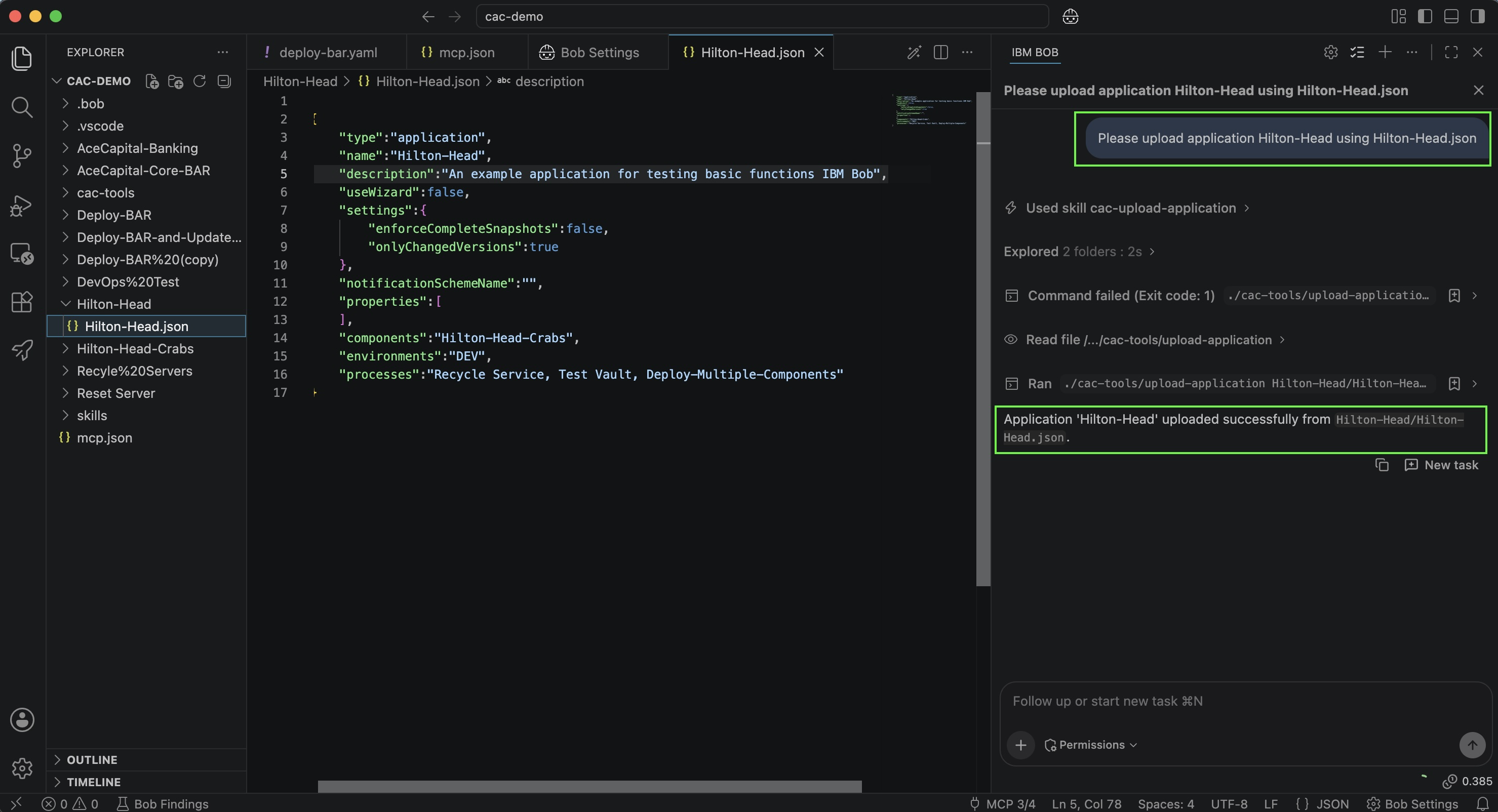
Once this is in place, you can use the Chat feature of IBM Bob and say:
“Upload application Hilton-Head using Hilton-Head.json”
And the AI agent will find the upload-application tool and execute it successfully. Here is an example below:
Conclusion
For our clients that want to edit IBM DevOps Deploy assets as code, we now have a comprehensive Configuration as Code (CAC) utility that you can download from our plugin site and get started. The code you work with can be checked into a git repository so it becomes the single source of truth and you can setup your git flow to follow the standard usage for your organization.
Further, with IBM Bob as your IDE, you can now leverage the AI Chat feature to make the usage of the CAC utility easy using natural language prompts.