Co-authored with @Sravanthi Teddu
IBM MaaS360 License Management provides customers and partners with greater visibility and control over license consumption. From automated license assignment and bulk operations to detailed reporting and overage management, License Management helps organizations efficiently manage their MaaS360 entitlements.
Enabling License Management in MaaS360 involves three key steps: Purchase licenses, Enable License Management for the customer account, and Activate License Management by assigning licenses to devices and configuring license settings.
Until recently, enabling License Management for an existing customer account required a support request and backend processing. Now, eligible business partners can enable License Management directly from the MaaS360 Portal, simplifying onboarding and reducing the time required to start managing licenses.
Why License Management?
As a Business Partner managing multiple customer accounts, you're often helping customers answer questions about license consumption, availability, renewals, and entitlement usage. IBM MaaS360 License Management provides the visibility and controls needed to simplify these conversations and improve day-to-day license administration.
With License Management enabled, customers can:
- Understand license consumption at a glance by viewing purchased, consumed, and available license units across their MaaS360 subscriptions.
- Identify which devices are consuming specific license bundles, making it easier to troubleshoot usage and plan renewals.
- Automate license assignment for newly enrolled devices, reducing manual administration during large-scale deployments.
- Assign or revoke licenses in bulk, helping administrators efficiently manage hundreds or thousands of devices.
- Generate detailed usage reports for auditing, operational reviews, and license planning.
- Monitor license utilization and overages, allowing teams to take action before consumption exceeds expectations.
What's New?
Until now, enabling License Management for an existing customer account requires a support request and backend processing. With this enhancement, business partners with License Management privileges can enable License Management directly from the MaaS360 Portal, eliminating the need for manual intervention and accelerating customer onboarding.
Before
- Customer purchases licenses
- Partner submits a support request
- Backend enablement is completed
- Customer activates License Management
Now
- Customer purchases licenses
- Partner enables License Management directly from the MaaS360 Portal
- Customer activates License Management
How It Works
Partners with License Management privileges can now enable License Management for eligible customer accounts directly from the MaaS360 Portal. This enhancement removes the need to raise a support request and provides a guided self-service experience for customer onboarding.
Official documentation: Enabling License Management for a Customer account
- Log in to the MaaS360 Portal as a license-management-enabled partner.
- Switch to the customer account that you want to manage.
- Navigate to Setup > Settings > License Settings > Basic.
- Locate the Enable License Management option and review its current status.
- Select the checkbox to enable License Management for the customer account.
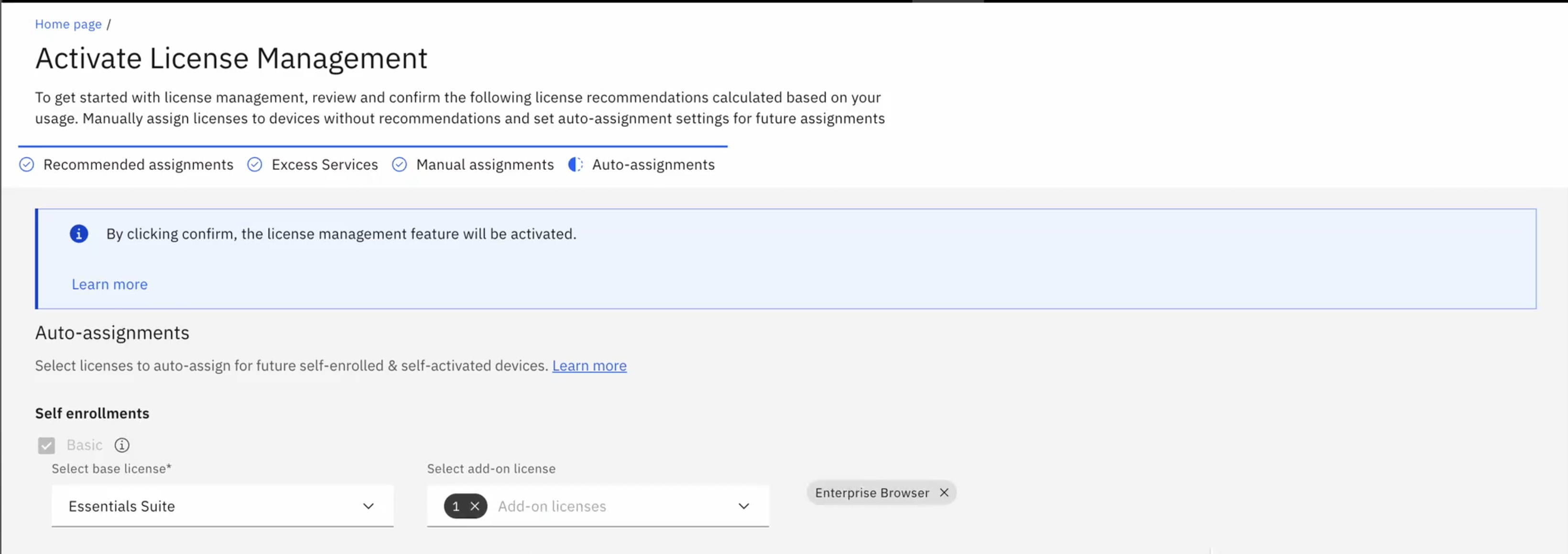
- Complete the activation workflow to associate devices with purchased license bundles and configure license assignment settings.
Understanding License Management Status
- License Management Not Enabled: The customer account has active license bundles, but License Management has not yet been enabled.
- Activation Pending: License Management has been enabled, and the activation workflow is available.
- License Management Enabled: The activation workflow has been completed, and all License Management capabilities are available.
- No Active License Bundles: The customer account does not have an active MaaS360 license bundle and cannot be enabled until bundles are purchased or renewed.
Activation and License Recommendations
When License Management is enabled, MaaS360 generates license recommendations based on the services currently being used by managed devices. During activation, administrators can review these recommendations and decide how purchased license bundles should be assigned.
More details in this link
Activating License Management and assignment of licenses to devices
Figure 1: Enable License Management setting from License Settings
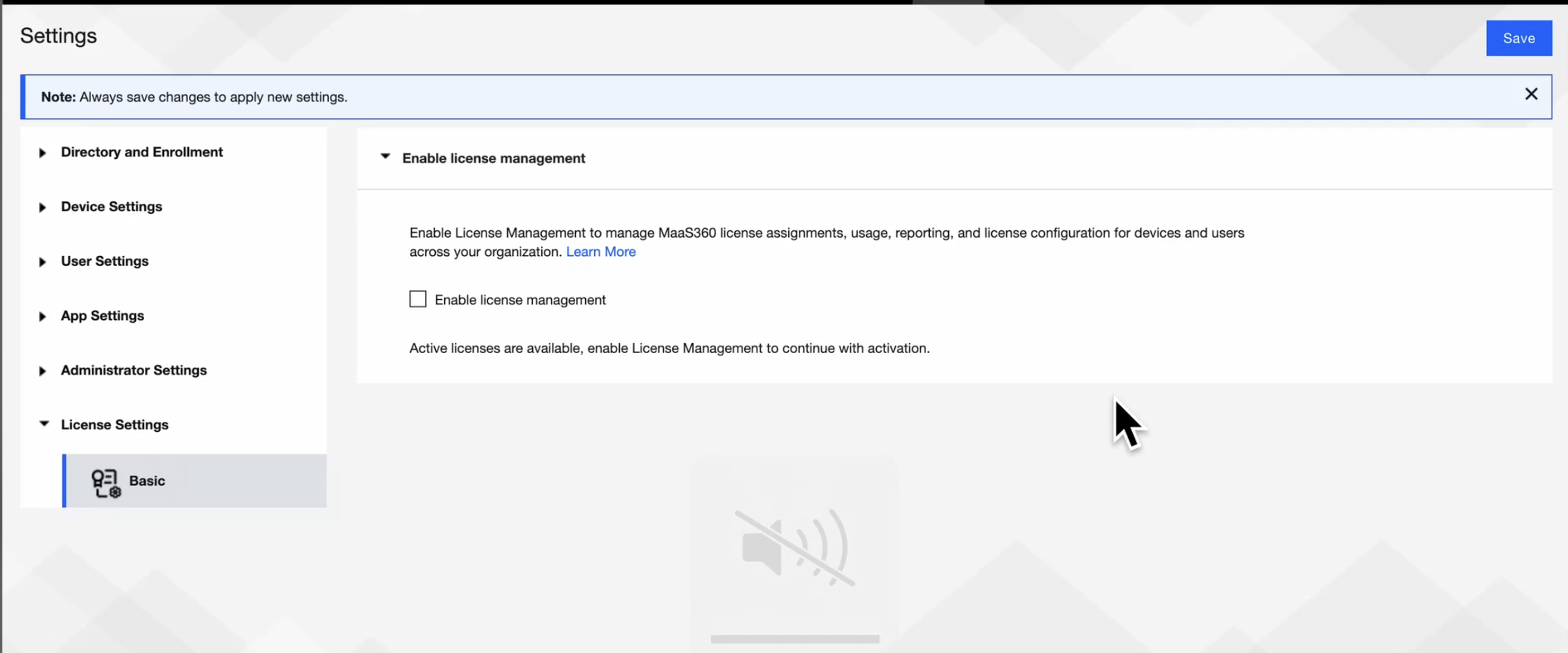
Figure 2: License Management status indicators
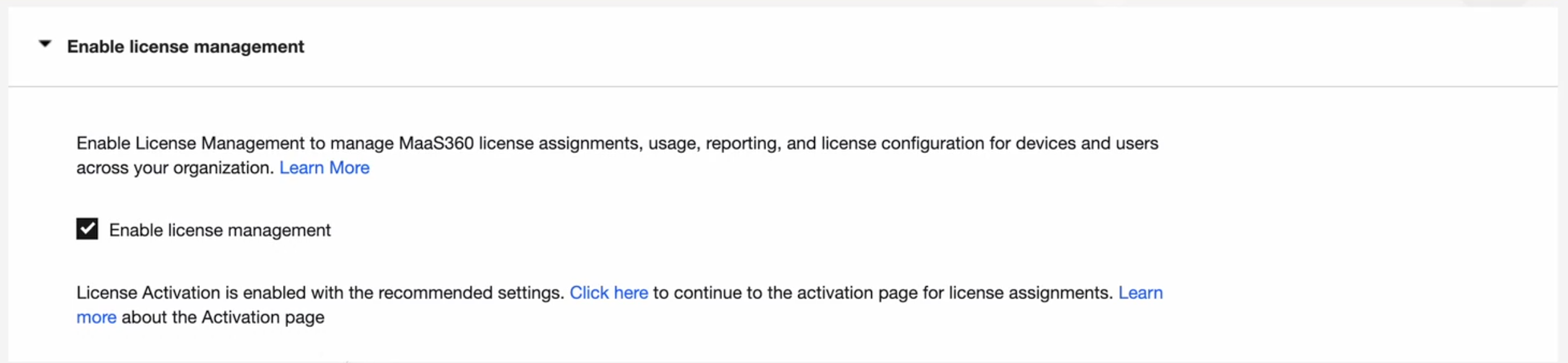

Figure 3: Activation workflow and license recommendations
Benefits for Partners and Customers
· Faster customer onboarding
· Reduced operational overhead
· Elimination of manual support requests
· Greater partner autonomy
· Faster access to License Management capabilities
· Improved customer experience through self-service administration
· Simplified license management enablement process
Conclusion
IBM MaaS360 License Management already provides powerful capabilities for license visibility, automated assignment, reporting, and overage control. With the introduction of self-service enablement, partners can now take advantage of a streamlined workflow that removes the need for support requests and backend processing.
Further Reading