JBoss is a popular open-source application server used for building, deploying, and hosting Java applications. JBoss EAP 7.4 is a Java EE 8 compatible platform, providing a robust environment for enterprise applications. With the release of JBoss EAP 8.0, the platform has transitioned to support Jakarta EE 10. This blog provides a comprehensive step-by-step guide on how to integrate and configure JBoss EAP 7.4 within the HATS v10 toolkit for your development needs.
The Java version supported by JBoss EAP depends on the specific release:
-
JBoss EAP 8.0: Requires Java 11 or Java 17 (Java 8 is not supported).
-
JBoss EAP 7.4: Supports Java 8, Java 11, and Java 17 (Java 17 support starts from EAP 7.4 Update 7 onwards).
Installing JBoss EAP in HATS
Follow these steps to install JBoss EAP in the Eclipse-based HATS toolkit.
-
In Eclipse, navigate to Help → Install New software.
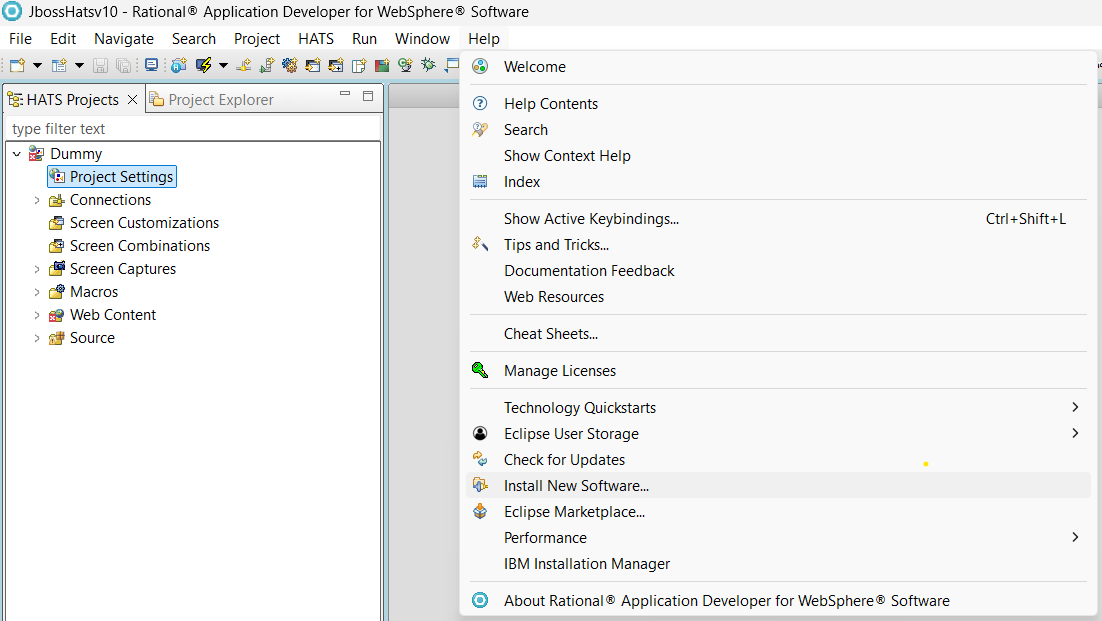
Figure: Install New Software
-
In the Work with field, enter the following URL and press Enter.
URL - https://download.jboss.org/jbosstools/photon/stable/updates/
-
Clear the Group items by category checkbox and select:
JBoss AS, Wild Fly and EAP Server Tools – Core Functionality Developer Resources
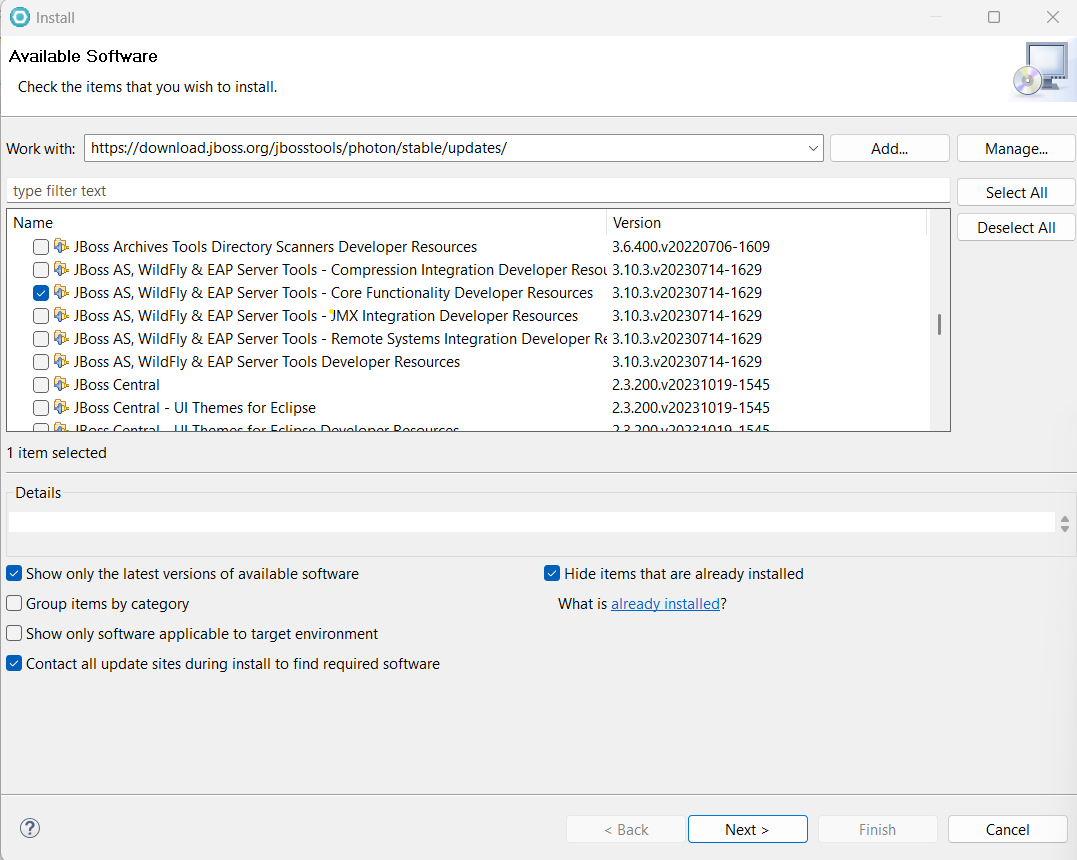
Figure: Install JBOSS EAP
-
Click Next and wait until it installs the required adapters.
-
Restart Eclipse after the installation completes successfully.
-
Now, navigate to the Servers tab.
-
Right-click on the servers tab and select New → Server.
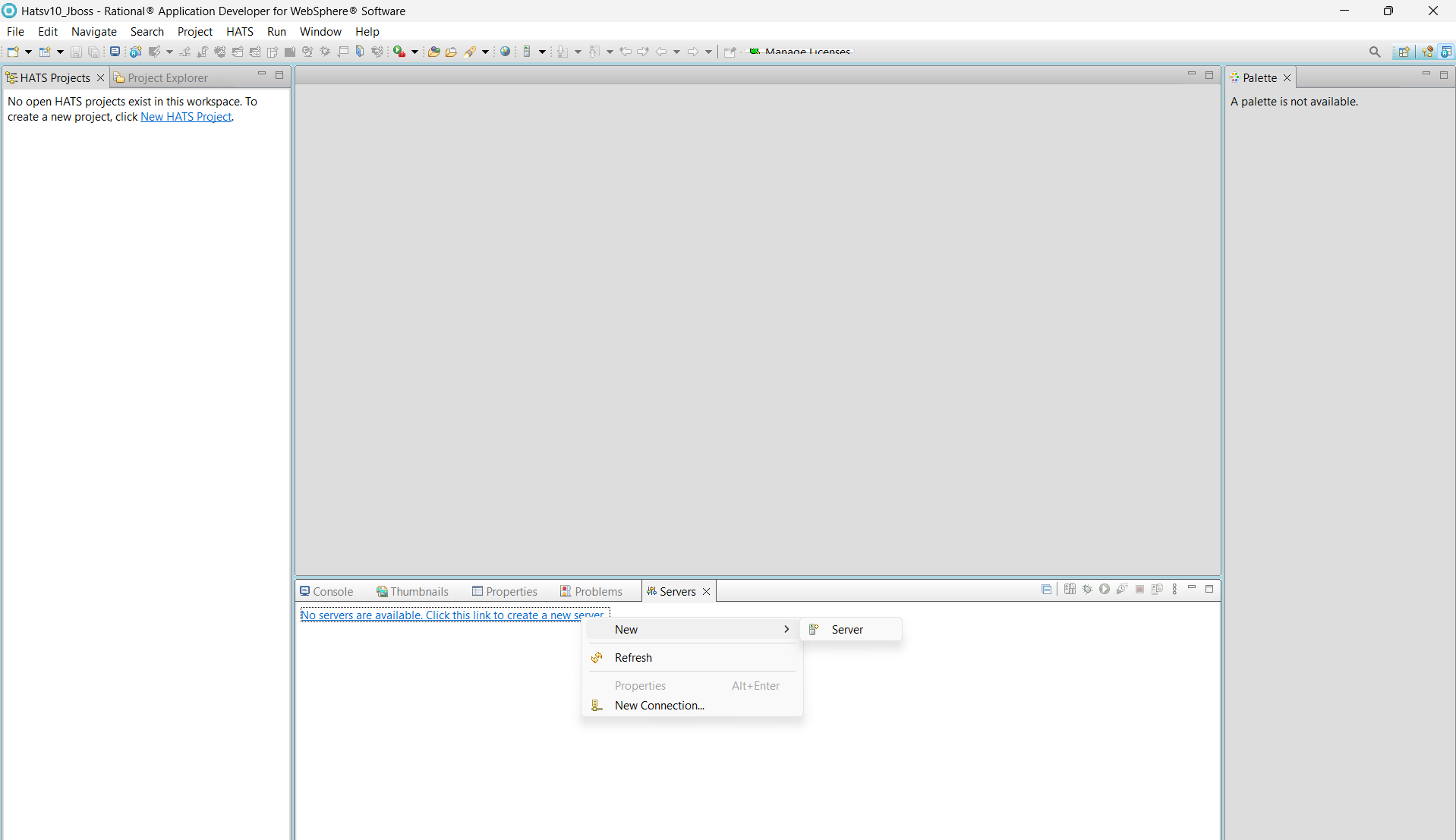
Figure: Add new server
-
You will get an option as “Red hat JBoss Middleware”. Select the version for this guide: Red Hat JBoss Enterprise Application Platform 7.4
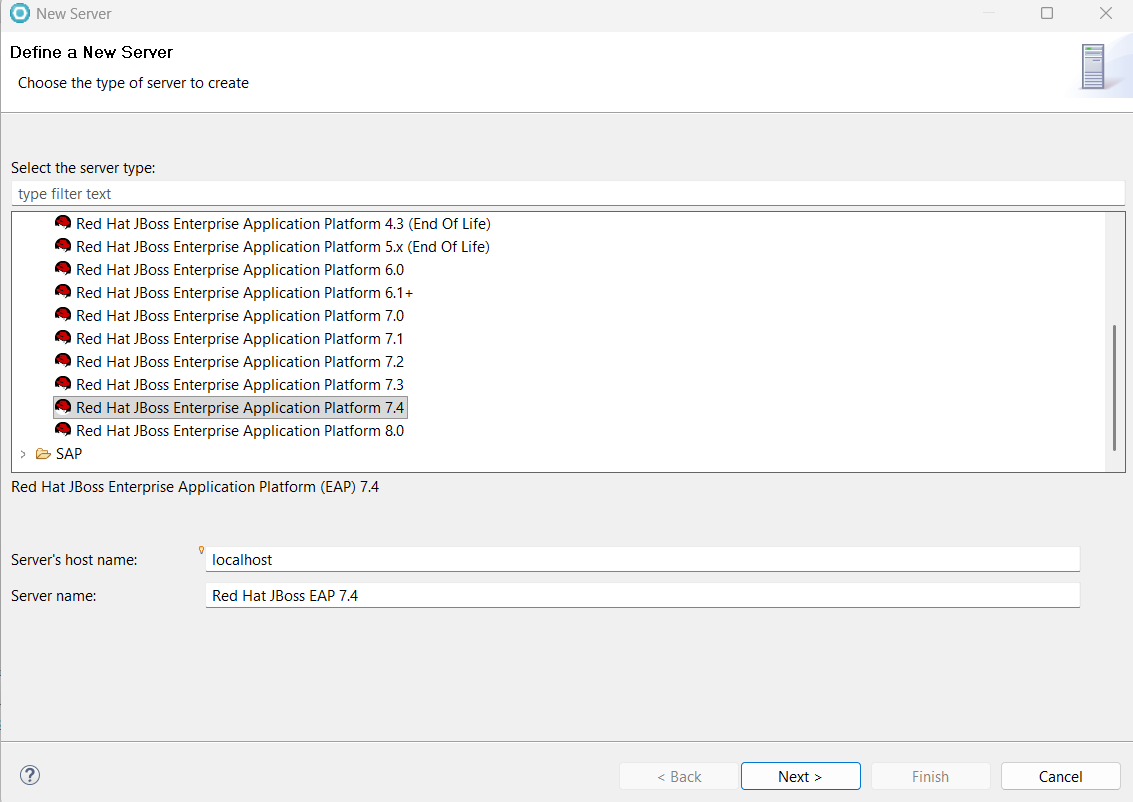
Figure: Select Red Hat Enterprise Application Platform 7.4
-
Click Next.
-
Select Create new runtime(next page) from the dropdown list.
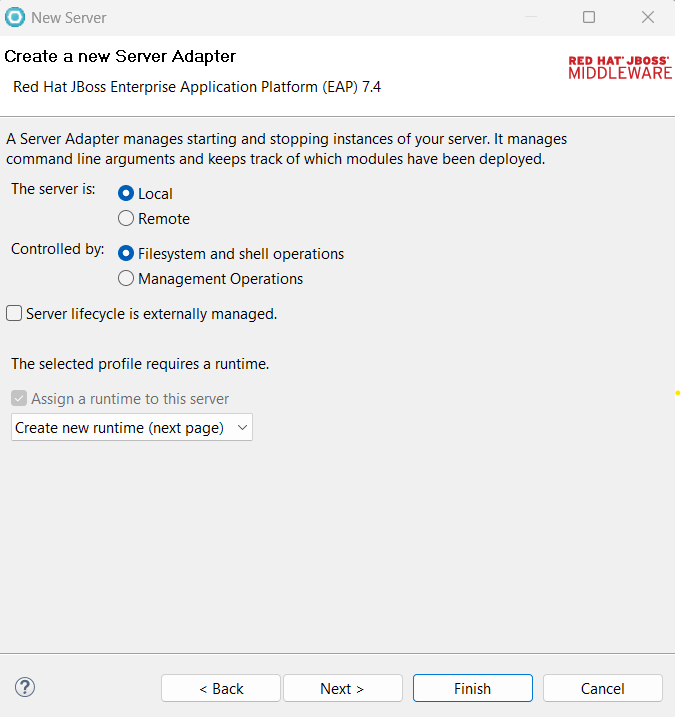
Figure: Select Create Runtime
-
Specify the JBoss installation directory in the Home Directory field
-
Select the appropriate Runtime JRE (JBoss EAP 7.4 supports Java 8).
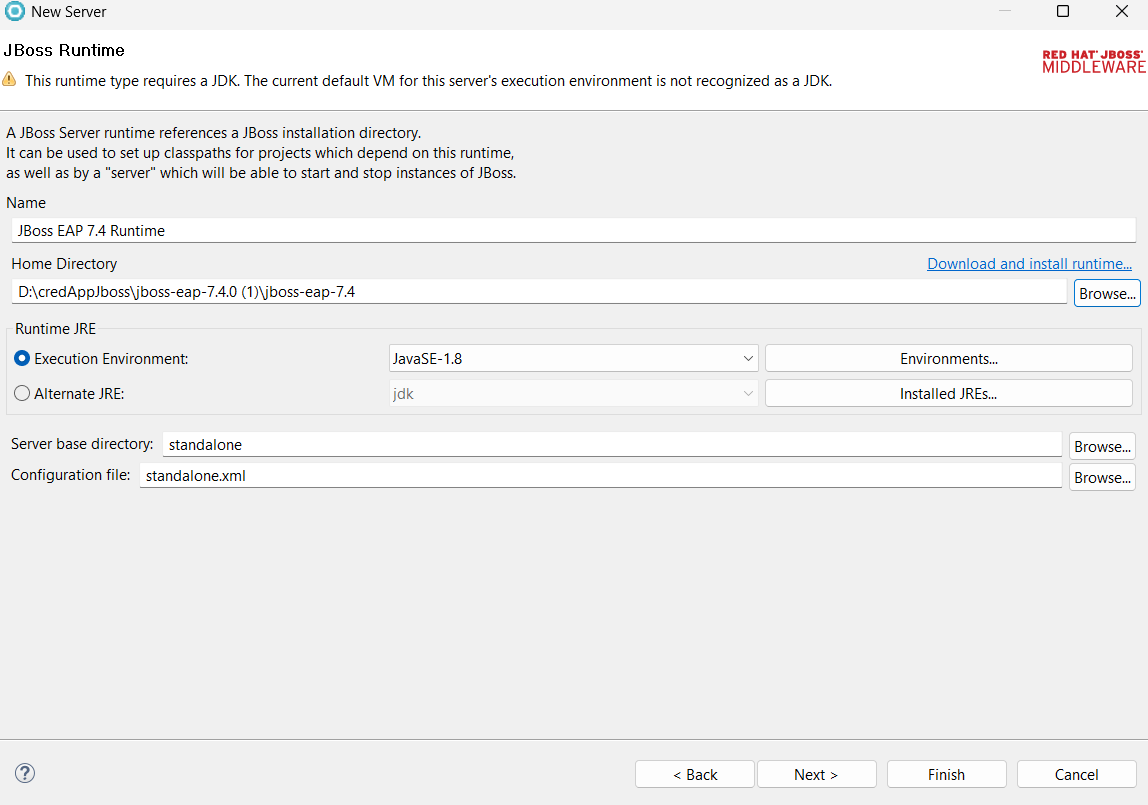
Figure: Select Runtime JRE
Note: The JBoss runtime can also be configured via Windows → Preferences → Server → Runtime Environments → Select JBoss EAP → Edit → Select Runtime JRE.
-
Select the Execution environment and select Java 8 from the dropdown list.
-
Click on Finish.
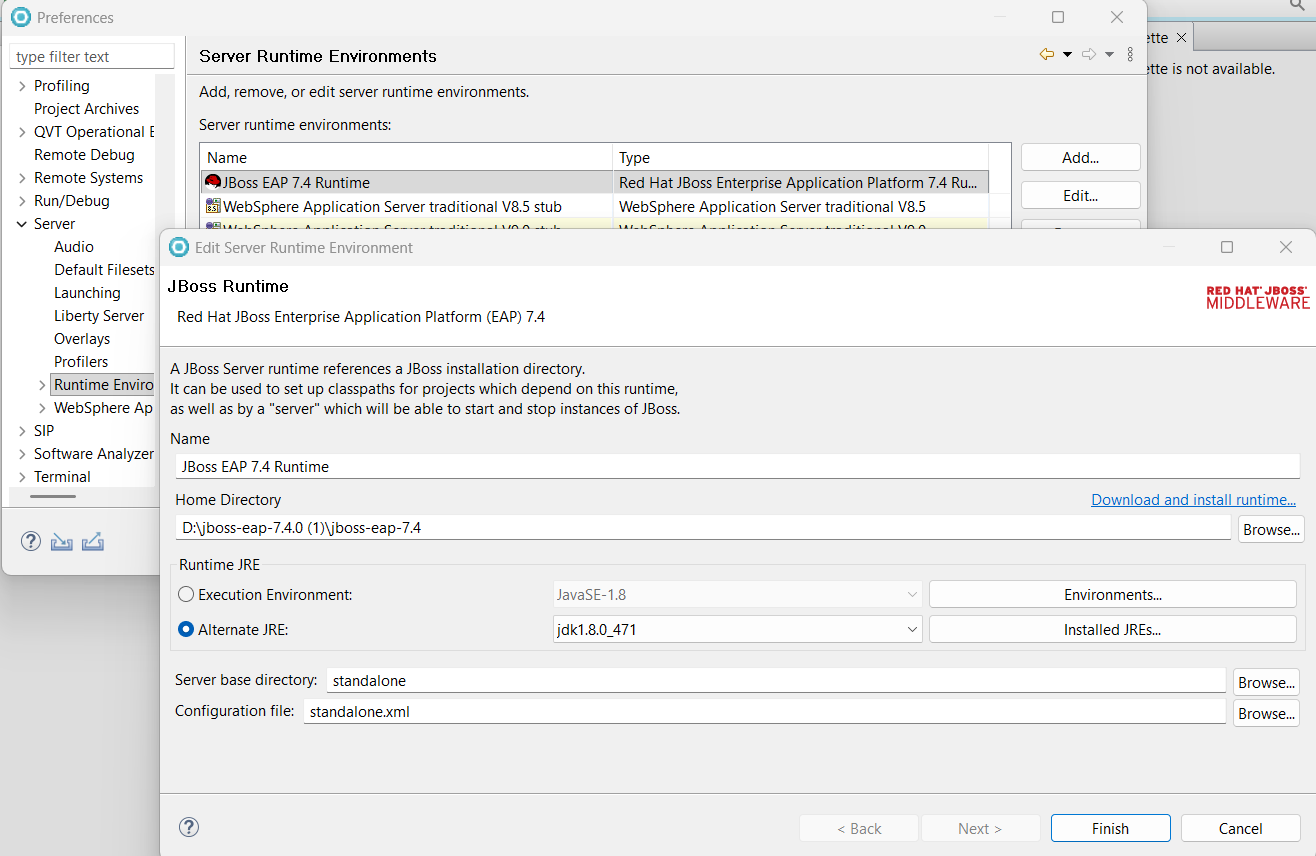
Figure: Add Runtime JRE from server runtime environments
-
Jboss Server has been successfully installed and available in the servers tab.
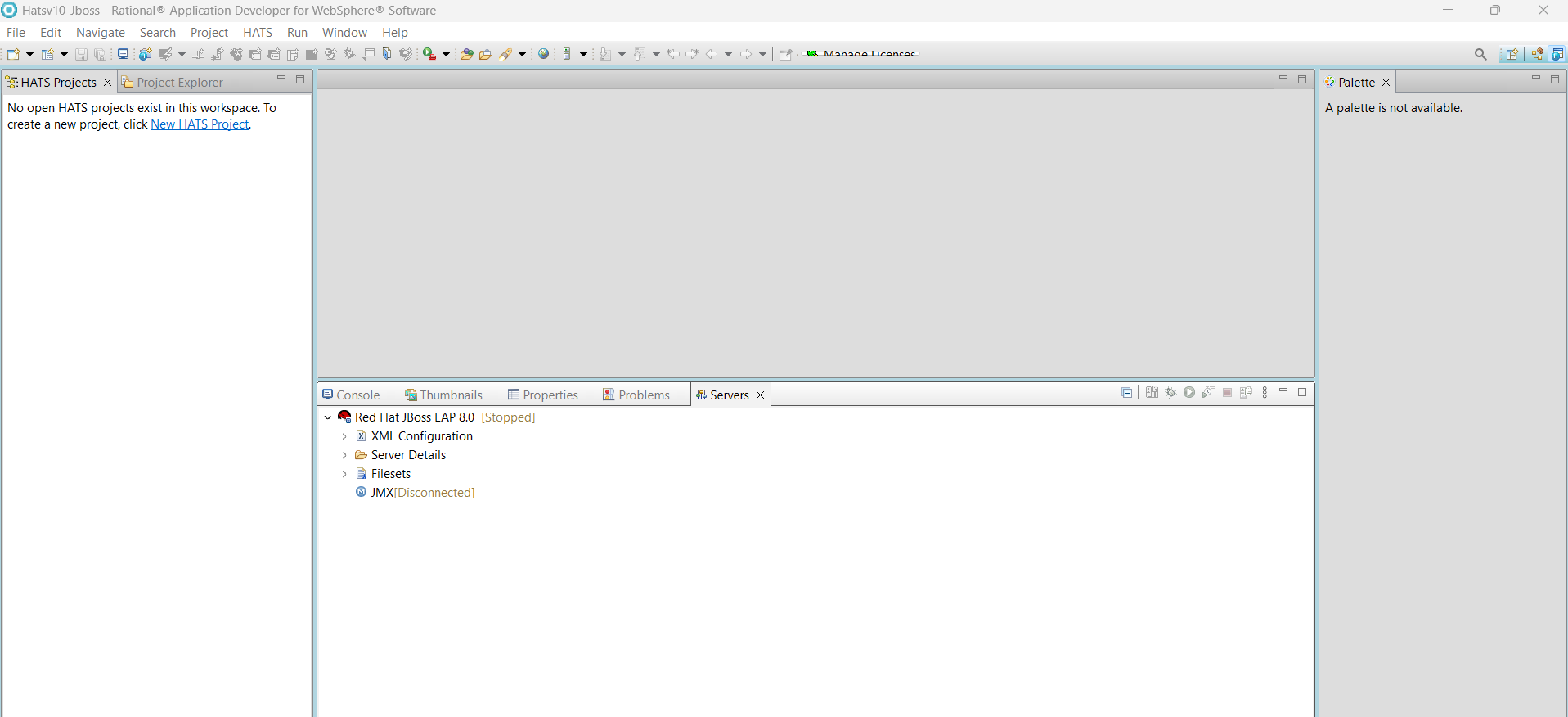
Figure: JBOSS EAP added to the servers tab
Configuring JBoss EAP
Follow these steps to configure JBoss EAP.
-
Navigate to the JBOSS installer location in File Explorer.
Path: standalone folder🡪configuration🡪standalone.xml
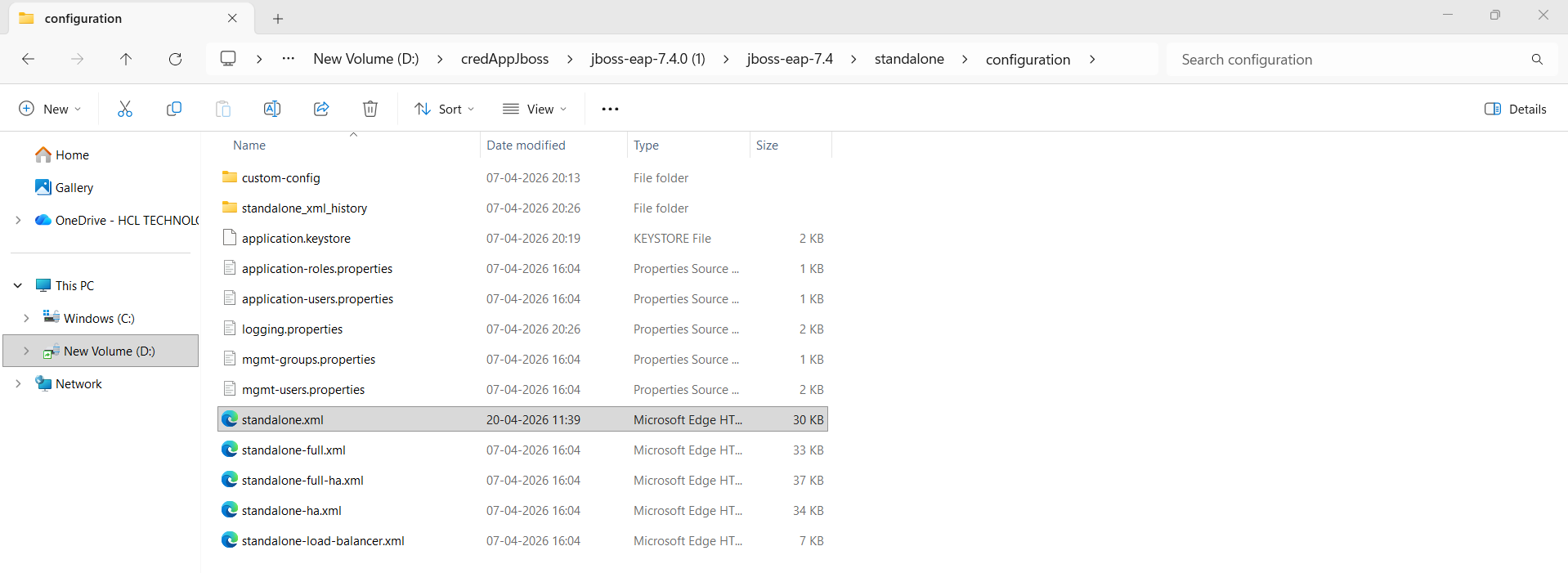
Figure:Standalone.xml
-
Modify the ports as per your requirement in standalone.xml. This is often necessary to avoid port conflicts with other applications running on the system.
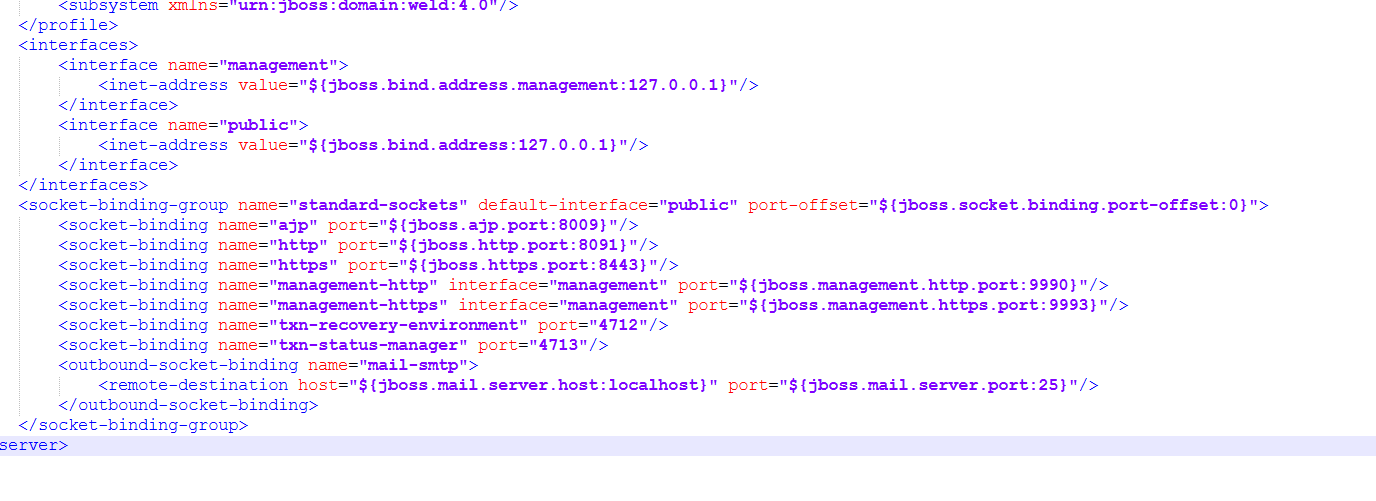
Figure: Change the ports as per requirement
-
By default, JBOSS EAP uses the following ports:
-
In Eclipse, double-click on the server in the servers tab, you will see the server details.
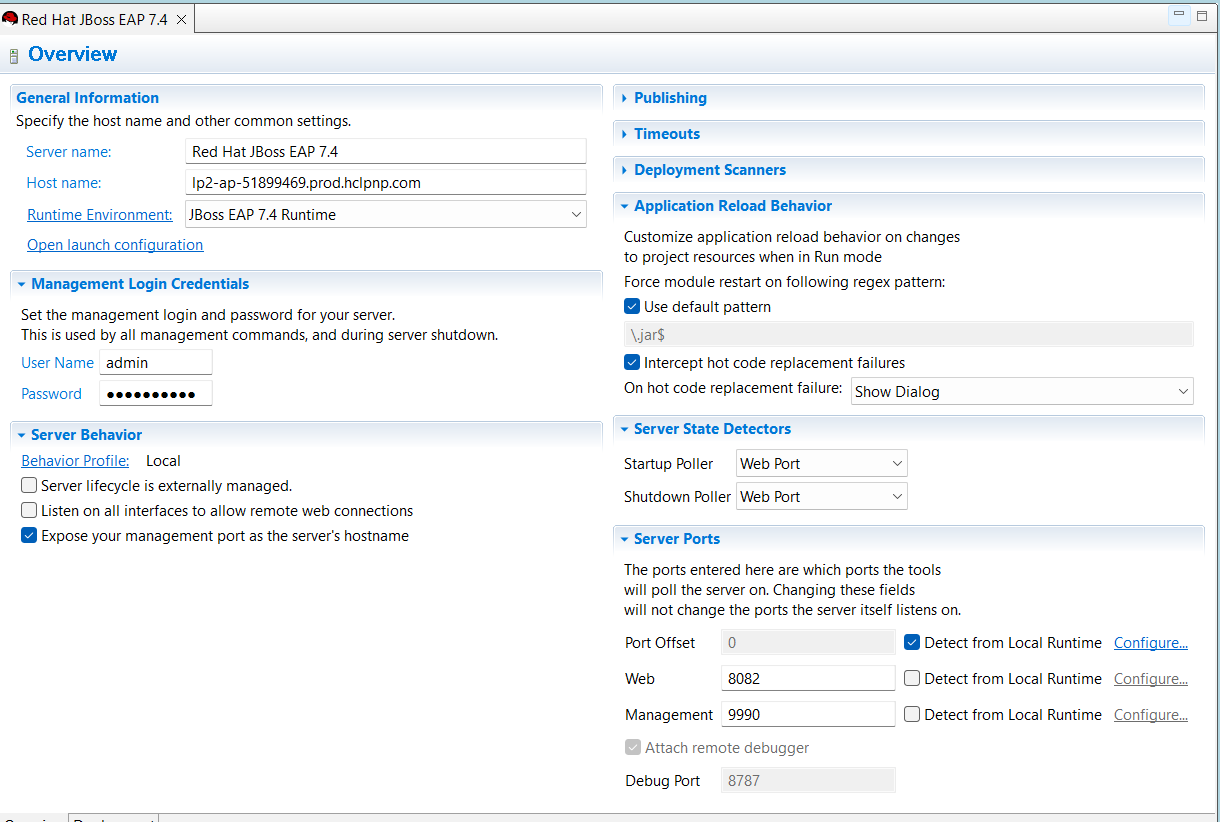
Figure: RedHat JBOSS EAP server Details
Verification and Testing
Follow these steps to verify and test the configured JBoss EAP.
-
Start the server.
-
Open a browser and access the JBoss server using the configured HTTP port.
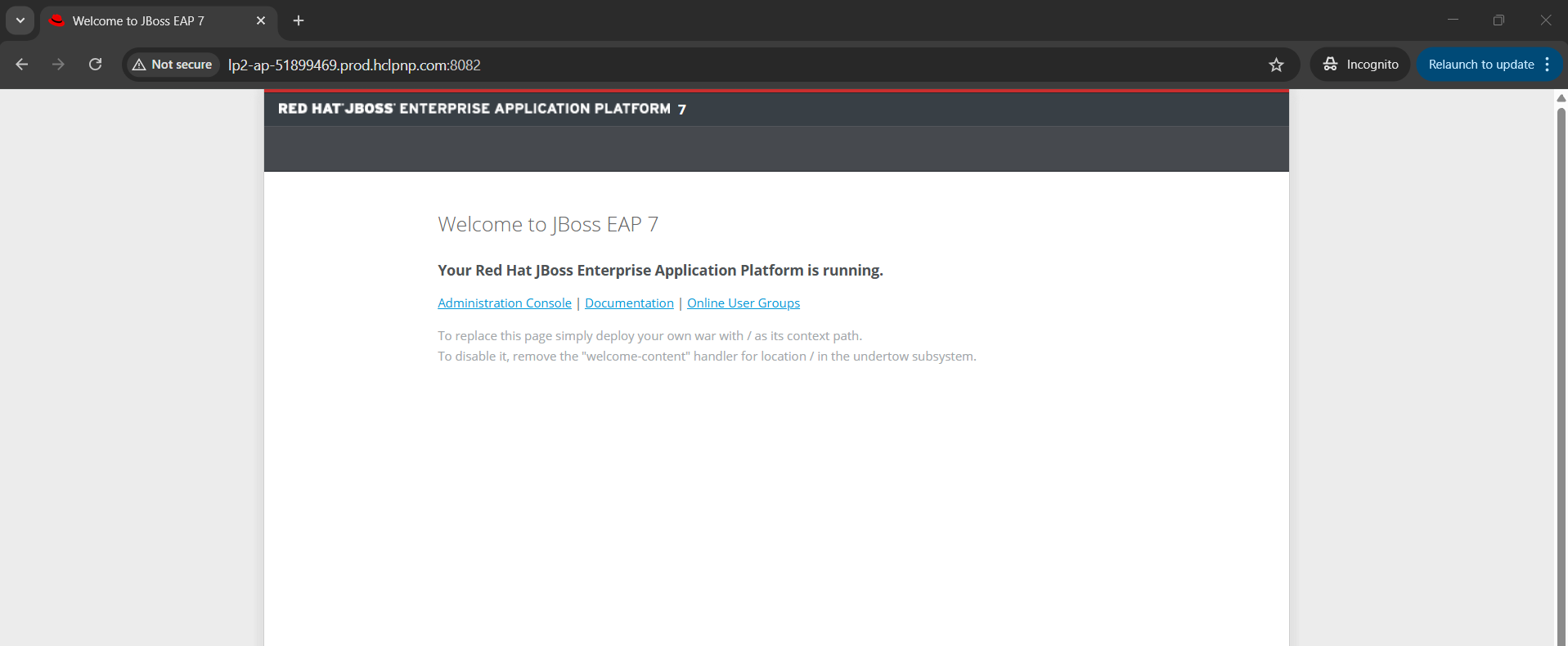
Figure: Accessing the JBOSS server in HTTP port
-
Create a new HATS project in the workspace and deploy it to the JBoss server.
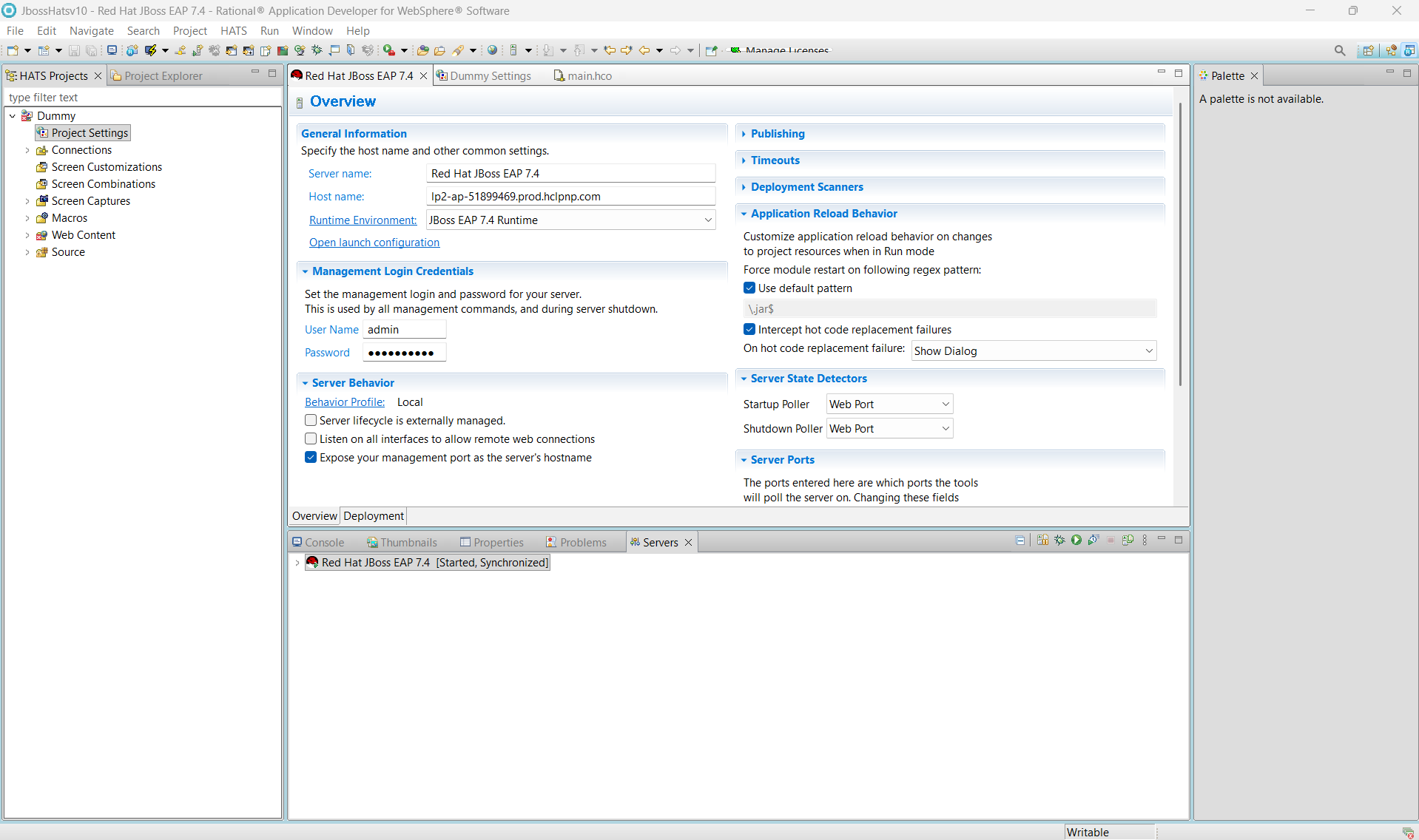
Figure: Creating HATS Project
-
Verify that the HATS application is accessible through JBoss EAP.
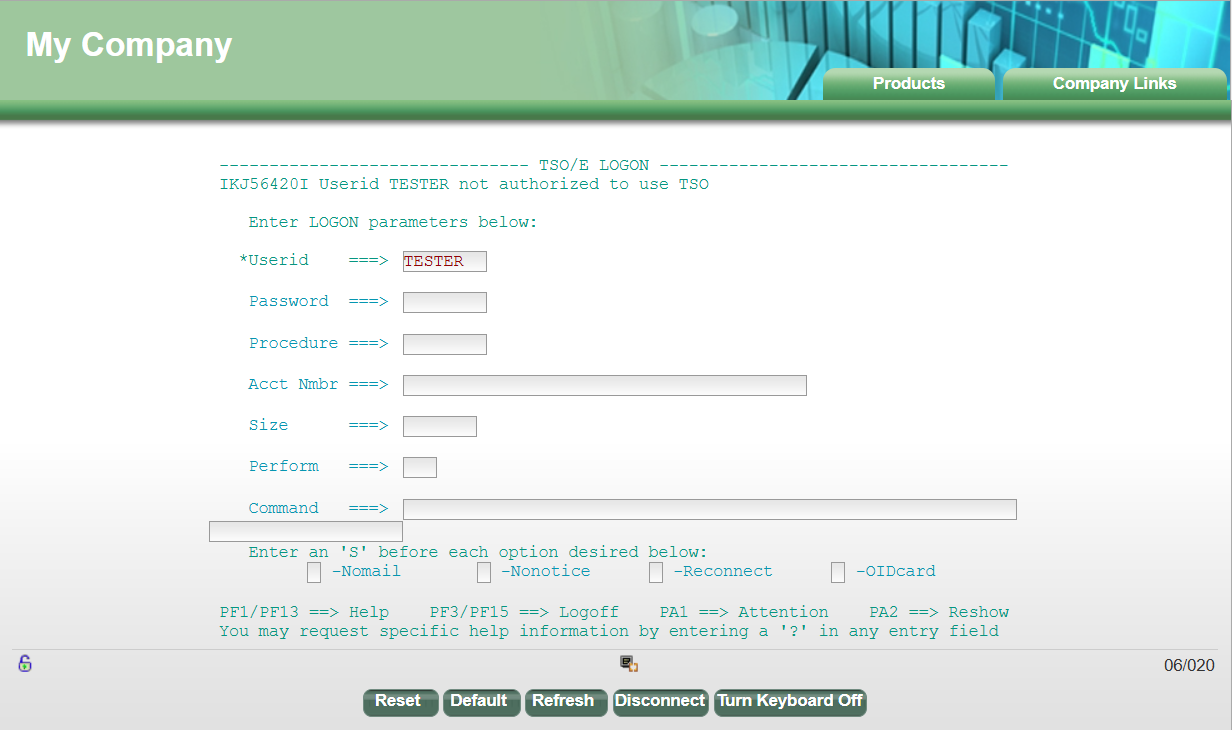
Figure: Accessing HATS project using JBOSS EAP
Note:
Deploying HATS runtime in JBoss EAP 8.0: Starting with HATS v10, generated HATS EAR files can be deployed to Jakarta EE–compliant application servers such as JBoss EAP 8.0. Although direct support for EAP 8.0 deployment is not currently available in the HATS Toolkit, you can use Eclipse Transformer to convert and deploy the generated HATS application to a Jakarta EE environment. For detailed instructions, refer: Detailed steps on IBM Support Page.
Pamarthi Padmavathi
Mainframe.PS@hcl-software.com
⚡️IBM z17 is here! Powered by the new IBM Telum II processor, IBM z17 makes more possible, empowering organizations to drive innovation and do more with their data while processing sixty percent more transactions per day than IBM z16. See what sets IBM z17 apart here.
