If you manage logs with TCO (Total Cost Optimization) policies in IBM Cloud Logs, you've probably run into this problem: the policies that save you money by routing low-priority logs to cheaper tiers, or blocking them altogether, can also quietly remove your ability to alert on them. Then one day a pattern buried inside those low-tier or blocked logs turns out to matter — and suddenly you need a way to surface it without undoing your entire cost strategy.
This blog post exactly walks you through that situation and shows two practical ways to solve it using IBM Cloud parsing rules: one for logs that have been moved to a lower tier, and one for logs that have been blocked entirely.
Background: Tiers in IBM Cloud Logs
TCO policies route logs into one of three tiers, each with its own capabilities and price. The tiers are cumulative: each one builds on the capabilities of the tier below it.
• Priority insights (high): the full feature set, for logs that need immediate access and fast queries, alerts and dashboards. These logs appear in the Priority insights tab of the Logs Explorer page. All logs go to this tier by default, and it is the most expensive one.
• Analyze and alert (medium): a balance between functionality and cost. These logs appear in the All Logs tab, can be used for alerts and dashboards, and are queried from your Object Storage bucket, so queries can be slightly slower than in Priority insights. This tier requires a logs bucket attached to your instance.
• Store and search (low): a cost-optimized option for logs you mainly need to retain, for example for compliance or auditing. These logs appear in the All Logs tab and can be queried from your Object Storage bucket, but alerts and dashboards are not available. This tier also requires a logs bucket attached to your instance.
The key point for this post: alerting requires at least the Analyze and alert tier. Logs in Store and search, or logs that are blocked entirely, cannot trigger an alert.
The Problem
A common setup looks like this: a TCO policy sends Info-severity logs to a lower tier, or blocks Info-severity logs outright, to keep costs down. That works fine — until an incident shows that one specific Info-level pattern is actually worth alerting on. We know from support cases that customers occasionally run into exactly this situation.
You might ask: if a log record is important enough to trigger an alert, why not simply change its severity to Warning or Error at the source?
Ideally, that would be the preferred approach. However, it is not always possible. For example, you may be running open-source software that is difficult to modify, or licensed third-party software that you cannot modify at all. In such cases, the application continues to emit the log pattern at Info severity, even though the pattern itself may be important enough to warrant an alert.
One option is to change the severity at the logging agent that collects the application logs before sending them to IBM Cloud Logs. This is generally the recommended approach when you have control over the agent configuration.
Another option is to handle the transformation directly within IBM Cloud Logs. That is the approach explored in this blog: selectively promoting specific log patterns within IBM Cloud Logs so they can be used for alerting.
There is, however, an important limitation: logs that fall into a lower tier or are blocked by the existing logging policy are not available for alerting in IBM Cloud Logs.
So the real question becomes: How can we selectively “promote” only the log patterns we care about for alerting, without having to change or reverse the entire logging policy?
Scenario 1: Promoting a Low-Tier Log Pattern by Changing Its Severity
In the screenshot below, a TCO policy is already routing Info logs to the lower tier and Error logs to the medium tier.
Since low-tier logs aren't eligible for alerting, one clean fix is to change the severity of the specific log pattern to Error using an IBM Cloud parsing rule. Because Error-severity logs are already flowing into the medium tier, reclassifying the pattern automatically makes it eligible for alerting — no changes to the TCO policy required.
Start by confirming which tier your logs currently live in with a quick DataPrime query:
source logs
| create metadata from $m
The above query adds a metadata section to each log. The field to look at is priorityclass: it is the internal representation of the tier a log was routed to (high, medium or low).
The screenshot below shows the full metadata section of a log, including its priorityclass.
Next, create a parsing rule that changes the severity of the target log pattern to Error:
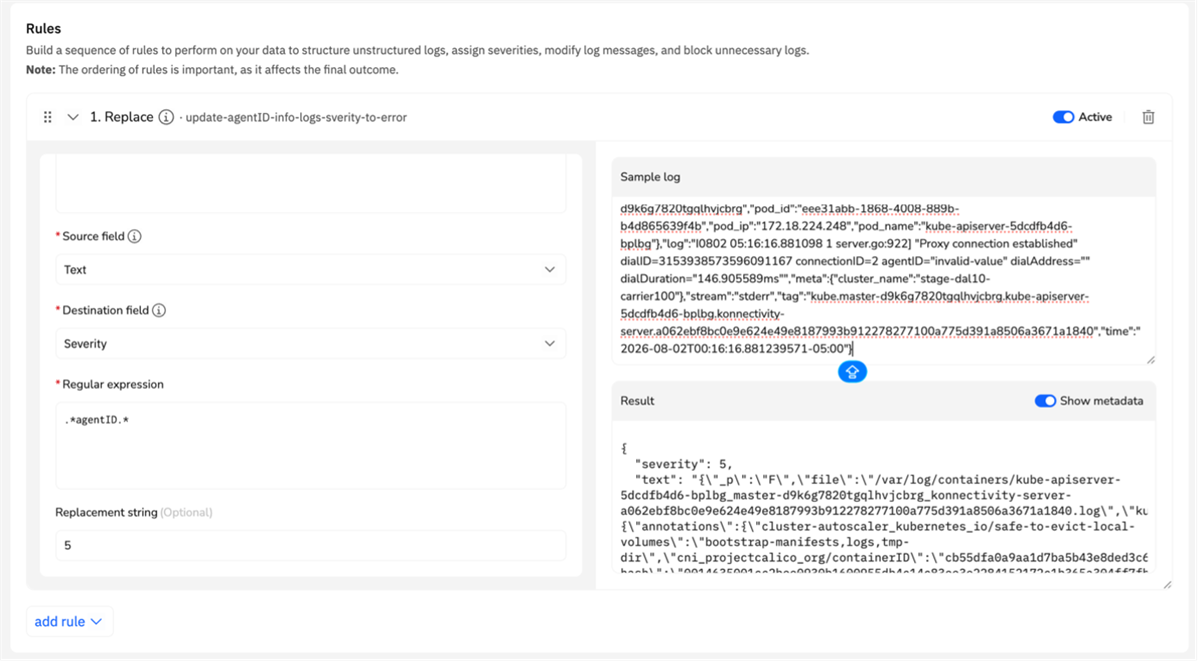
A couple of tips while building the rule: keep a raw log sample pulled straight from the Logs Explorer page in the "sample log" field — in that case the Source field type will always be Text. More generally, the Source field should be based on whichever log attribute holds the pattern you're targeting; it can also reference valid metadata, since the regex is evaluated against whatever field you choose there.
The Destination field is the key you want to update — in this case, Severity, since we're changing the log's severity metadata. Set this based on whatever field your use case actually needs to modify.
Then add a regex that matches your source field, along with a replacement string containing the severity value you want to apply. Severities are set as numbers, using the following mapping:
|
Value
|
Severity
|
|
1
|
Debug
|
|
2
|
Verbose
|
|
3
|
Info
|
|
4
|
Warn
|
|
5
|
Error
|
|
6
|
Critical
|
For reference, see Sending logs by using the API.
Save your changes once everything looks right. Keep in mind that parsing rules only apply going forward — they act on new logs, not on logs already ingested.
As the screenshot shows, once the severity changes, the log's priority class updates to Medium as well, and the logs immediately become eligible for alerting.
Scenario 2: Selectively Unblocking a Pattern from Blocked Logs
The same underlying problem shows up with blocked logs. Say you're blocking all Info-severity logs for an application and subsystem, and you later discover you need to alert on one specific pattern within that blocked set. Here, the fix has two parts: first, unblock just the pattern you need, and second, make sure that once unblocked, it lands in a tier that supports alerting.
As a concrete example, take a real requirement from one of our internal teams. All Info-severity logs of their application and subsystem are blocked to save costs. Every log is expected to carry an agentID in a defined format. If a component ever sends a log with an agentID that does not match that format, the team wants to know right away, so they want an alert on exactly those logs and nothing else. Logs with a valid agentID are not interesting for alerting; they stay blocked like all other Info logs.
The implementation idea: a TCO policy decides by application, subsystem and severity, so it cannot tell a valid agentID from an invalid one. Parsing rules look at the log content, so they can. And since an agentID can be invalid in many different ways, it is easier to describe what a valid one looks like and block that, rather than to describe the invalid ones directly. The approach works in three steps:
1. A parsing rule blocks logs that have a valid agentID.
2. A following catch-all parsing rule blocks logs that have no agentID at all.
3. Everything left over is, by elimination, a log with an invalid agentID. A TCO policy routes it to the medium tier, where you can define an alert on it, for example one that notifies the team as soon as such a log shows up.
To be selective about which logs stay blocked, we will do the blocking with parsing rules rather than with a TCO policy, because parsing rules give us much more flexibility.
Let's walk through the two parsing rules and the TCO policy one by one.
Parsing rule 1 — block logs matching a valid agentID pattern:
Here, the rule is created with a valid-agentID regex pattern, and "Matching → Block all" is selected.
Parsing rule 2 — block everything else that has no agentID at all:
This time, "Non-matching → Block all" is selected, which blocks every log pattern that doesn't contain an agentID. Combined with the first rule, this leaves only the invalid-agentID pattern flowing through.
One important detail with parsing rules: order matters. Make sure your rules are arranged in the correct precedence so they evaluate in the sequence you intend.