IBM Db2 Administration Tool for z/OS recently added the ability to generate health reports (APARs PH70895, PH70896, and PH71041). These reports can help you easily assess the health of your Db2 subsystems and objects. Instead of having to run multiple Db2 commands and manually scan logs to identify problems or potential issues, health reports provide a single, consistent view that highlights any issues requiring attention.
Report types
Db2 Admin Tool generates two types of health reports: system health reports and application health reports.
System health reports include information that is relevant to the entire Db2 subsystem or data sharing group, such as the CPU busy percentage and the number of failed utilities in the last 24 hours, as shown in the following example:

Application health reports include information about Db2 objects, such as the number of spaces in restricted states and objects running out of space, as shown in the following example:

Report thresholds
In both of these reports, any items that need your attention are flagged with >>>. Flagged rows are items that violate the defined threshold for that row. By default, these thresholds are set by Db2 Admin Tool, but you can specify your own thresholds. For example, you might want failed utilities to be flagged only if 10 or more have failed in the last 24 hours.
To view the current threshold for an item, scroll right on the panel. The Threshold column contains the value, and the CD column contains the condition, such as GT for greater than. The TO column (Threshold Origin) indicates whether the threshold is the default (D) or user-defined (U):
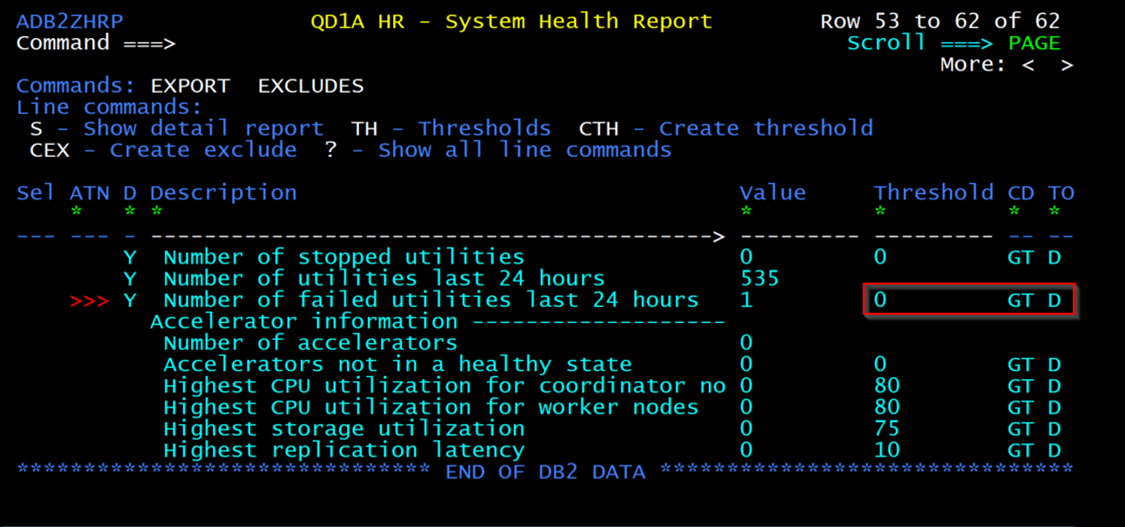
To create your own threshold, issue the CTH line command next to the line in the report. On the resulting panel (ADB2ZHTA), you can specify your threshold:
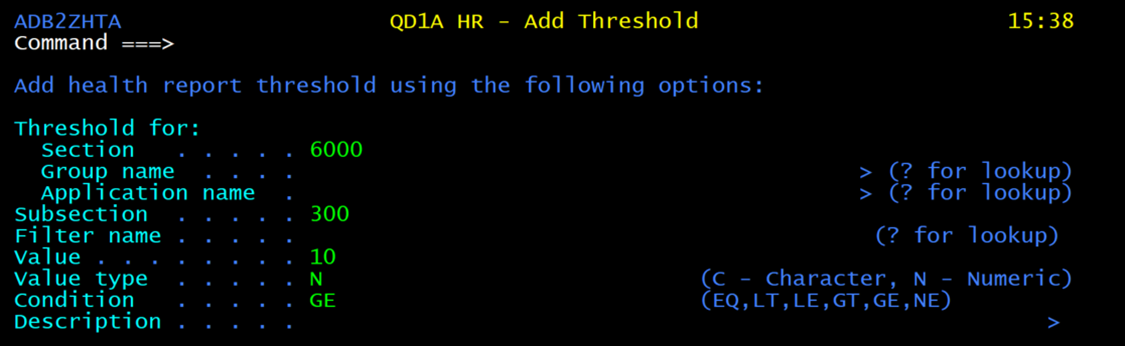
Note: Some of the report items are recommendations from the Db2 stored procedure DSNACCOX. For these items, you can set additional thresholds if you want to provide your own criteria for DSNACCOX to use when determining its recommendations. For instructions, see Specifying DSNACCOX criteria for application health reports.
Running health reports
To run one of these health reports, use the new HR option on the System Administration panel:
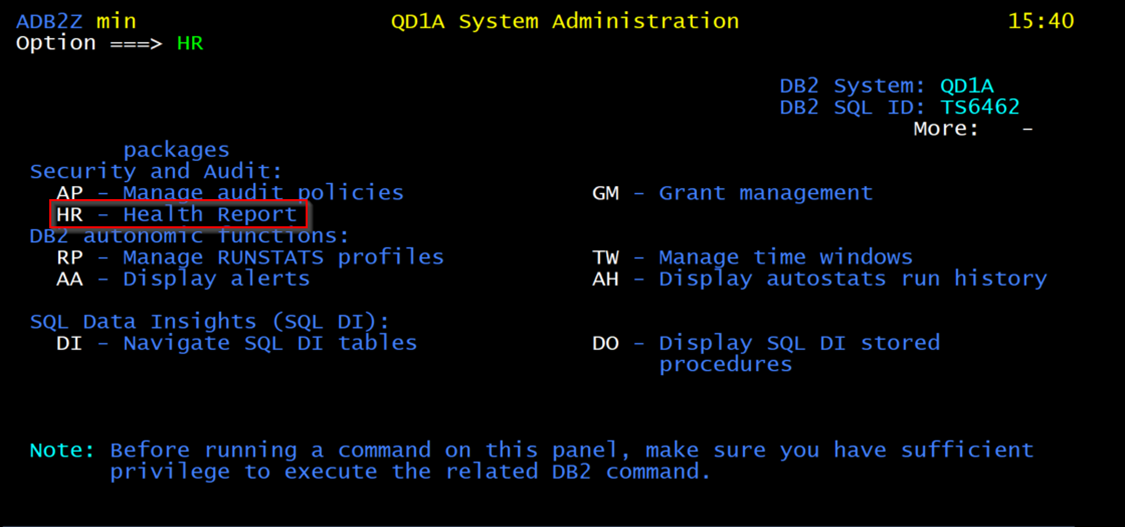
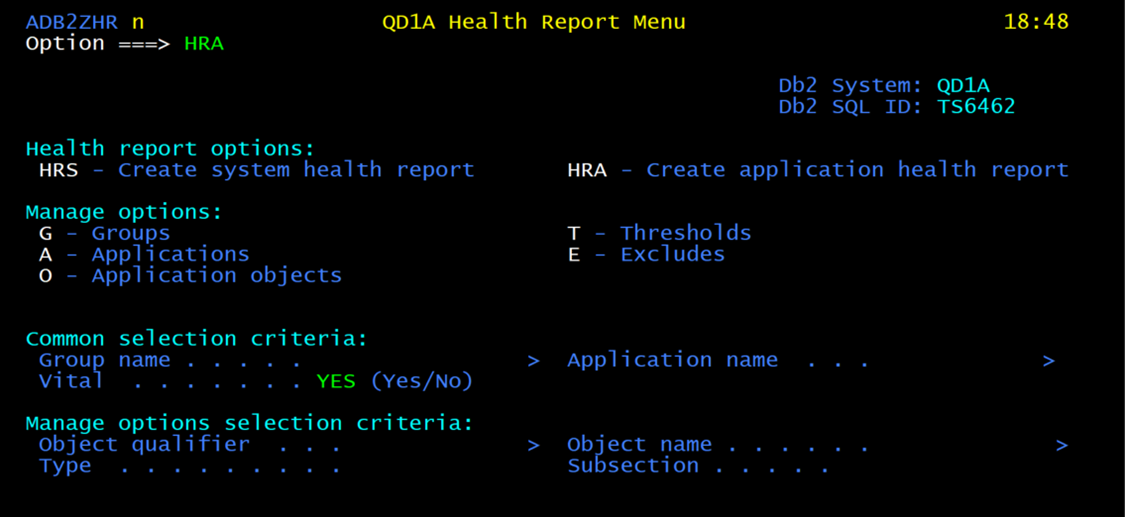
This option opens the new Health Report Menu:
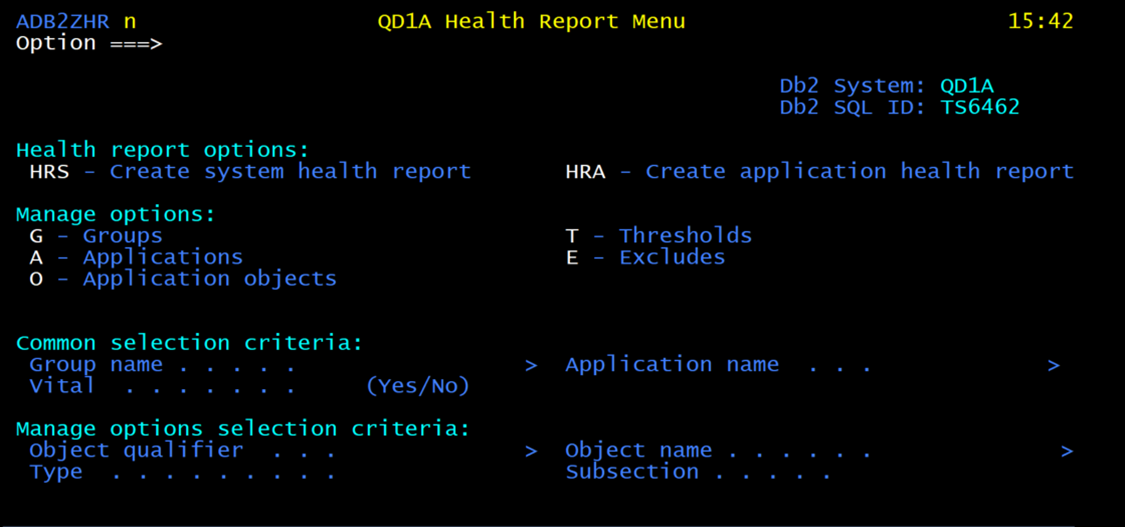
From this panel, you can run a system health report by specifying HRS.
You can also run an application health report from this panel by specifying HRA, but that process requires some additional steps:
1. First, you must define any applications and groups:
Applications
In the context of health reports, an application is simply a group of objects. For example, you might create an application called EMPLOYEES and add to it all your EMP* objects. You can add any of the following objects to an application: table spaces, packages, functions, procedures, and services. At least one application is required to run an application health report.
Groups
A group is a collection of applications. For example, you might have a group called HUMAN_RESOURCES that contains the following applications: EMPLOYEES, PAYROLL, and BENEFITS. Groups are optional; you can use them to control the scope of the report. You can also designate any critical groups as VITAL and then run a report on all of your VITAL groups.
2. Then, on the Health Report Menu, specify HRA and the application or group on which you want to run the report (under Common selection criteria). Alternatively, you can specify YES for Vital to run the report on all VITAL groups:
For more information about creating and managing applications and groups, see Managing health report objects.
Viewing and saving health reports
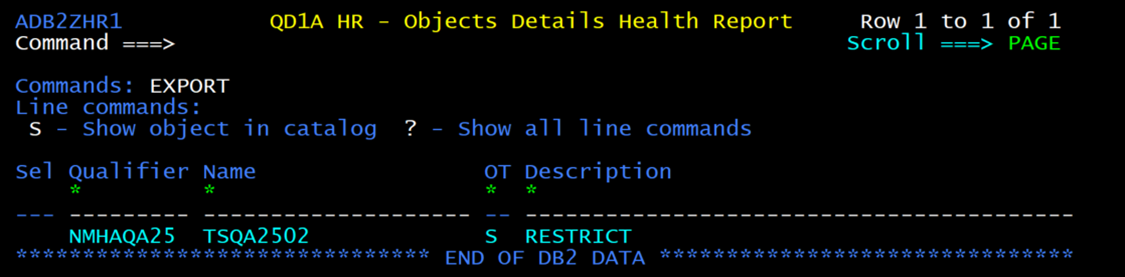
After you generate a health report, you can drill down on any line in the report by using the S line command to show the details:
You can tailor the report to your needs by issuing the CEX line command next to any lines that you want to exclude from the report.
And you can save your reports to data sets for later reference or as input to your automation scripts. Issue the EXPORT command and specify the data set details on the resulting panel. Db2 Admin Tool will create the data set for you if it doesn’t already exist.
Running health reports in batch
ISPF panels are not the only way to generate health reports. You can also run these reports from a batch job. A sample batch job is provided in member ADBHRC in the sample library:
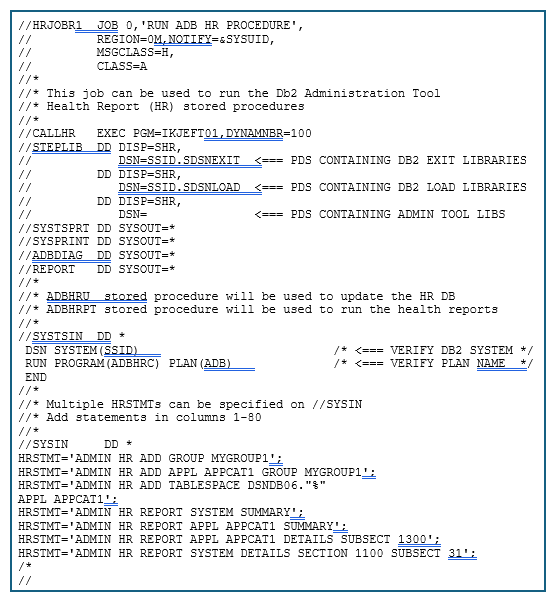
Besides editing the JOB and STEPLIB statements, you will need to edit the SYSTSIN and SYSIN input streams:
- In SYSTSIN, edit the SSID and plan name.
- In SYSIN, provide ADMIN HR statements to specify the report that you want to run.
For example, the following statement generates a system health report:
ADMIN HR REPORT SYSTEM SUMMARY
If you are running an application health report, you’ll also need to specify ADMIN HR ADD statements to create any groups or applications and add objects, as shown in the example ADMIN HR ADD statements provided in the sample job.
For more detailed instructions on how to run these reports in batch, see Running health reports in batch.
For more information about ADMIN HR statements and their syntax, see ADMIN HR statements.
REST APIs
Db2 Admin Tool also provides two REST APIs that you can use for health reports:
ADBHRPT
Generates the health report
ADBHRU
Manages health report objects
As with other Db2 Admin Tool REST APIs, each of these APIs is a package that contains a single call to a stored procedure by the same name. The ADBHRPT stored procedure takes an ADMIN HR REPORT statement as input and returns the report information in the result set. The ADBHRU stored procedure takes an ADMIN HR GROUP, APPL, object, TH (threshold), or EXCL (exclude) statement as input and performs the requested operation (ADD, DELETE, UPDATE, or RENAME) on the health report object.
For more details on these REST APIs, see Provided REST APIs.
For more information on the stored procedures, see ADHRPT stored procedure and ADHRU stored procedure.
TCz requirements
To enable this new health report feature, you must run IBM Tools Customizer (TCz) for Db2 Admin Tool.
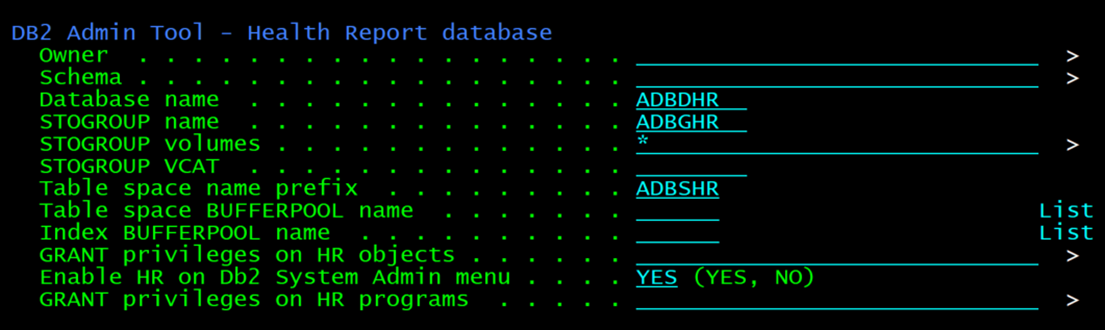
Specifically, you must at least set the Health Report (HR) database field to YES on the Product Parameters (CCQPPRD) panel and run the generated TCz jobs to create the new HR database (ADBDHR) and objects.
You can optionally specify the following additional health report fields on the DB2 Parameters (CCQPDB2) panel:
For detailed instructions on running TCz to enable this feature, see Enabling health reports.
Additional information
For more information about health reports, see Health reports.