Co-authored by @Akshay Bharadwaj
Introduction
Apple devices are widely used in organisations, and many companies use Managed Apple IDs (MAID) to give employees access to work-related Apple services. But managing these accounts securely can be challenging.
To address this, Apple allows MDM solutions to control Managed Apple Account sign-in through Apple Business. When this setting is enabled, Managed Apple Accounts can only be used on managed or supervised devices, and personal Apple Accounts are not allowed.
With this new feature, MaaS360 can verify the organisation's identity when a user signs in with their Managed Apple ID. Administrators simply mark one of their existing Apple Business/Apple School tokens as the default token for Managed Apple ID sign-in — a single checkbox in the token management page — and MaaS360 handles the rest automatically.
Existing enrolled devices are also covered. When an administrator enables the feature, MaaS360 automatically pushes a silent profile update to all enrolled devices so they receive the new capability — no re-enrolment required.
What Changed in MaaS360?
Administrators can now configure Managed Apple Account sign-in restrictions directly through Apple Business or Apple School.
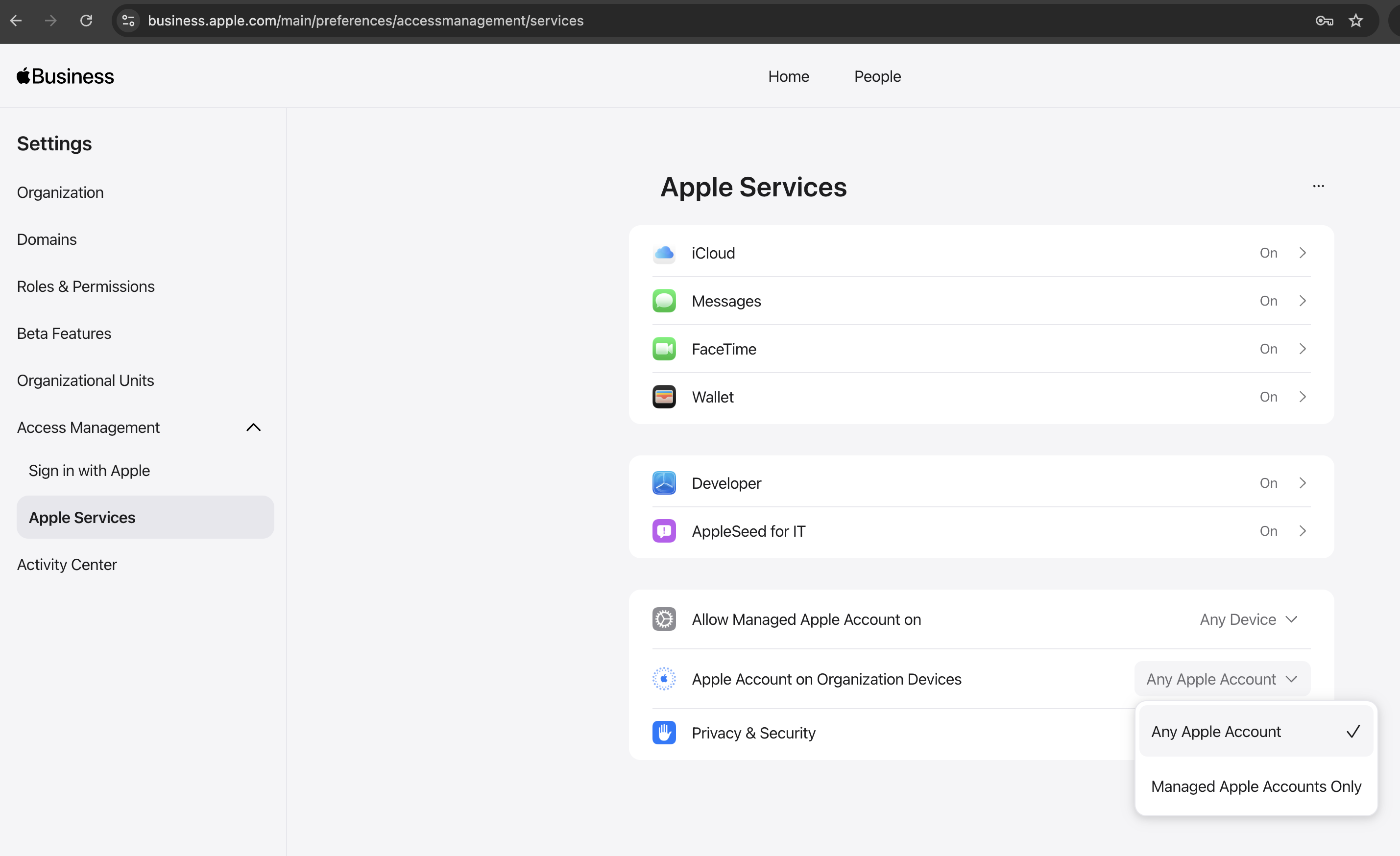
Apple Account on Organisation Devices
This setting controls what type of Apple Account users can sign in with on organisation-owned devices. There are two options:
1. Any Apple Account
Users can sign in with either a personal Apple Account or a Managed Apple Account on the organisation's devices.
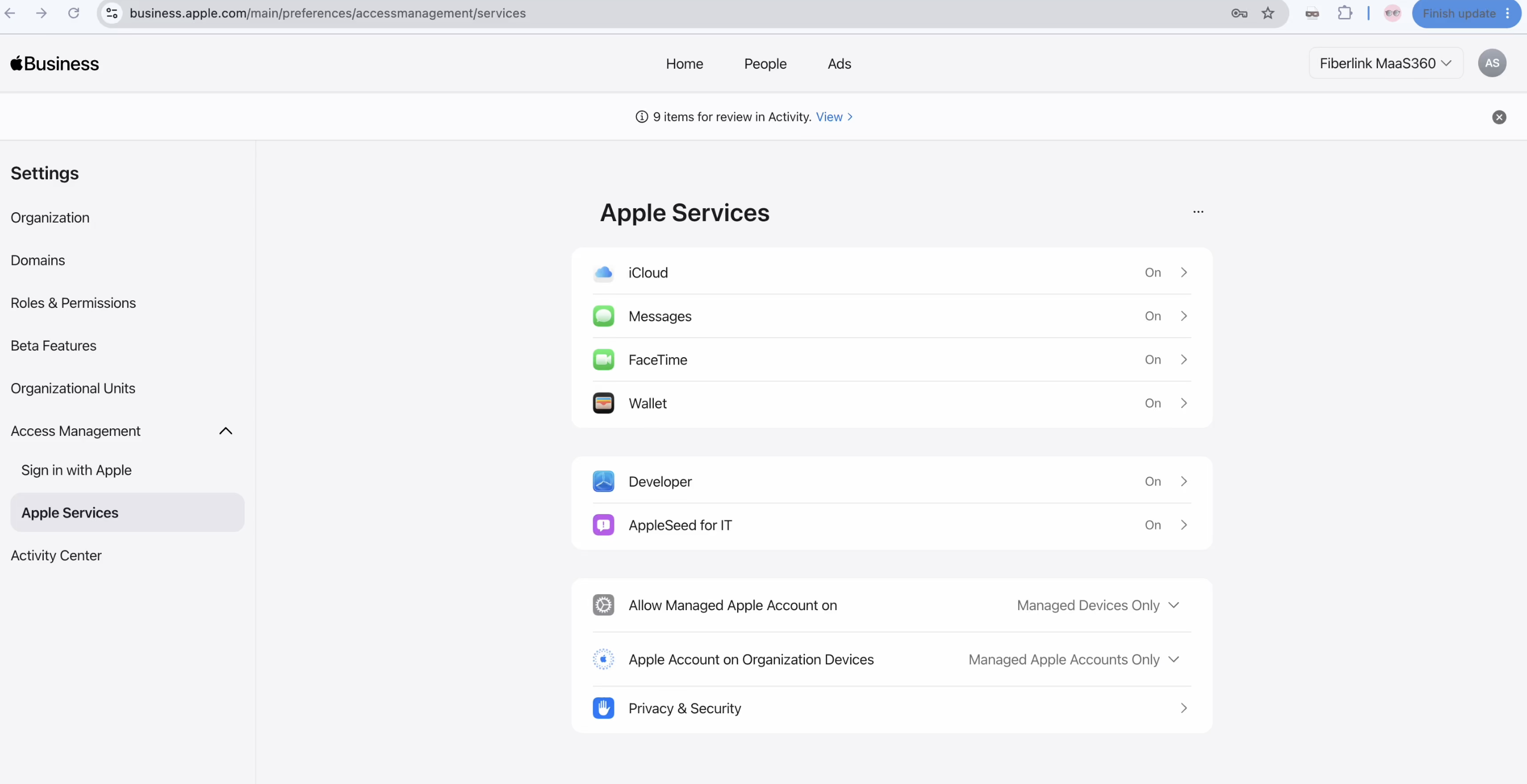
2. Managed Apple Accounts Only
Users can sign in only with their Managed Apple Account. Personal Apple Accounts cannot be used on the organisation's devices.
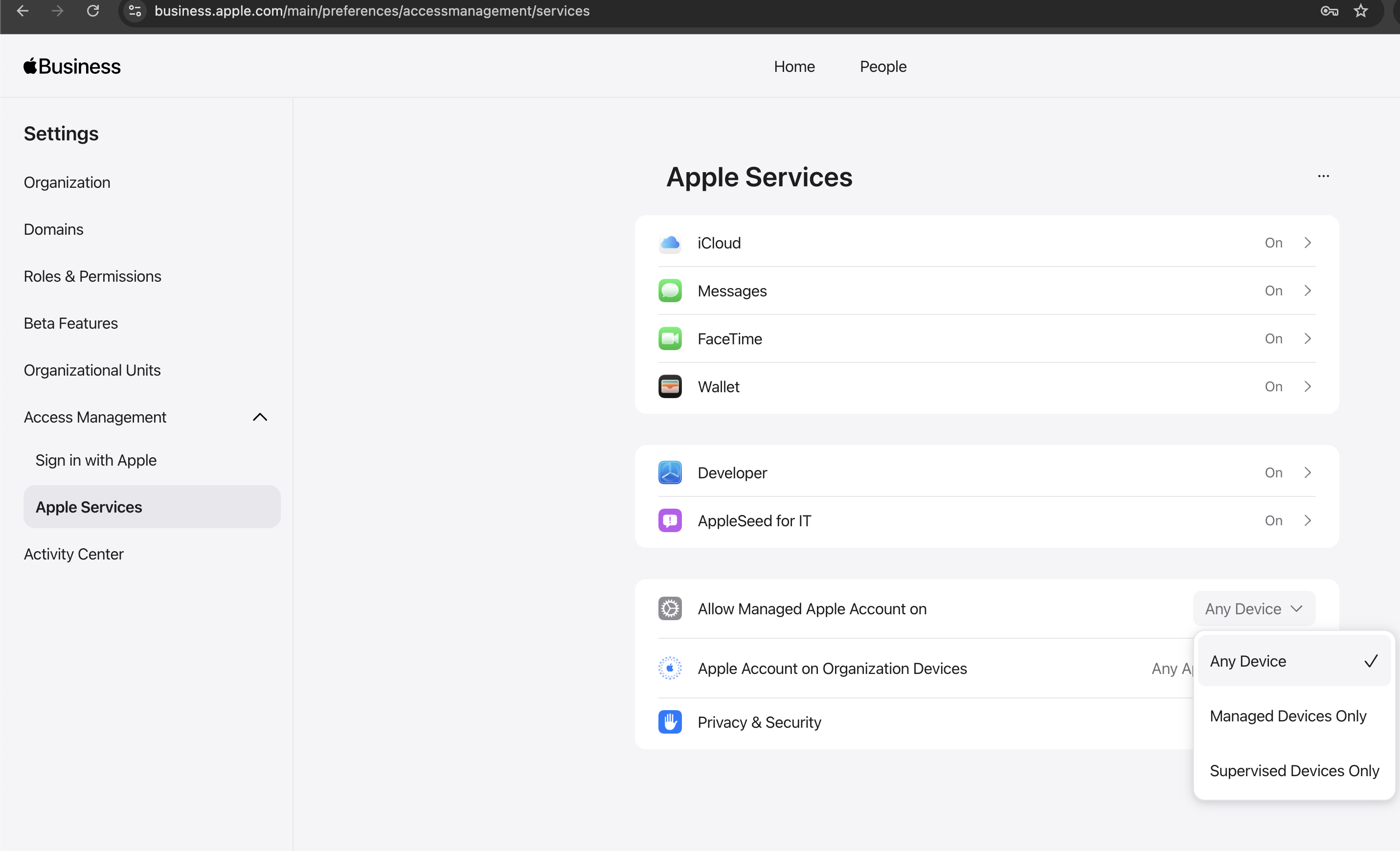
Apple Managed Apple Account On
1. Any Device
Users can sign in with a Managed Apple Account on any Apple device, including devices enrolled in MaaS360 and personal or unmanaged devices.
There are no restrictions on the type of device used to sign in with a Managed Apple Account.
2. Managed Devices Only
Users can sign in with a Managed Apple Account only on devices enrolled in and managed by MaaS360.
Unmanaged devices cannot be used to sign in with a Managed Apple Account.
3. Supervised Devices Only
Users can sign in with a Managed Apple Account only on supervised Apple devices.
Non-supervised devices cannot be used to sign in with a Managed Apple Account.
We made a few changes in MaaS360 to support the Managed Apple ID sign-in flow:
-
Choose a token: Admins can select an existing DEP/ADE token to use for Managed Apple ID sign-in.
-
Handle the sign-in request: When a device needs a token, MaaS360 creates a secure token and sends it back to the device.
-
Update existing devices automatically: Devices that are already enrolled don't need to be enrolled again. MaaS360 updates their MDM profile in the background.
And for the admin, there’s just one new option:
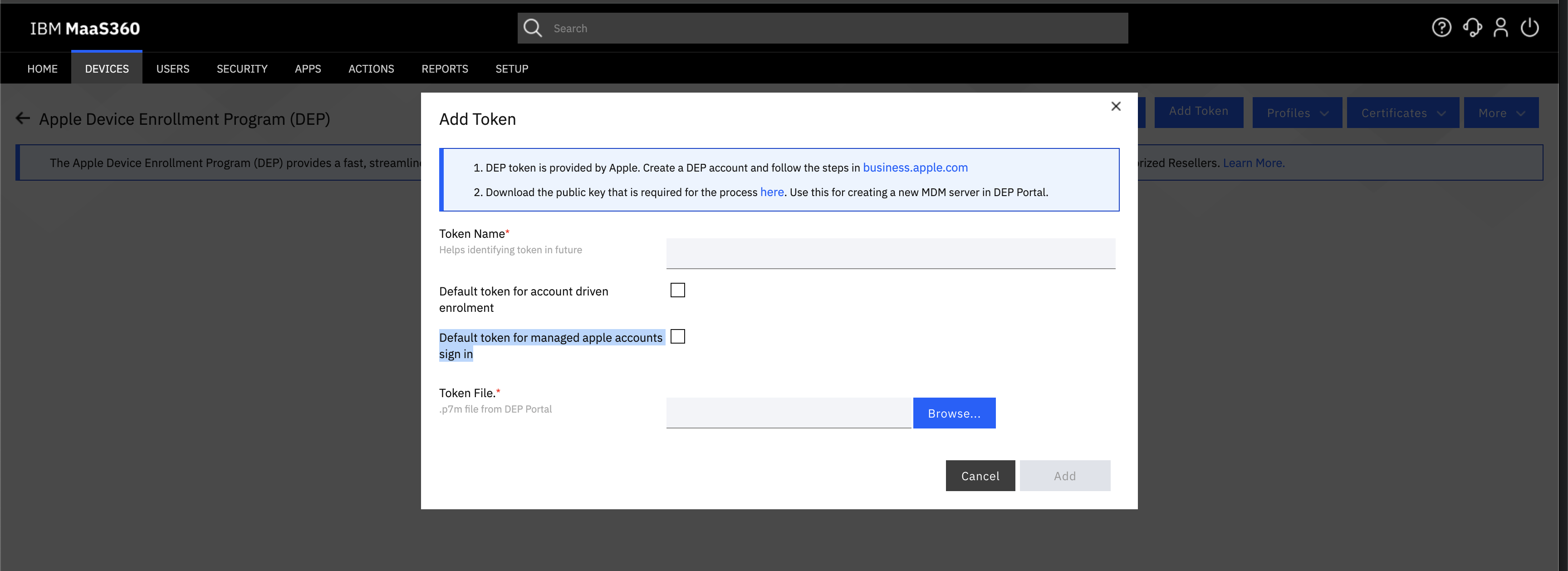
“Default token for Managed Apple ID Sign in”
Select the checkbox, and MaaS360 takes care of the rest.
Requirements
To use Managed Apple ID sign-in with MaaS360, you need:
Apple requirements
-
iOS 17.0 or later
-
iPadOS 17.0 or later
-
macOS 14 Sonoma or later
-
visionOS 2.0 or later
Organisation requirements
Prerequisite: Configure Allow Managed Apple Accounts in ABM
Before setting up the MaaS360 portal, the admin must configure the Allow Managed Apple Accounts setting in Apple Business. This determines which devices can sign in with a Managed Apple Account.
Once this setting is configured, proceed with the MaaS360 portal setup.
How Managed Apple ID Sign-in Works
1. The admin selects a MAID token
In the MaaS360 portal, the admin goes to token management and uploads or edits a DEP/ADE token.
They enable the checkbox: Default token for Managed Apple ID Sign in
MaaS360 saves this token as the organisation's MAID token. The admin designates a DEP/ADE token as the default MAID token as the organisation's default token for Managed Apple ID sign-in. Only one token can be designated as the default at a time.
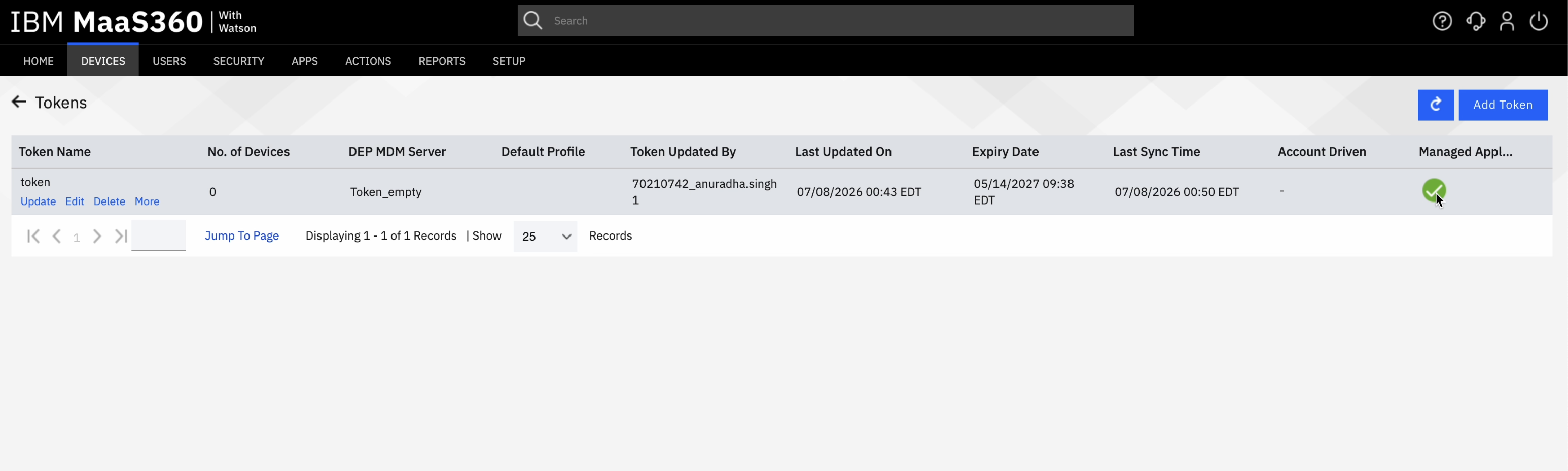
2. The MDM enrolment profile now supports Managed Apple ID authentication. This is enabled automatically for new enrolments, while existing devices are updated silently in the background by MaaS360.
3. The user tries to sign in with their MAID.
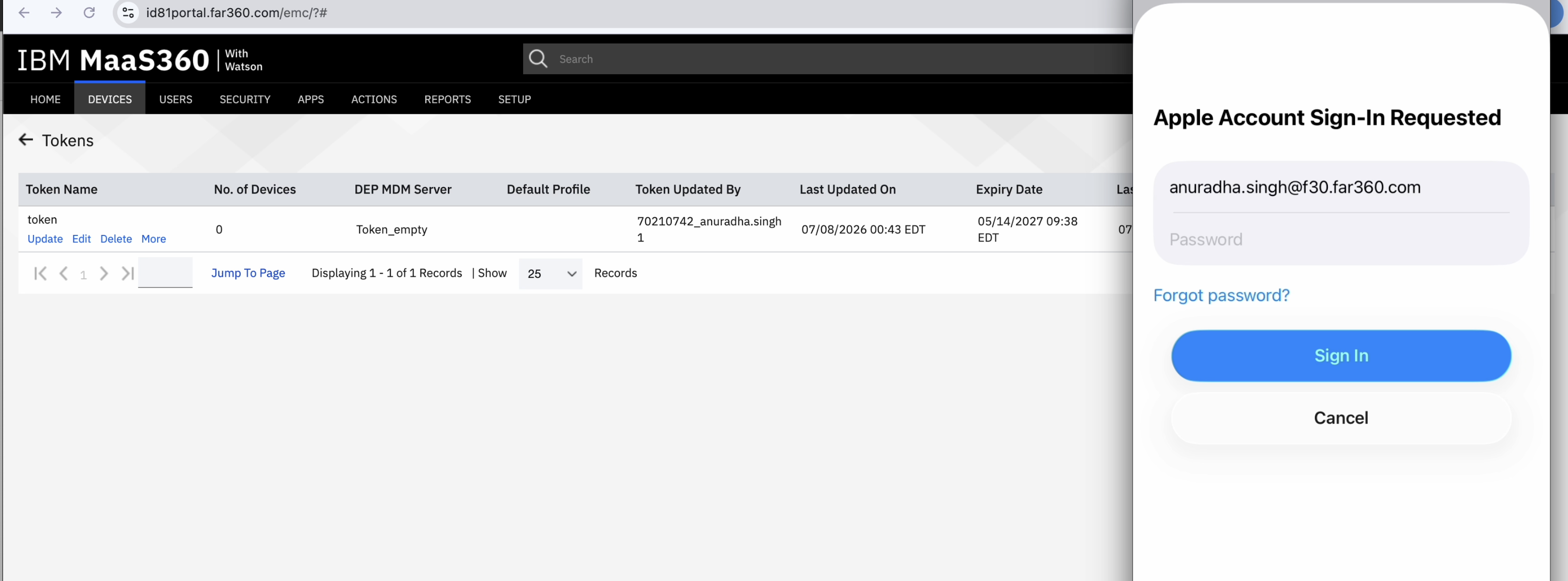
4. The token details are then used to complete the sign-in. And the Managed Apple ID sign-in completes.
What Happens Without a MAID Token?
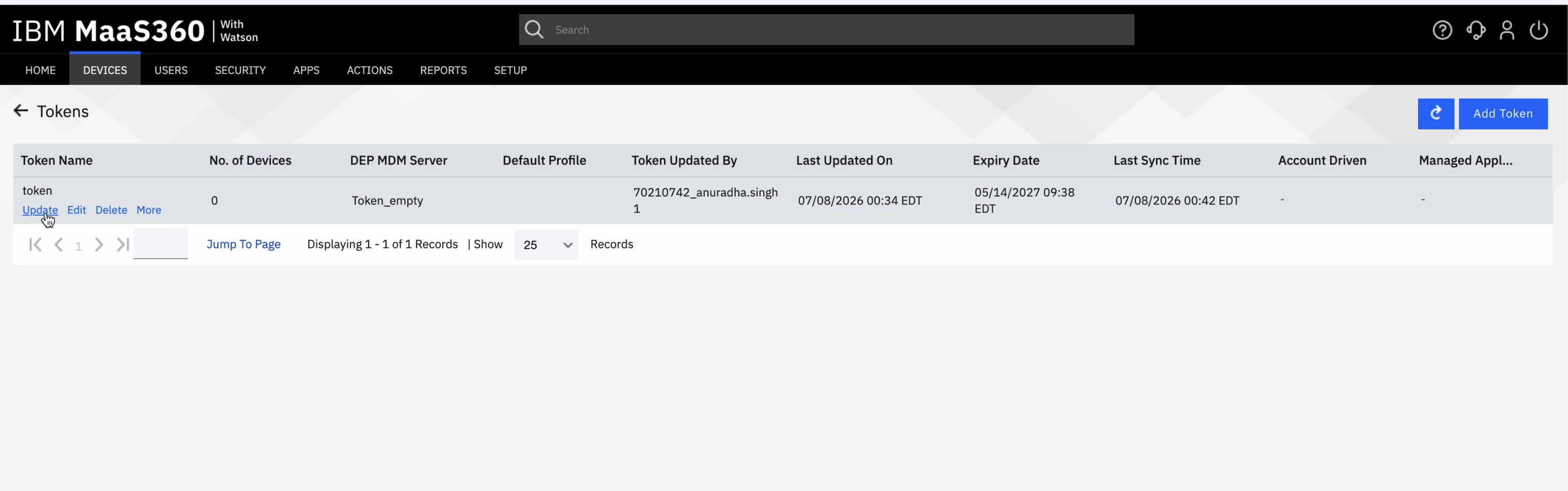
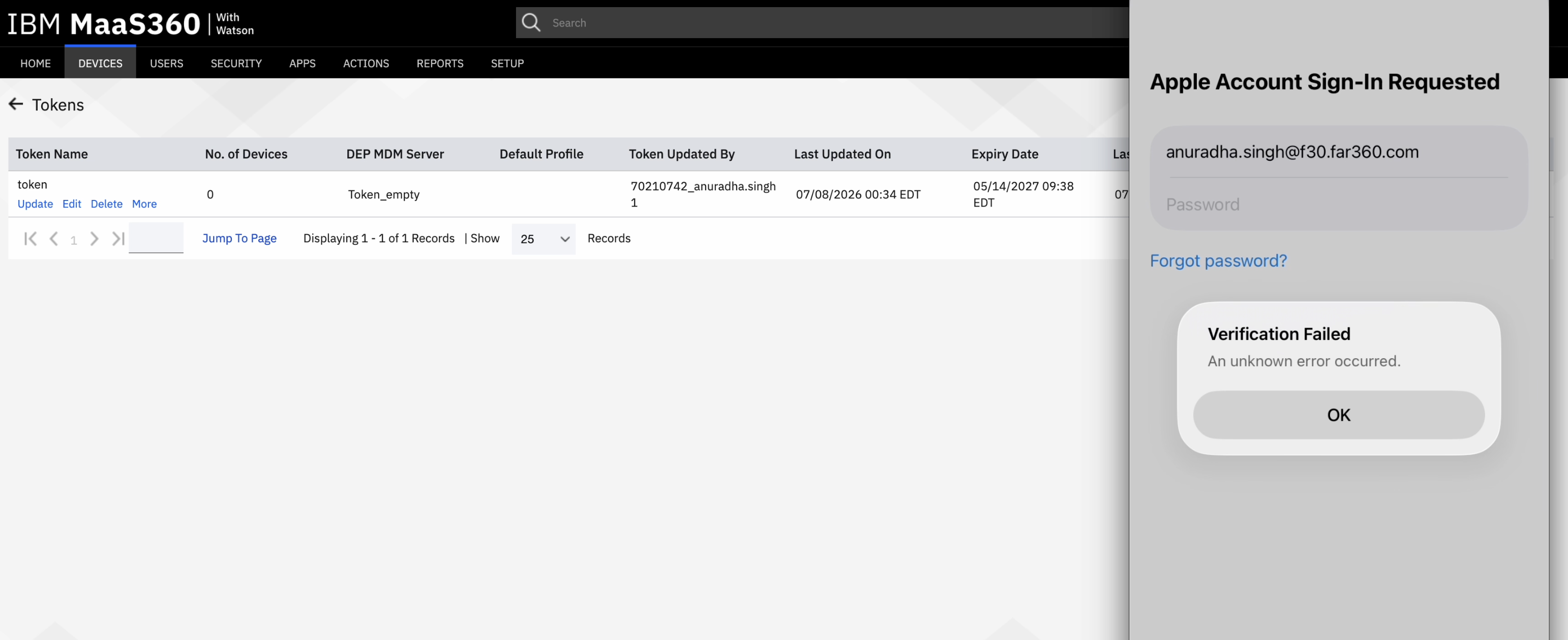
The “Default token for Managed Apple ID Sign in” checkbox is important for the sign-in flow.
Without a configured default MAID token, MaaS360 cannot provide the token required for verification, and the Managed Apple ID sign-in fails. The device may display a ‘Verification Failed’ message.
Once the admin selects the checkbox and configures the MAID token, MaaS360 can provide the required token and the Managed Apple ID sign-in can proceed normally.
What happens to existing devices?
Existing MaaS360-enrolled devices don't need to be re-enrolled. After the administrator enables the feature, MaaS360 identifies the applicable devices and updates their MDM profile in the background.
Devices receive the updated configuration the next time they connect to MaaS360. Offline devices receive it when they reconnect. For most devices, the update should complete within 24–48 hours.
Conclusion
MaaS360 makes Managed Apple Account sign-in easier to manage while giving organisations better control over where these accounts can be used.
An admin selects one DEP/ADE token as the organization's Managed Apple Account token. MaaS360 then handles the rest:
- Existing devices receive the required profile update automatically.
- New devices get the capability during enrolment.
- The device securely uses the token to establish trust with Apple.
- Organisations can control whether Managed Apple Accounts are allowed only on managed devices or only on supervised devices.
- When the restriction is enabled, personal Apple Accounts cannot be used in place of the organisation's Managed Apple Account.
For admins, it starts with a simple configuration. For users, the experience remains as close as possible to a normal Apple sign-in.
MaaS360 handles the communication between the device, the organisation, and Apple to establish a trusted and controlled sign-in experience.
#community-stories2