Is IBM Bob for you? If you do any kind of IBM Planning Analytics/TM1 (PA/TM1) development such as writing or maintaining business rules, feeders, TurboIntegrator (TI) scripts, SQL queries, and myriad other things, it can be a helpful productivity booster.
But – despite what you’ll hear - there IS a learning curve and a nominal subscription cost (after the free trial period), so the next question is whether it is worth it. This blog post series is intended to help answer that question AND save you some time (and frustration)!
That said, if you are a PA/TM1 developer who regularly works with TM1py or the REST API within Integrated Development Environments (IDEs) such as Visual Studio or Visual Studio Code (VSC), then this blog post may not be for you.
But if you are someone who has a business need, and are just trying to figure out the quickest and easiest way to get to a useful result, I hope this short series will be helpful!
Here’s what we will cover in Part 1:
- Getting and paying for IBM Bob
- Logging in to IBM Bob
- User interface basics, including finding the Chat window
In Part 2 we will talk about the basics of using IBM Bob for PA/TM1 development.
Getting IBM Bob
For a 30-day Free Trial go to https://bob.ibm.com/trial and follow the instructions to download and install it.
After the 30 days, subscription pricing begins at US $20 per month, as of September 2026.
The free trial includes 50 Bobcoins which are the currency of AI usage. If you exceed your Bobcoin allottment within a month, you will automatically be billed US $0.50 for each additional Bobcoin (as of September 2026).
To give you an idea of what a Bobcoin will get you, I have used 11.3 Bobcoins so far this month, which represents about 8 hours of interactions with Bob during which it (they?)
- built (and twice rebuilt) an MCP server to connect to my PA SaaS instance, did a bunch of troubleshooting with the connection
- ingested a “markdown” document containing my TI script coding standards (more on this in Part 2)
- wrote (from scratch) and tested a TI process to build a time dimension with roll-ups and a bunch of useful attributes AFTER reading a document I provided containing my coding standards (more on this later), and
- answered a bunch of questions
Logging in to IBM Bob
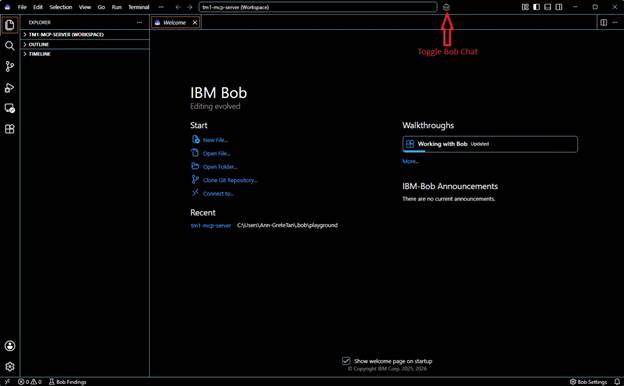
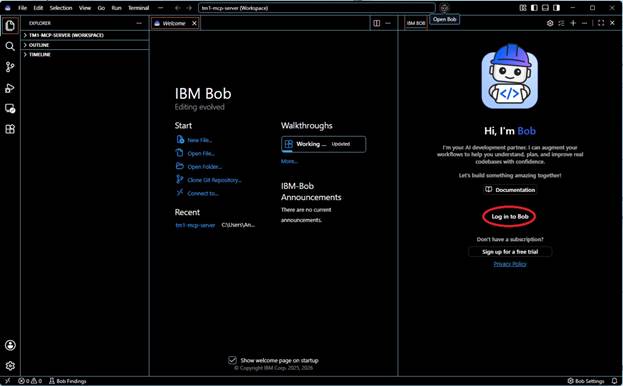
The first time you open Bob, you may see this welcome screen with no obvious place to log in or type in a question. If so, look for the little “Open Bob” icon just to the right of the search bar at the top (red arrow) and click it.
This will open a new panel to the right where you can log in using your IBM ID.
User Interface Basics
Once you have logged in, you will be able to type in questions and instructions similar to how you may have interacted with other AI chatbots such as Claude, ChatGPT and CoPilot. Pay attention to the Mode, which places limits on what Bob can do. The default available modes are “Ask”, “Plan” and “Agent”. Of these, only “Agent” mode can actually deploy and execute code, so if you are nervous when you are starting out with Bob, stick with the “Ask” and “Plan” modes.
Learn more about modes here: https://bob.ibm.com/docs/ide/features/modes
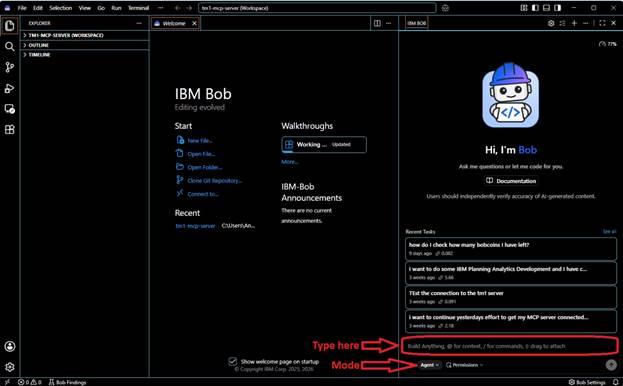
Once you get to this screen, Bob can help you find your way around. For example, I switched to “Ask” mode and asked Bob “How would you explain the Bob Explorer window (on the left) to a non-programmer?”
Here’s how Bob responded:
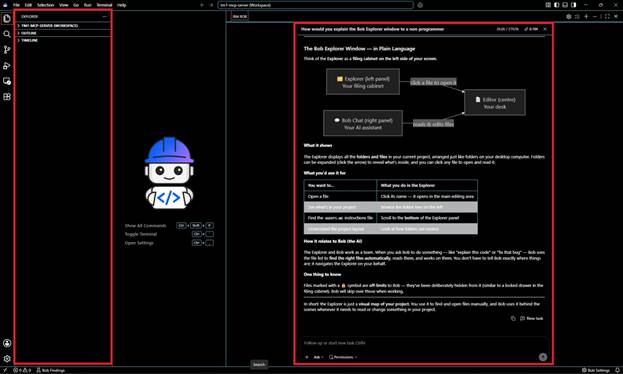
If you can’t read the response in the screenshot, ask Bob the question yourself!
Explorer panel
The Explorer panel on the left within IBM Bob basically shows you files and folders that you can ALSO see in Windows Explorer. Here’s an example shown side-by-side:
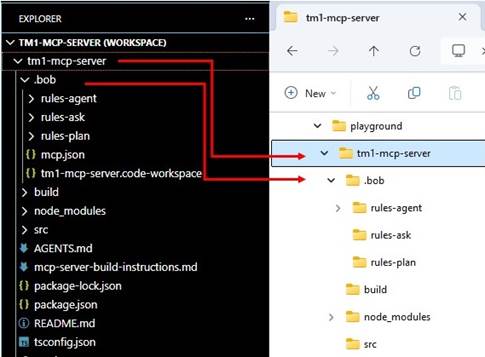
When you create or save a “workspace” in IBM Bob, you are creating/saving a folder structure that has a .bob folder within it. The rules-agent, rules-ask and rules-plan subfolders below .bob are where IBM Bob can store its “memory” of previous work. You don’t have to create any of these folders – they are created for you when you start something new! But I find it helpful to understand what they are for and where to find them.
- Confusingly, people sometimes use the word “project” to mean the same thing as workspace.
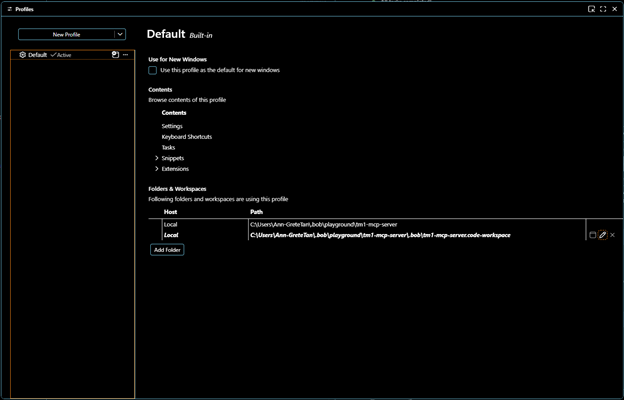
- In the Windows Explorer side of my screenshot above you will see a “playground” folder which is the parent for my Bob workspaces. I created “playground” during configuration. This location can be edited from the IBM Bob menu under File - Preference - Profile.
Open a file for editing by clicking on it in the Explorer. We’ll provide an example of when you might do this in Part 2 of this blog post series.
Terminal Panel
If you need to run a command in (for example) a PowerShell terminal, you can open a terminal window from the Terminal menu.
The kind of terminal that opens (PowerShell or something else) can be configured in Settings.
Settings & Governance
IBM Bob has extensive configuration options via Settings. Open Settings from the File à Preferences menu, or from the “gear” icon in the bottom left corner of the screen. Use the search bar within the Settings interface to find the setting that you want, which can range from fonts and screen colors to controlling Bob’s behavior, and more!
Some Settings relate to Bob’s built-in governance controls such as the Auto-Approve Action settings which determine what Bob can do without asking you for approval. For example, perhaps you are fine with Bob reading files and folders freely, but not with updating a file without asking for permission first.
In reality your comfort level may vary depending on what you are working on. When Bob was developing the custom MCP server for me, it needed to write a lot of source code and update many files. I decided that as long as it was updating files within the designated Workspace there was no need for me to approve each change.
Don’t forget that you can simply ask Bob for guidance on Settings and Governance!
Developing Expertise
AI assisted coding agents like IBM Bob present a brand new paradigm for software development that everyone is scrambling to figure out. Meanwhile PA/TM1 development is a specialized skill within the overall universe of “coding” where more complexity comes from business requirements than the code itself.
Everyone is new to this, and I too have much to learn. But the one piece of advice that does make sense is to “play with it”, and I hope that this blog post will help you get going more quickly than I did!
The next blog post in the series, Part 2, will talk specifically about PA/TM1 development.
Please comment and let me know if you have found this useful, and why – or why not!