App Connect Integration Runtimes can make extensive use of connectors. There's also an increasing number of people using Agent Harnesses (such as IBM Bob) to interact with different systems. We'd like to bring the two together in a safe and reliable way via our IBM Integration SaaS App Connect capability.
To support this we have delivered a feature that allows Agents to interact with connector actions that you can choose to expose as MCP Tools via an MCP Server. This all runs inside of your Integration Runtimes. It reuses conventions that are already present throughout App Connect (in terms of Configurations, Runtimes and BAR files) and in this blog post we'll run through the common functions you'll want to be doing so that you can get started and see if this makes sense for you.
Getting started
We’ve added a new MCP Servers page that provides an overview of all your MCP servers and lets you create, edit, and delete them too. You can access the MCP Servers page from the App Connect navigation pane.
After you click "Create MCP server", you'll be presented with two options: "Connector as MCP tools" and "REST API endpoints as MCP tools".
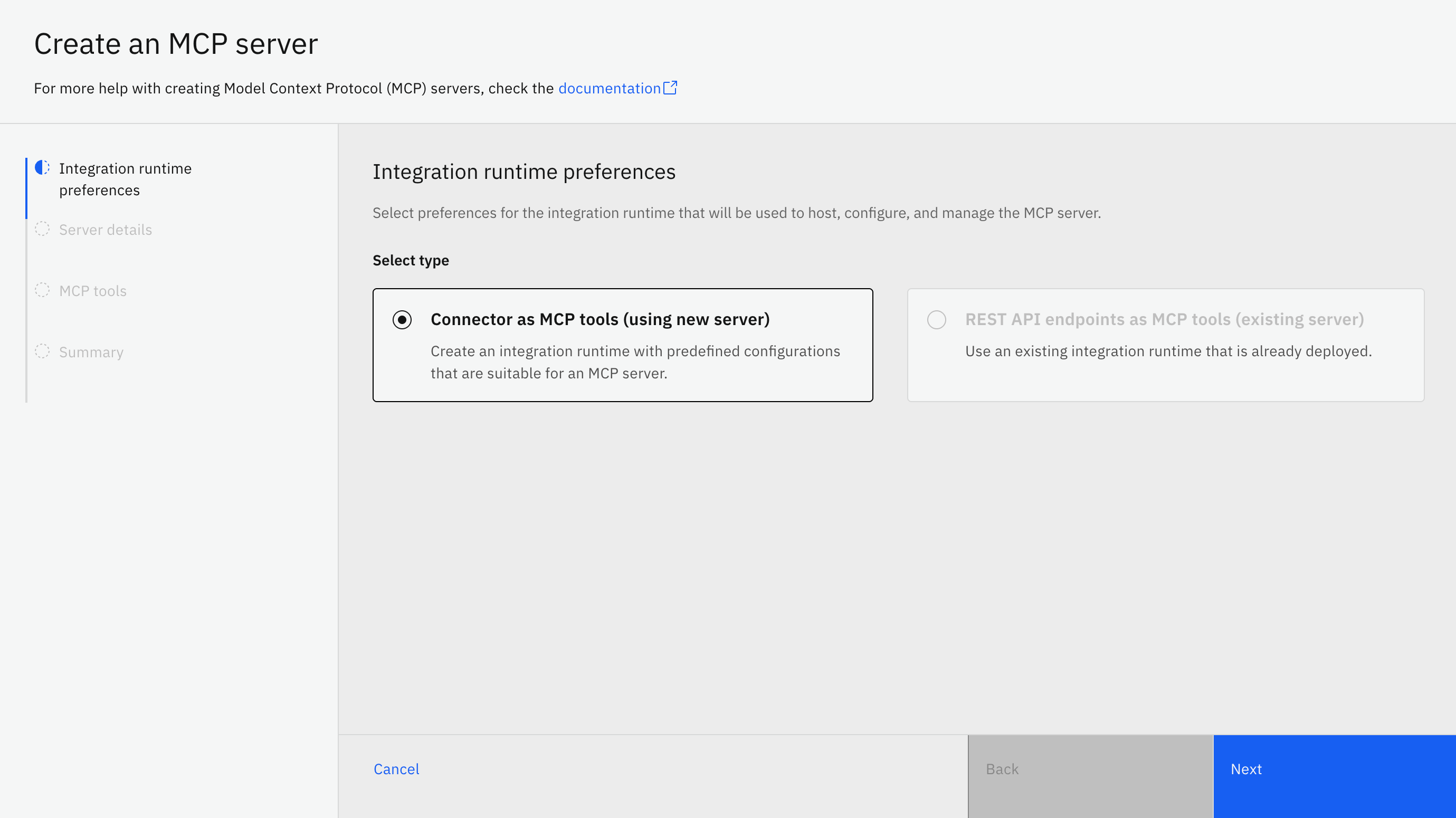
We'll be focusing on the "Connector as MCP tools functionality" here.
Upon clicking Next, it’s time to choose a name for your MCP server and to think about the version of the underlying Integration Runtime you want to use:
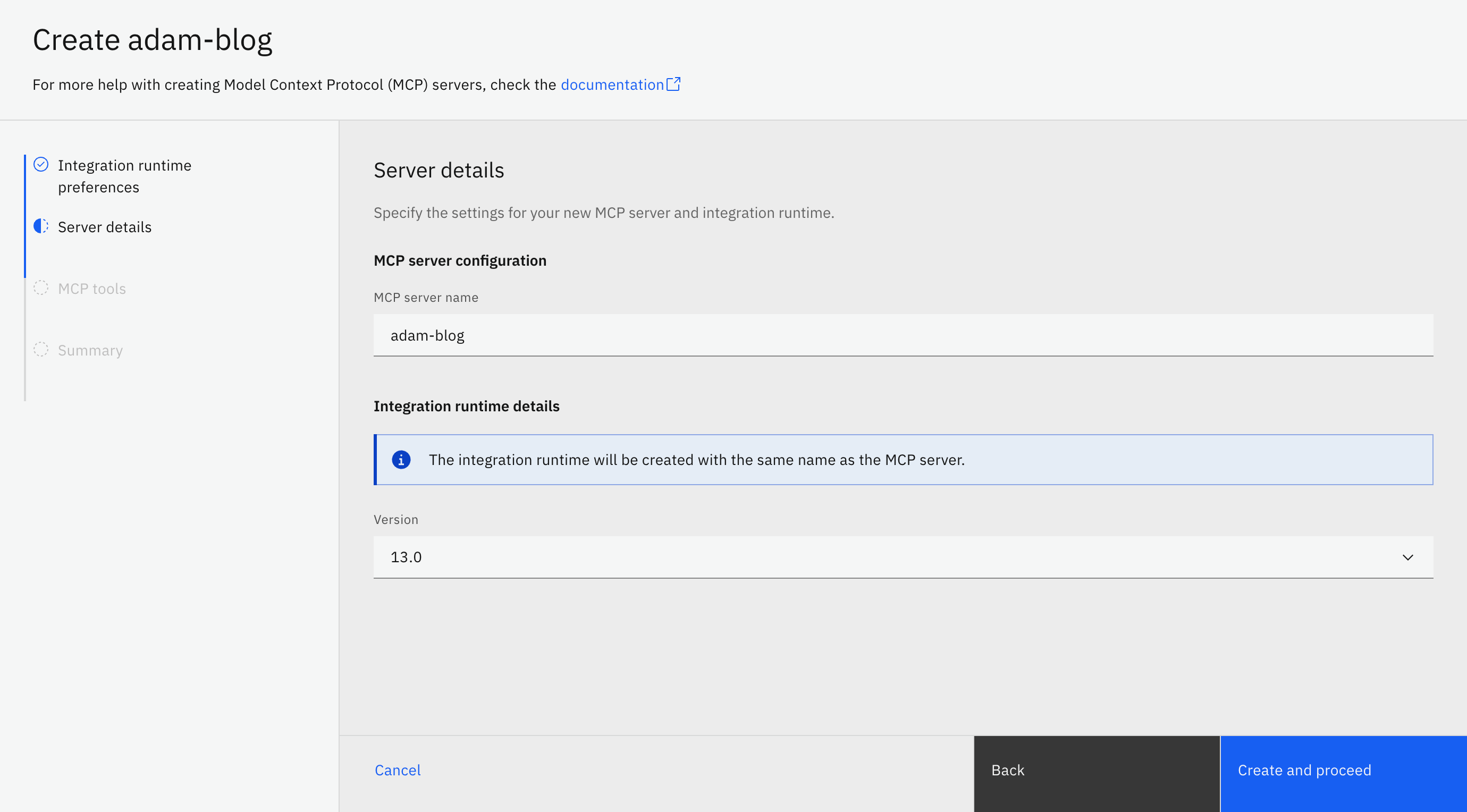
At the time of this blog post, we allow three versions to be selected:
13.0, 13.0.8 and 13.0.8.0-r1. This allows you to either:
-
Get the latest 13.x version (e.g. 13.0.8 or 13.0.9 or 13.0.10, if those were to be available) – which means when the underlying operator and runtime version increases, depending on the version number your underlying Integration Runtime will be upgraded automatically
-
Get the latest 13.0.8.x version
-
Stick to a particular patch version and not have automatic updates applied
The choice is yours and you should carefully consider this as you would when making any Integration Runtime through the existing Manage experience.
Upon picking a version you are happy with (and choosing a suitable name), click to proceed and we will create the Integration Runtime and a Configuration and wait for these to become available. The Integration Runtime serves up useful APIs that we will be using internally to set up your MCP Server.
Once the underlying Integration Runtime and Configuration resources are ready, it is time to start adding the MCP tools and actions.
Let’s say we wanted to use Cloudant with IBM Bob. You are presented with a list of connectors to choose from.
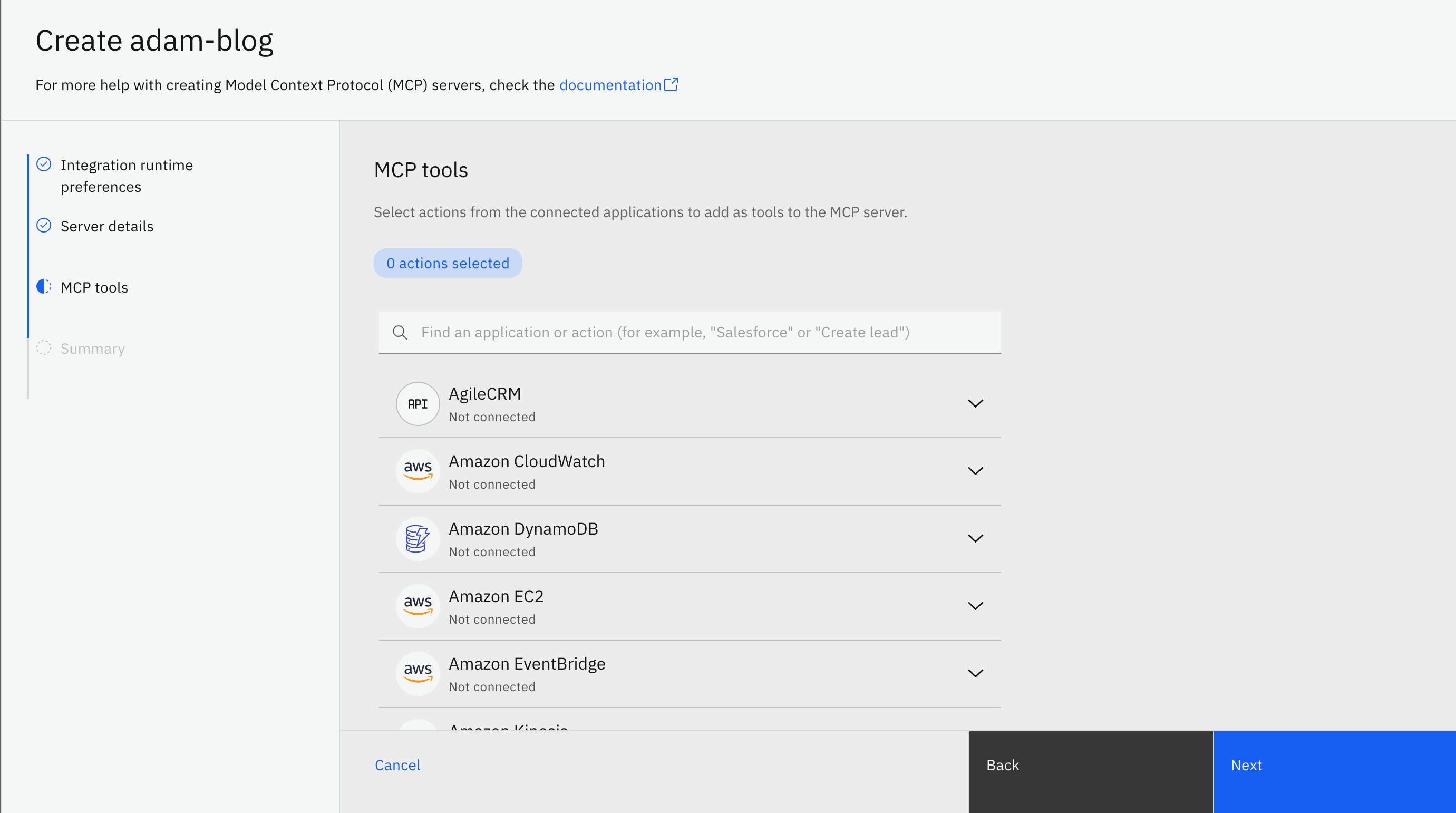
I want to use Cloudant so I search for it:
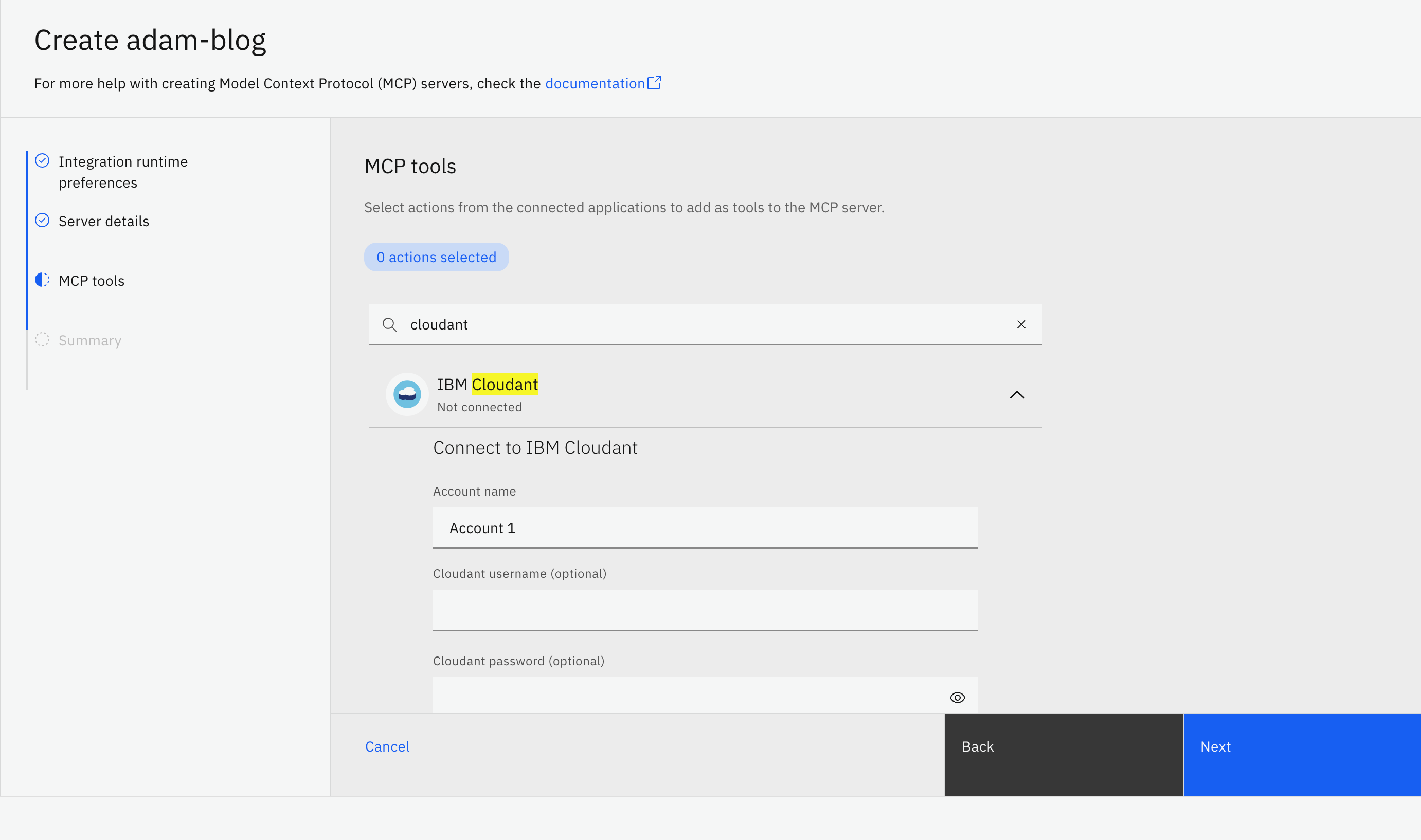
Click Connect and fill in your connection details. Once connected, you’ll begin to choose the actions that you’ll be able to do. We don’t let you create an MCP server if it has no tools and no actions as that wouldn’t be very useful.
For my example, after connecting successfully I chose to allow just the one action to be used - Retrieve databases: 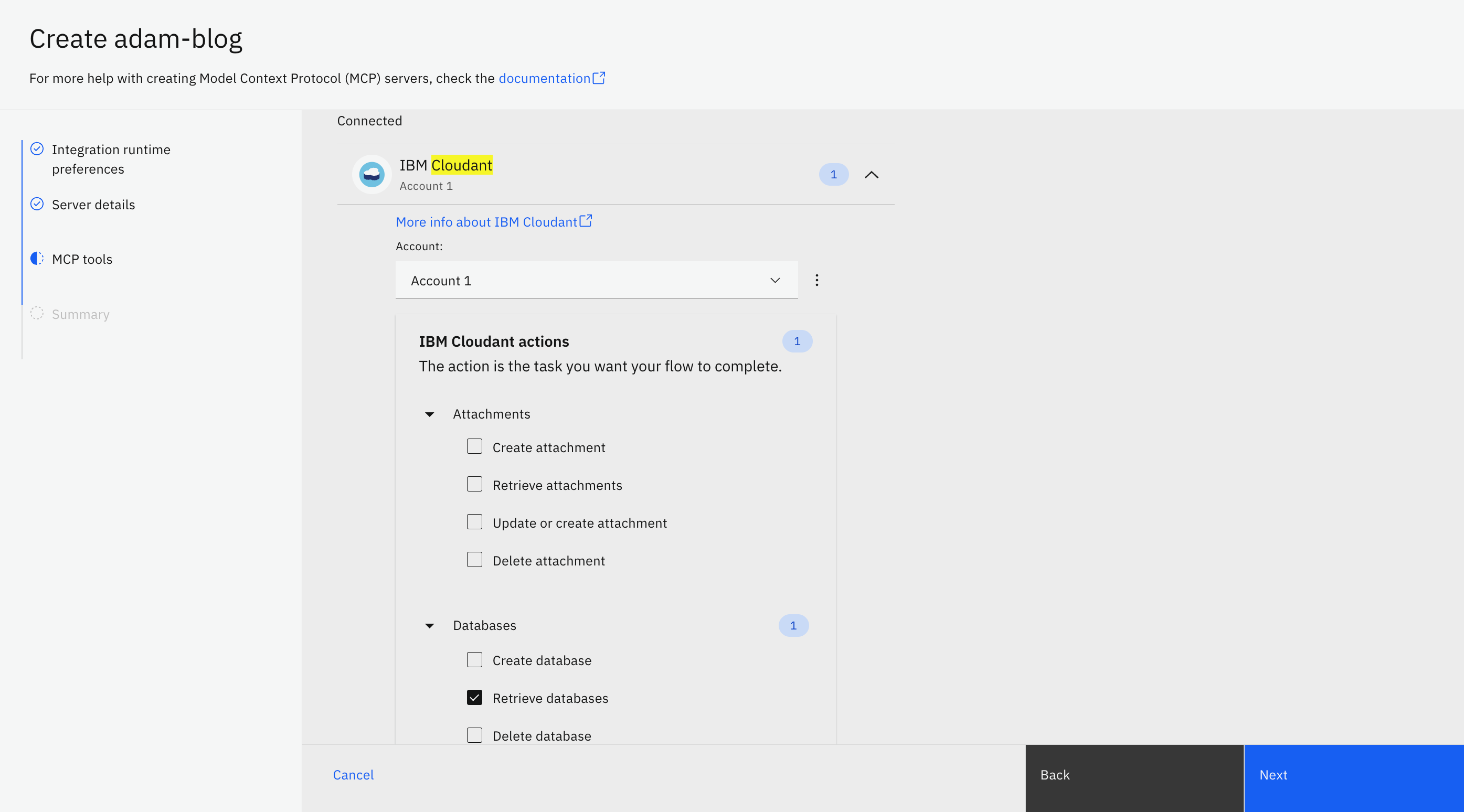
On clicking Next, we can review what will be created:
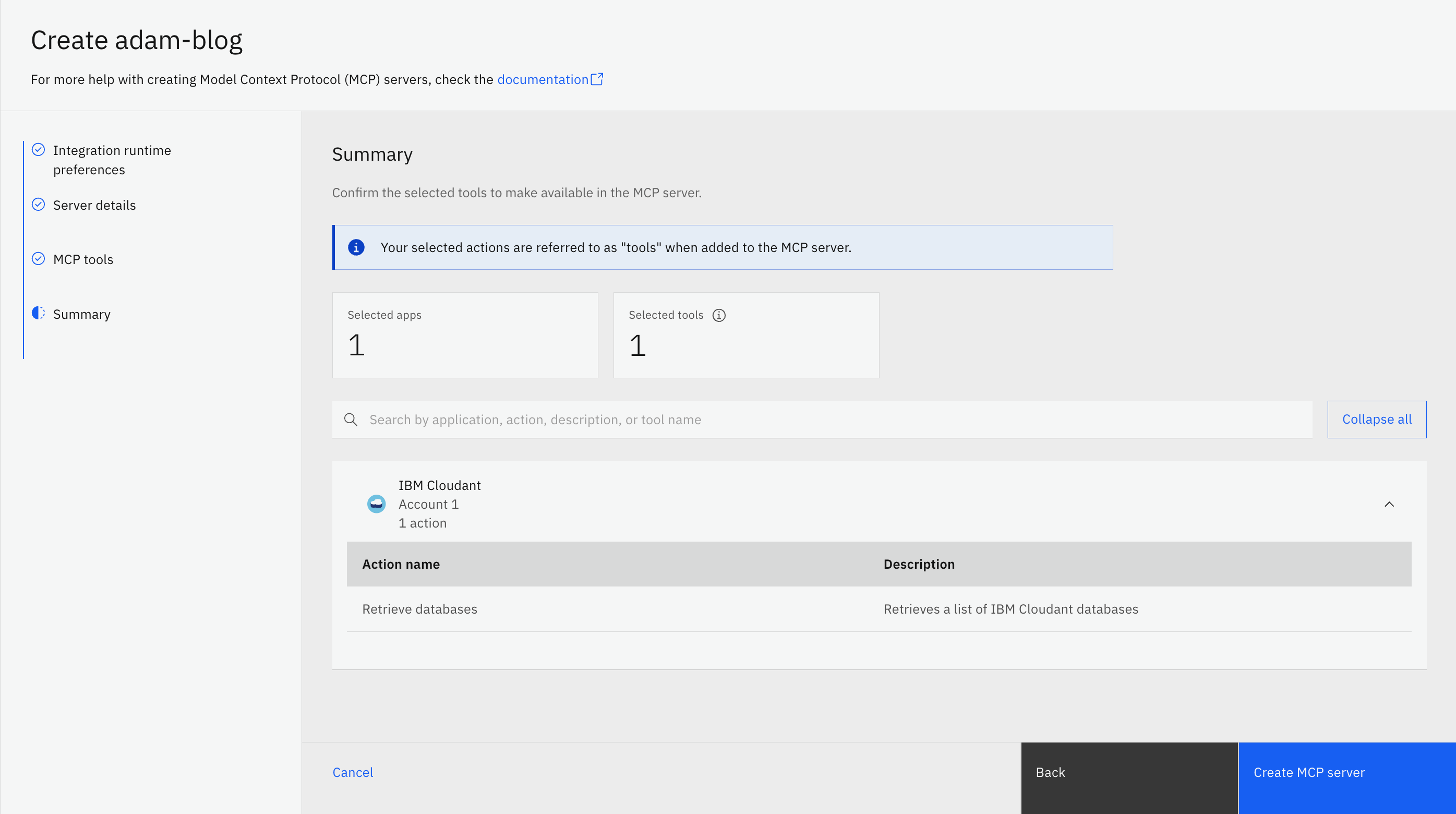
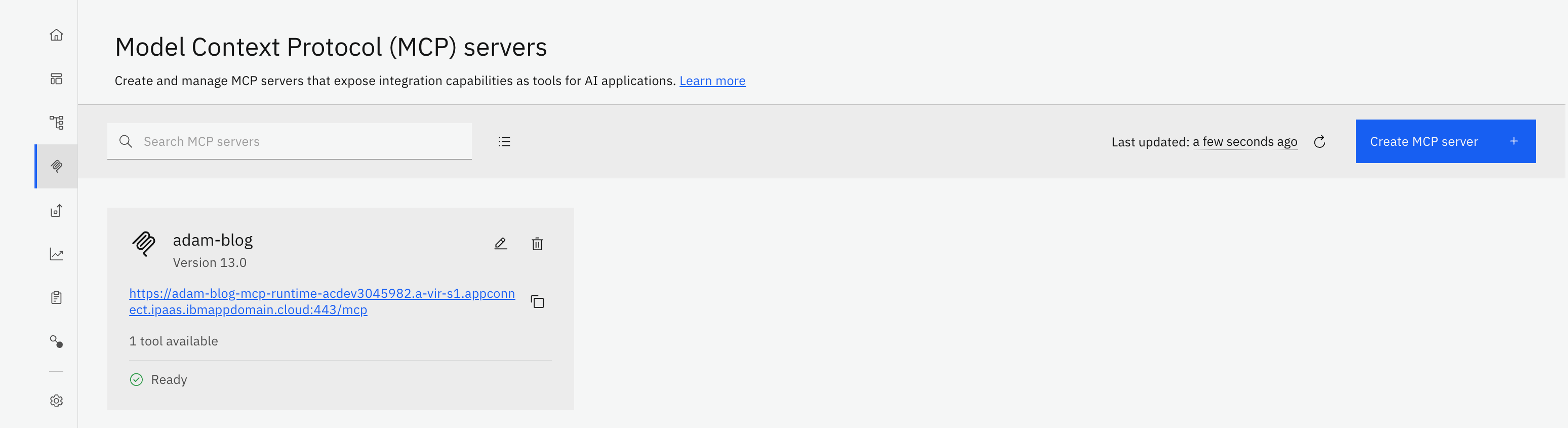
Click Create MCP server and we'll create a BAR file (the deployment artifact for your integration resources) for you and update the Integration Runtime to make use of it. On completion you will then see your MCP server in two different views.
On the MCP Servers page:
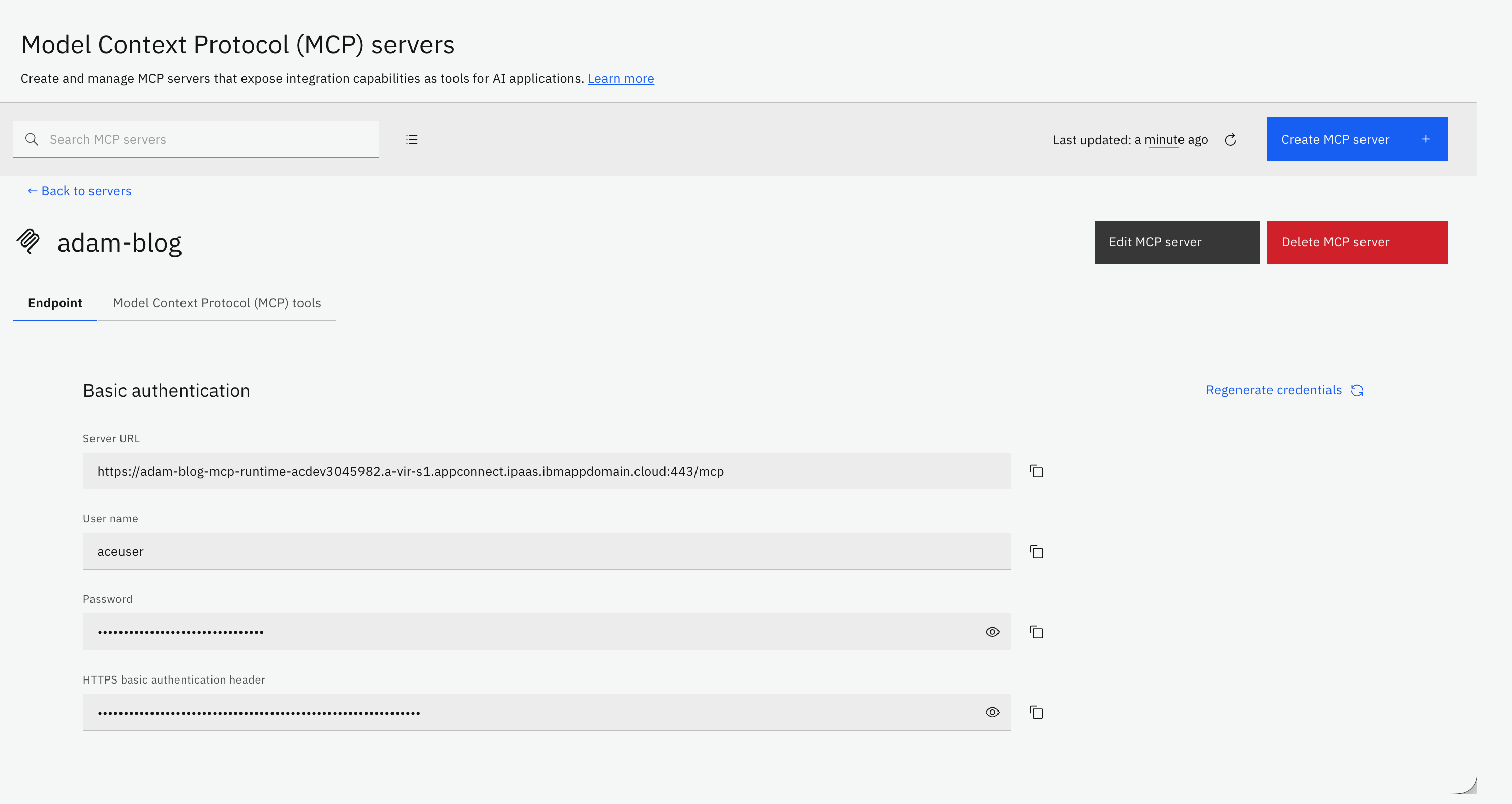
On clicking into this you will see:
and also on the Manage view, featuring a clear indicator it is an MCP server:
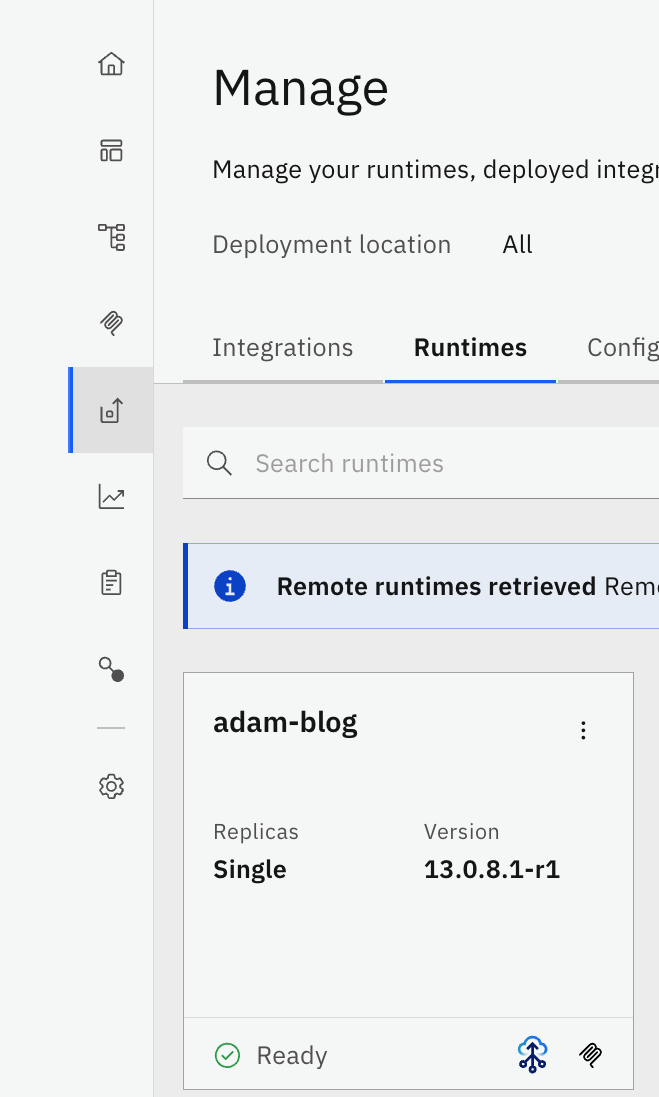
Once created, you can interact with it in the following ways.
-
Use the MCP servers page to update tools or view the credentials that agents need to connect to the server.
-
Use the Manage page to update the integration runtime.
-
Configure agents to use the streamable HTTP transport to discover and call the server's tools.
Regenerating credentials
You will have noticed a button to "Regenerate credentials". On clicking this, the page will refresh and a new set of credentials will be available for you to use. The previous ones will no longer be valid. Note: there are two different sets of basic auth credentials in use by the Integration Runtime. The credentials manageable via the MCP Servers page are specific to the MCP server. These are separate from the basic auth credentials used to invoke flows on the Integration Runtime itself.
Using MCP servers with Bob
With Bob there is a Settings pane that lets us add new MCP servers. More information can be found in the Bob docs. Following instructions there, I click to add a new MCP server in my global workspace. I end up with $HOME/.bob/settings/mcp.json, on my Mac, and I can use the information from the MCP Server Summary page to connect to it. The following screenshots show me connecting...
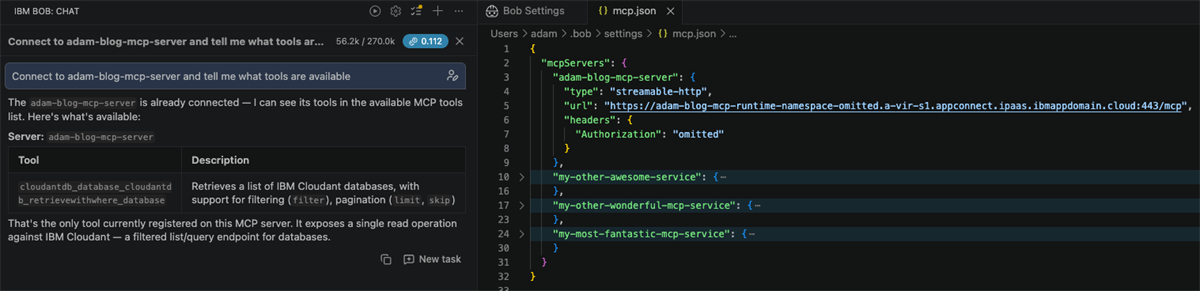
asking about Cloudant databases...
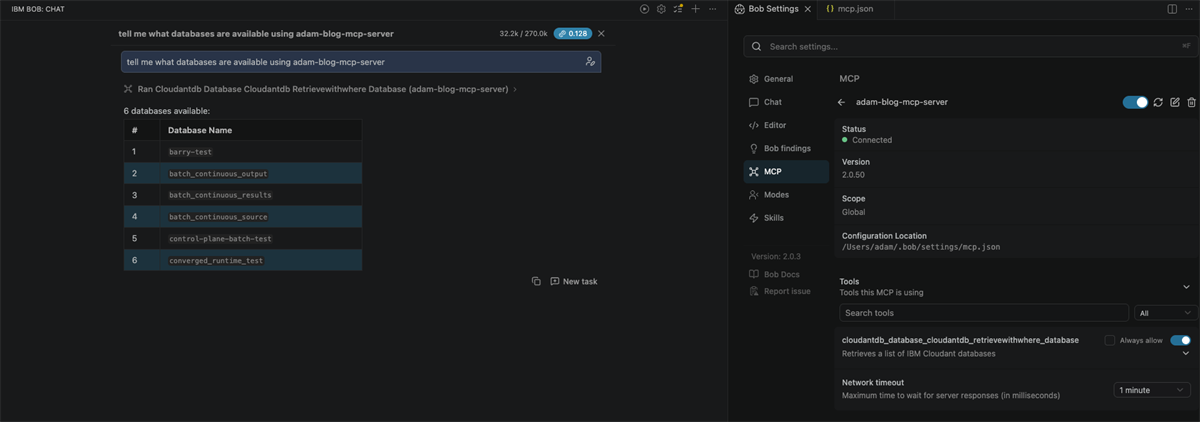
and even using Bob to summarise each finding (complete with retry handling happening for me). I include this as it would still count as an invocation of the integration and so would show up as extra invocations for billing and the Monitor page. It is up to you to ensure any connected MCP Clients (for example, through Agents) are configured with sensible timeout periods and retry behaviour.
We could use Bob to ask all manner of questions about our resources and it is up to you to decide what tools you would like to be made available.
This is one small example but you could invoke any action(s) on any connector(s) of your choosing - and you could think about having these actions as part of a workflow that interacts with our systems too (including our own - perhaps making use of our existing Public API I've shared here).
Tidying up
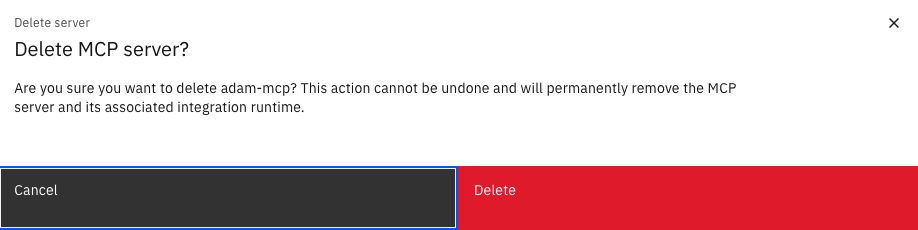
We can delete the MCP server via the MCP Servers page and this is the recommended route as all required resources will be cleaned up for you. Alternatively, we could delete the Integration Runtime, Configuration and BAR file, but…where’s the fun in that? They are all visible via the Manage page. We recommend that you don't edit the created resources because we manage and update these for you.
FAQ
Can I use this to connect to applications in a private network?
Yes – we attach the default Private Network Agent Configuration for you when you create an MCP server. Be aware an Integration Runtime can only have one Private Network Agent Configuration connected to it at a time. There is also the option to use our Private Link functionality.
How do I debug and observe what my MCP Server is doing?
You would use our existing Logs page just like you would for any other Integration Flow in your instance - note that you may need to turn on trace to see what happens from the underlying Runtime perspective. Any errors should be passed back to the client and so any important logs would be available there. When we saw the timeouts earlier, I asked Bob to show me the logs it had access to and I noticed: MCP error -32001: Request timed out.
How will the Monitor page look?
The MCP Server is another Integration Runtime and so you will be able to observe its resource usage as you would any other.
How do the metrics work?
We consider each Tool to be an integration flow so you can see your Tool’s invocation stats just like you would for an integration flow.
Is there a public API for this?
Yes - see the latest spec for details. At the time of this blog post you can retrieve the MCP Server credentials and you can also download and reupload the BAR file and Integration Runtime. You will need to recreate the Configuration with any credentials on hand and make sure the Integration Runtime has the annotation "com.ibm.appconnect/is-mcp-server" set to "true" in order for the Integration Runtime to function as an MCP server (this will already be set if you are copying an Integration Runtime from one environment to another).
Can I use it with <myFavouriteConnector>?
Hopefully – if it’s in the list!
How does this differ from what is already available through ACE Certified Containers?
We provide a different MCP Servers overview page and use different APIs under the covers but otherwise the experience is intended to be identical. We don’t provide a license selection modal as we handle this for you – and we only offer Integration Runtimes at version 13.0.8 or later.
What’s next?
-
Explore the docs and get started
-
Join appropriate communities and share your feedback
-
Create something interesting that you would be proud to share
References
Our documentation, at the time of this article, can be found here:
Conclusion
As more and more systems want to talk to more and more systems (be it AI Agents, Tools, other REST APIs, MCP servers, and people!), it is increasingly important to have a well defined way of managing and connecting different services. We've provided this and we want you to make use of it and to let us know your opinions. Where are the pain points for you? What aspects do you like? What will you build with this? Get in touch and build something awesome.